
A.I. Connections - BYOK
What is A.I. Connections (Bring Your Own Key)?
A.I. Connections lets your company connect its own A.I. provider and run A.I. features on your own tokens, as an alternative to the paid A.I. Service. Instead of system supplied model and token, you paste in a key from a provider you already pay for (such as OpenAI, Anthropic, or Google Gemini), and every A.I. feature in the platform runs on your provider and your spend.
This is often called BYOK, short for "Bring Your Own Key." It is configured once by a top-level admin, and it then applies platform-wide. Nothing changes for your account unless you choose to connect a key, so if you are happy with the paid A.I. Service you can ignore this entirely.
IMPORTANT: The A.I. Connections tab is visible only to the Super Admin and Admin Manager roles. Connecting a billing-bearing API key is a high-trust action, so it is restricted to your top-level admins. Other Staff and Contacts never see this tab.
How do I connect an A.I. provider?
Navigate to Organization Settings in your Flyout Menu.
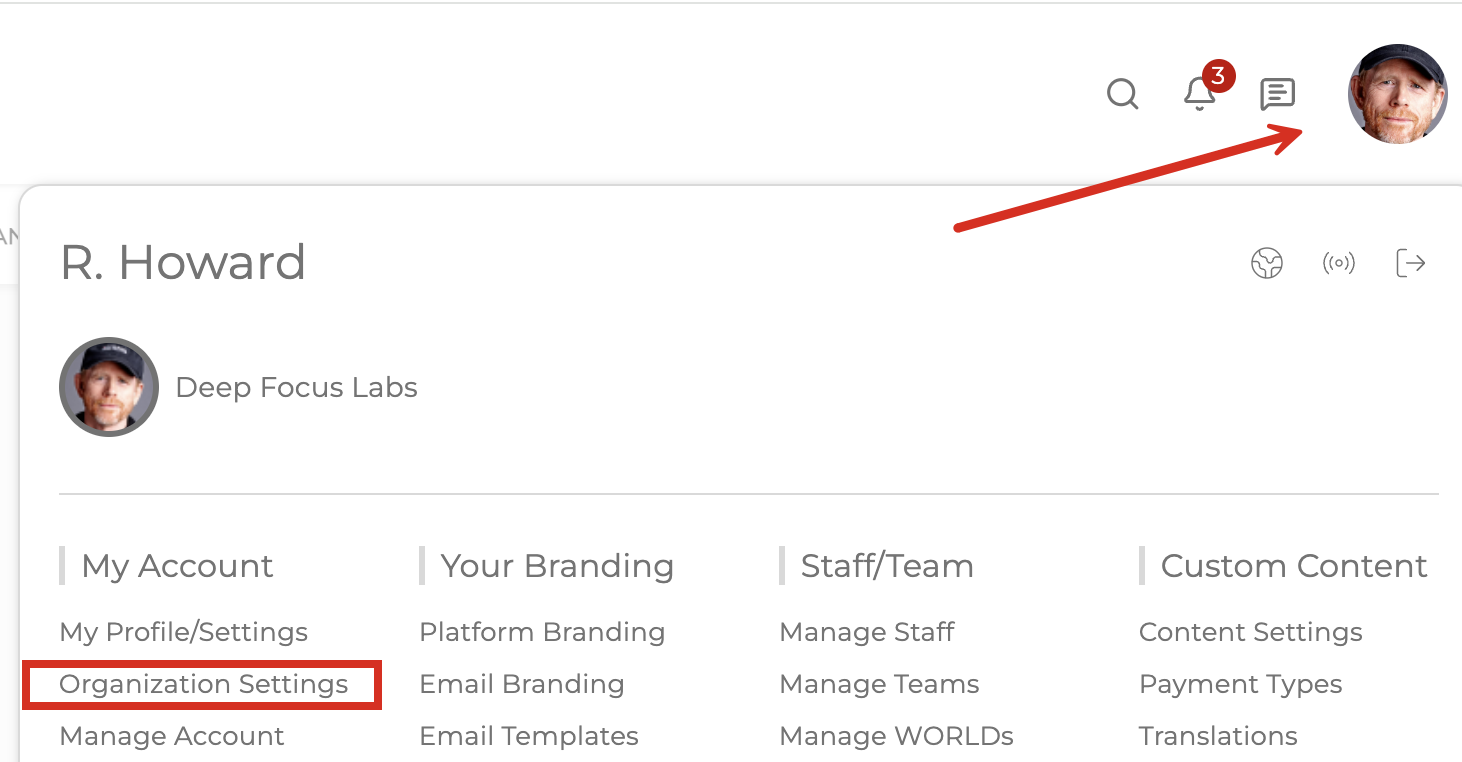
Then navigate to the A.I. Connections tab.

Click Add Provider, then choose your provider from the preset list.
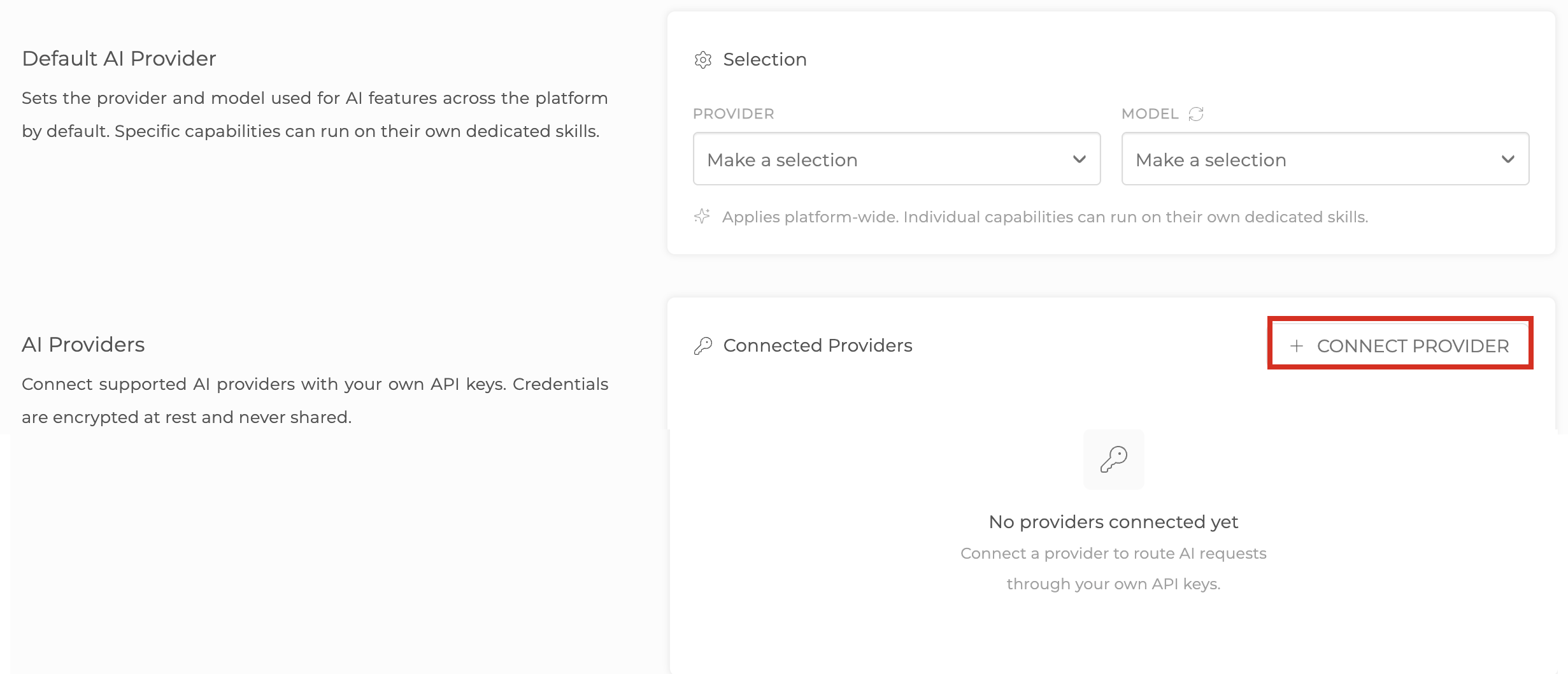
There are 11 built-in providers plus a Custom option:
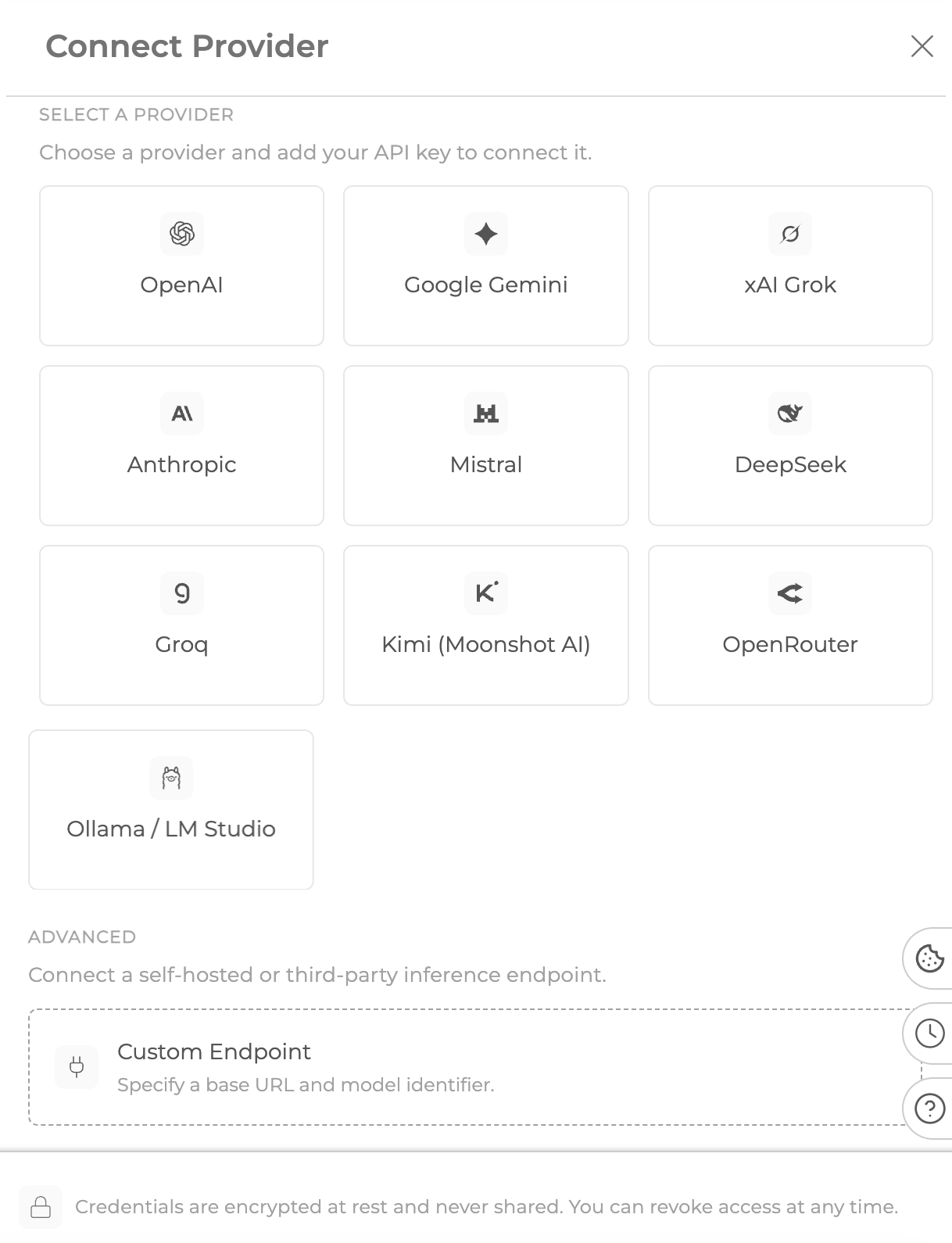
- OpenAI, Google Gemini, xAI Grok: full support, including image generation.
- Anthropic, Mistral, DeepSeek, Groq: text features only (see the image section below).
- Ollama / LM Studio: for locally hosted models.
- Custom: any OpenAI-compatible provider not in the list. You supply the Base URL and key yourself.
Picking a preset fills in the correct Base URL for you. Paste your API key into the key field.
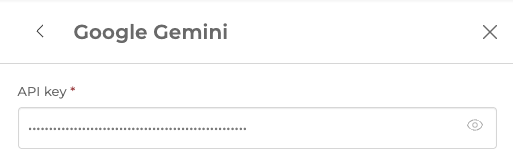
Click Verify. This will run a tiny live test call against your key to confirm it works before anything is saved. If the key is valid, the connection is saved and marked Verified. If it fails, you see a clear reason and nothing usable is stored.
TIP: Verify can tell the difference between a bad key and a valid key that simply has no credits. If your key is correct but your provider account is out of credits, it will tell you that specifically, so you know to top up rather than re-check your key.
How do I choose a model?
Once you have entered a valid key, the Default Model field loads a live list of the models your key can actually access, ordered with the newest models first. You are not guessing from a static list, you pick from what your provider account is genuinely entitled to use.
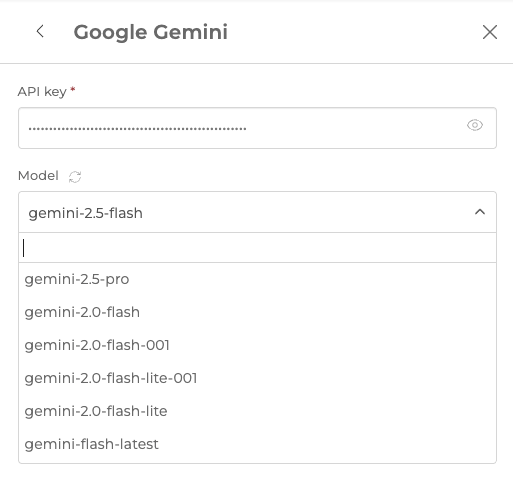
Select the model you want as your default, then save the connection. This model powers your A.I. features going forward.
How do I manage connections and set the active provider?
All of your connected providers appear in the A.I. Connections list, each showing its status, a masked key, and its last-verified state. You can connect more than one provider, but only one is active at a time, and that active provider powers every A.I. feature across the platform, both text and image. It is not split per feature or per type of content.
The first provider you connect automatically becomes your active provider. To switch, select a different connection as the active one. To retire a connection, use Remove.
IMPORTANT: If a connected key later stops working (for example it is revoked, expires, or runs out of quota), your A.I. features return a clear error and the connection is flagged as needing re-verification. Your account will not silently fall back to the paid A.I. Service, so you are never billed for A.I. you thought was running on your own key. Only the complete absence of a connected provider uses the paid path.
How does the editor use my connected provider?
When your company has a verified connection, the editor's A.I. actions (translate, generate text, and generate image) run through your connected provider on your own tokens, with no paid A.I. Service involved. If you have no connection configured, the editor's A.I. works exactly as it always has on the paid A.I. Service.

How does image generation work?
Image generation follows what your connected model can actually do:
- Image-capable providers (such as OpenAI, Google Gemini, and xAI Grok) generate a real image on your key, exactly as before.
- Text-only providers (such as Anthropic, DeepSeek, Mistral, and Groq) have the image button disabled with a friendly notice explaining that the model does not support images.
Images are never faked and never quietly billed. You either get a genuine image from a provider that supports it, or an honest, clearly disabled button.
How do I add an Image Skill (for text-only providers)?
If your active provider is text-only but you still want image generation, you can add an Image Skill. An Image Skill is a scoped, image-only second connection that fills the gap your main provider does not cover, without changing your preferred text provider.
The option to add an Image Skill appears inside the "this model doesn't support images" notice, and only when your active provider cannot generate images. When you add one, you either pick an image-capable provider and paste a second key, or point to a custom image endpoint with its own credentials. As with providers, a live test verifies the skill before it is saved.
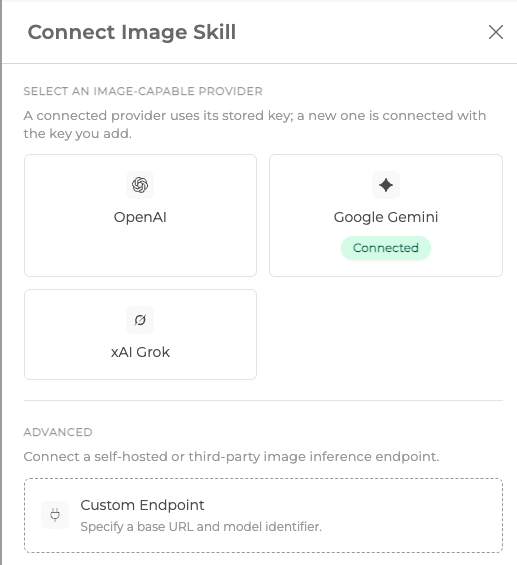
Configured skills appear in a separate Skills list where you can Edit or Remove them. When you edit a skill, leaving the key field blank keeps your stored key in place, so you can update the model or endpoint without re-entering the key. Once a skill is set, clicking generate image produces the picture from your skill's backend, on your own credentials.

TIP: You will never see an "Add Skill" button if your active provider already generates images. The option only surfaces when it is actually needed.
Where can I see my A.I. usage?
The A.I. Activity panel on the A.I. Connections tab shows your monthly token usage, broken out per connected provider. It works like the paid A.I. Service's usage view, minus any "X of Y remaining" cap, because on your own key there is no built in limit to enforce.
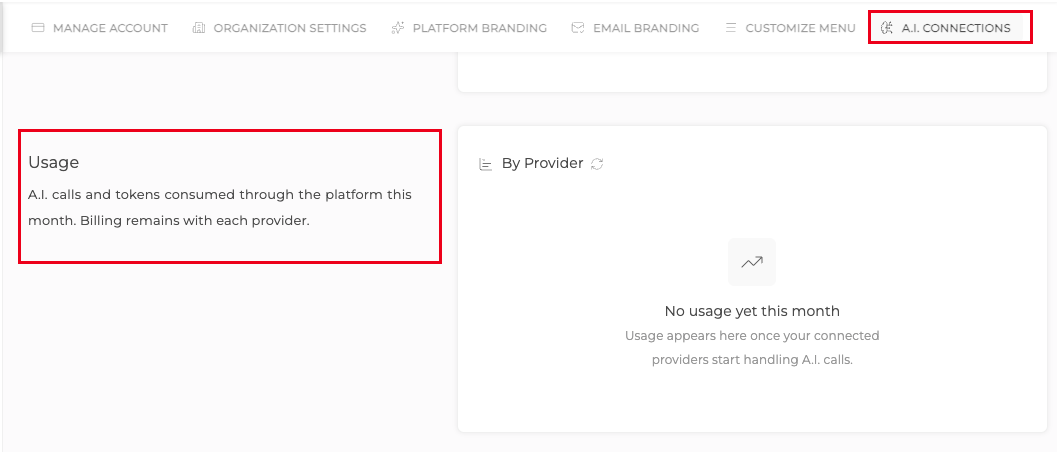
Usage is recorded for your visibility only, and is not billed by the platform. Token counts come from what each provider reports, so where a provider does not return token details, or for image calls, the panel shows call counts instead of tokens.
Is my key kept secure?
Yes. Your API keys are encrypted at rest, decrypted only in-process at the moment of use, and are never returned to your browser or written to logs. Every connection is bound to your company, so a key can never be used by another company. Outbound calls also run behind protections that block requests to internal or private network destinations.