
BLOCKS: My Schedule Block
What is the My Schedule Dashboard block?
My Schedule is a Dashboard block that brings everything on your calendar into one place. It pulls together your Appointments, CRM Follow-Ups, Tasks, and your connected Google and Outlook events into a single, unified view, using the same colors as the main platform Calendar. It shows a day-grouped list by default, with an optional compact calendar view, and every action can be taken right inside the block.

How do I add and configure it?
Add the My Schedule block to a Dashboard from the block editor, the same way you add any other block. In the block's settings you can choose its defaults which include: which item visible types, date range, whether completed items are hidden, and default projects.

TIP: You can place more than one My Schedule block, and each one keeps its own defaults. Any adjustments a viewer makes to filters or the view are remembered for them on that device, without changing the block's defaults for everyone else.
How does the list view work?
The default list groups items by day: an Overdue group is pinned at the top, followed by Today, Tomorrow, and any further dated groups within your chosen window. Items are ordered by time within each day, and a "show more" control loads additional items.

You can narrow the view with several filters:
- Visible Type: multi-select which item types appear (Appointments, Follow-Ups, Tasks, connected Events).
- Date Range: Today, Tomorrow, Next 7 days, or Next 30 days.
- Item Behavior: remove completed Tasks and Follow-Ups.
- Default Project: narrow Tasks to a specific Project.
How do I use the calendar view?
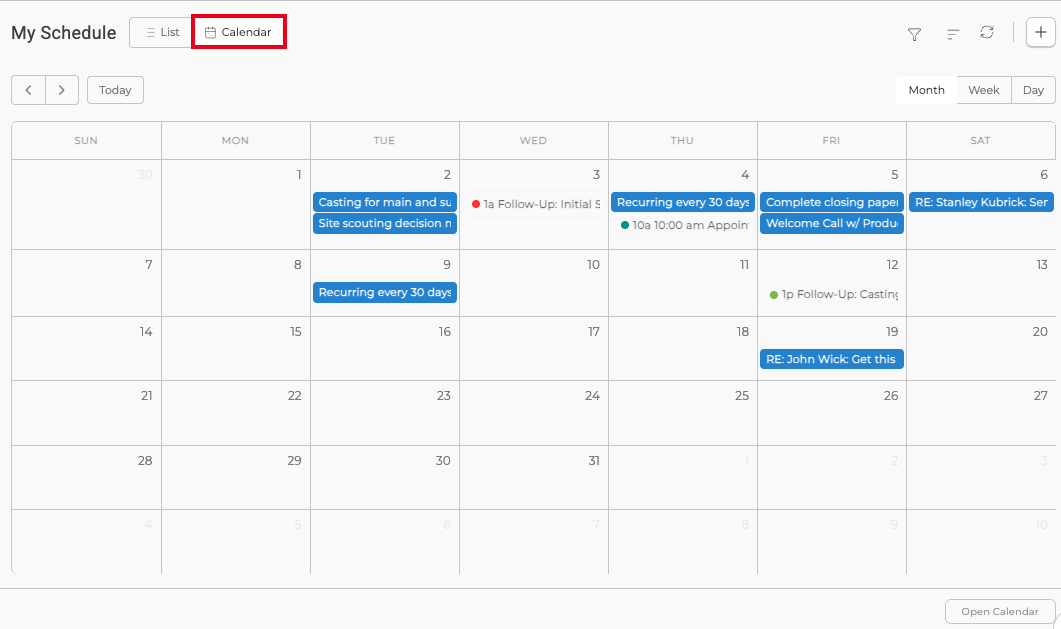
Toggle from the list to a calendar view at any time, and your choice is remembered for you on that device. The same filters apply in both views. In the calendar view you can drag to reschedule the items you are allowed to move, Tasks and Follow-Ups, and the change saves immediately. Appointments and connected external events are never draggable, and the main platform Calendar is not affected.
How do I act on my schedule?
Every item opens its existing platform panel or dialog right from the block, so you can view or edit it without leaving your Dashboard. Tasks complete the same way they do in My Tasks, and a role-aware create menu lets you add new items that you are allowed to create. If you save something that falls outside the current view, a short notice confirms it was saved.
What do Clients see?
The block is role-aware. A Client sees only their own Appointments and Tasks, enforced on the server, and their filter set is limited to type, Date, search, and hide-completed. Staff see the fuller set of types and filters. Every feed is scoped to your company and to what each viewer is allowed to see.