
BLOCKS: Download Block
Download Block
The Download Block enables easy downloading of files from pre-determined file locations. You can place it directly on a Dashboard, Portal Page, or Public Page so users can access the files you have made available for them without needing to navigate away to another area.

What This Block Is Used For
You can use this block anywhere you need to share files with users. It works well for both internal teams and external users, and keeps everything they need available in one place.
- Share onboarding documents, guides, or welcome packs
- Provide contracts, agreements, or forms for users to download
- Deliver reports, resources, or supporting files
- Give users a single, reliable place to find their files
What Users Will See
When users access the page, they will see the download area displayed directly within the content, along with the Title, Subtitle, and Description you have set. The experience is designed to be simple and intuitive, even for non-technical users.
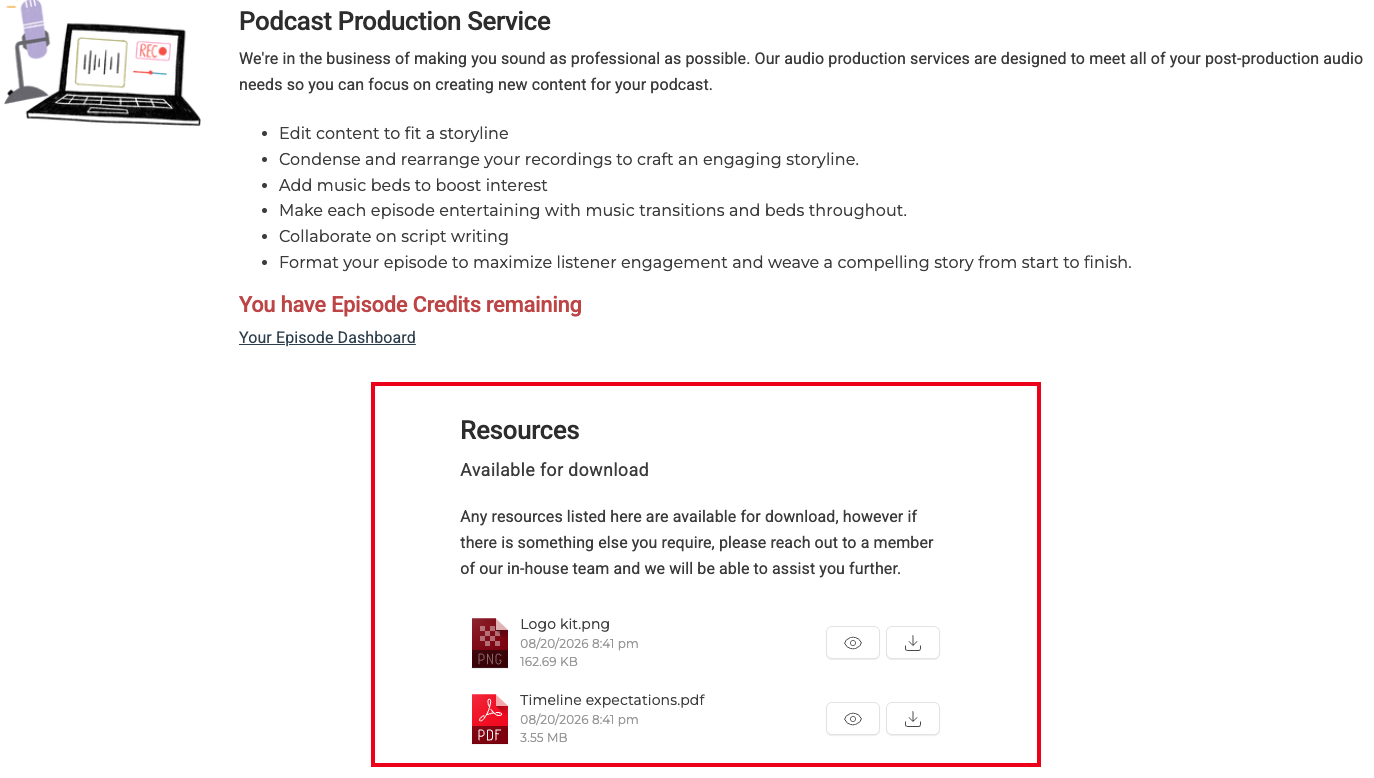
- The Title, Subtitle, and Description, guiding the user on what is available
- The files you have made available, ready to download
- Navigation through the folder, when you have chosen to show it
- Each user only sees the files that belong to their own location or the shared location you selected.
How to Add This Block
1 Open the Content Block Editor
2 Click the Add Block button

3 Select Download Block from the list.
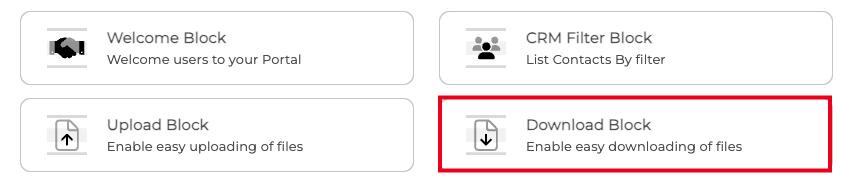
Once added, the block will be visible on your page and ready for configuration.
How to Configure the Block
After adding the block, open the Block Options tab. You can create a Title, Subtitle, and Description for each Download Block, all of which will be visible on the Target's Dashboard. Toggle the button on if you want to Show Navigation, allowing users to move through the folder.
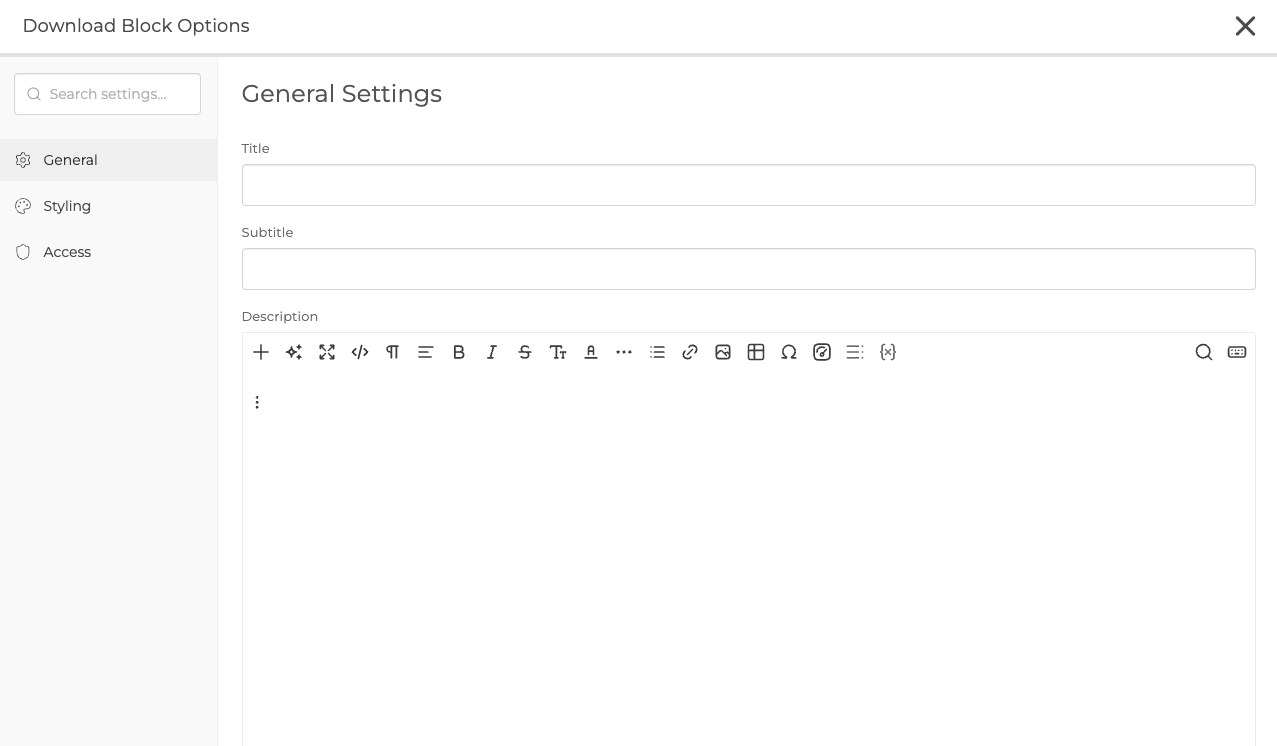
Next, select the Location of the Files to be downloaded. This decides which files the user will be able to access. There are three options to choose from.
- User-Specific Dynamic Path. Files are pulled from the user's own Folders.
- Use Existing Global File Cabinet. Files are pulled from a Global File Cabinet you have already created.
- Create New Global File Cabinet. Set up a brand new Global File Cabinet and add the files to it.
Your Global File Cabinets also live at Files > Global File Cabinets, where you can create, rename and delete them without opening a Block. A cabinet made either way appears in both places. CLICK HERE to learn about Global File Cabinets.
TIP: If you have a specific Folder that the file is contained in, you can add the Destination Folder Path, meaning you add the Folder Name. By doing this, the Folder will be visible to the Target rather than the full 'Uploaded by' Folder.
User-Specific Dynamic Path
If you want the user to download a file from a user-specific location, select User-Specific Dynamic Path and choose Uploaded by or Target File Cabinet from the Parent Folder options.

You can then add a Destination Folder Path so the user sees only the relevant Folder. For example, in the Contact's 'Uploaded by' Folder you might add a Destination Folder Path called '/Resources', which houses the files to be downloaded.
If the files for download are housed in the Target's File Cabinet, being the Download Folder, select Target File Cabinet. You can also add the Destination Folder Path if your files are housed in a Folder within the File Cabinet.
Global File Cabinet
You also have the option to make files available for download from your Organisation's Global File Cabinet.
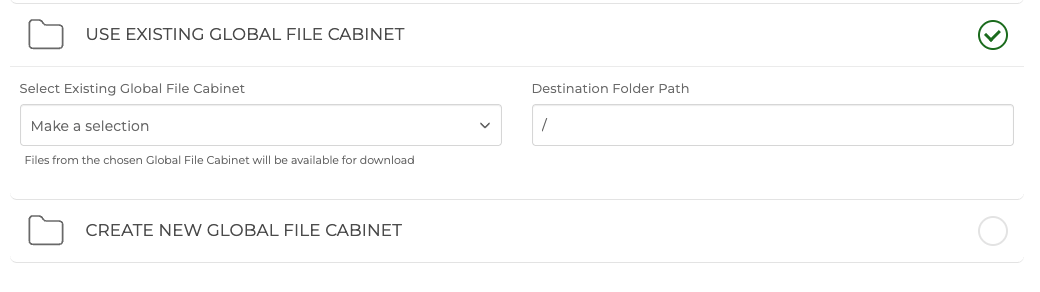
To use an Existing Global File Cabinet, select Use Existing Global File Cabinet and choose your folder from the dropdown. You can add a Destination Folder Path, and an Add Files button will appear for you to add the relevant files.
To create a New Global File Cabinet, select Create New Global File Cabinet, name your Folder, and click Create. Then click the Add Files button to add the relevant files.
Best Practices
To ensure the best experience for your users, and to keep the right files in front of the right people, it helps to plan your download location before going live.
- Use a clear Title and Description so users know what they are downloading
- Add a Destination Folder Path so users see only the relevant