
BLOCKS: Support Ticket Block
What is the Support Ticket Block?
The Support Ticket Block puts your open Support Tickets on the Dashboard where your day starts, so you can see what needs triage, who is waiting, and reply without leaving the page. Its own description sums it up: triage Support Tickets from the dashboard. Before this, triage lived only on the Support Tickets page, so new or unassigned requests waited until someone remembered to look.
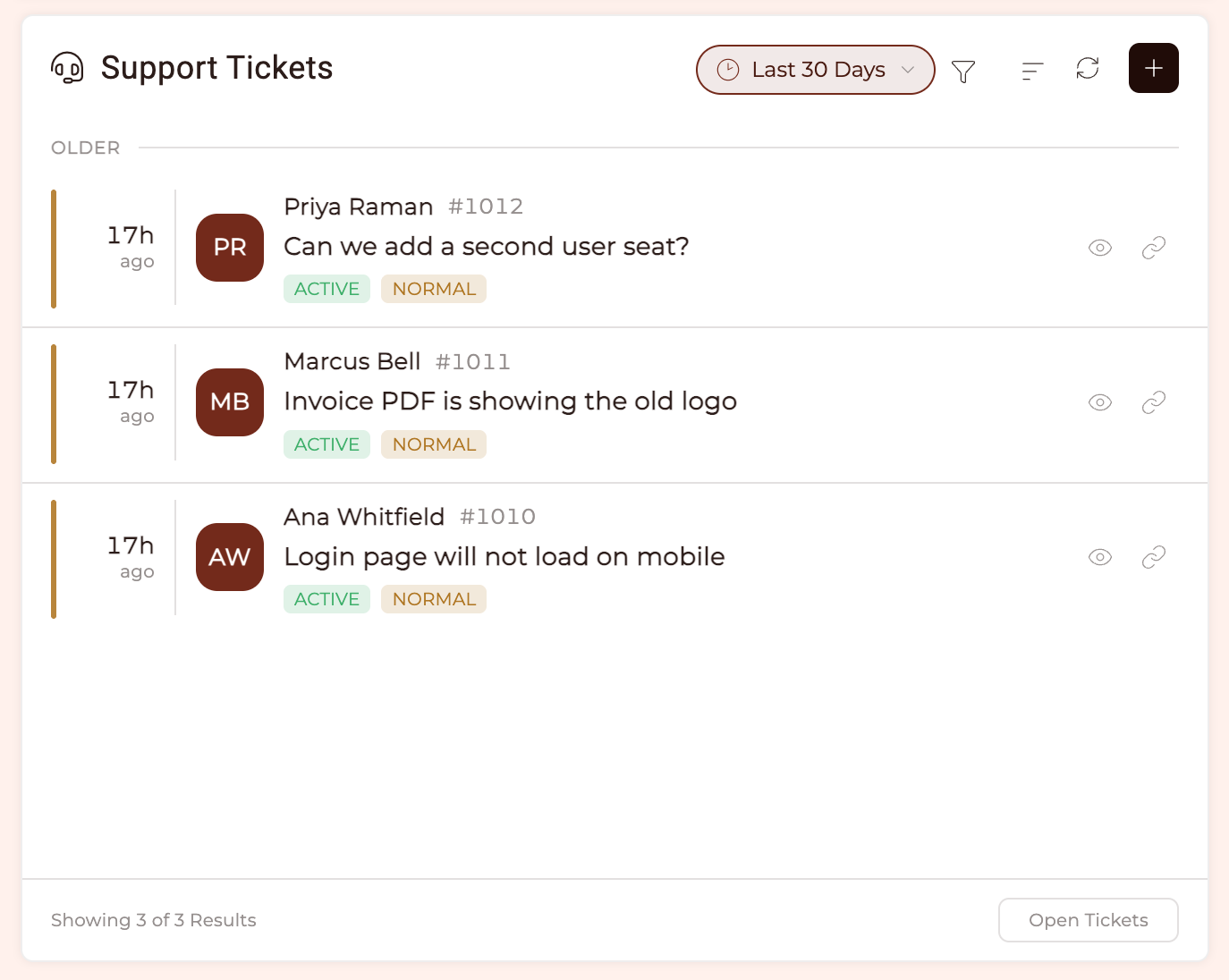
On the Dashboard it is headed simply Support Tickets. Each row carries the age, the requester with their avatar, the ticket number and subject, and your own colour-coded Status and Priority pills. The assignee and the reply count appear once a ticket has them, so an unassigned ticket nobody has answered stays clean. Unread rows are bold, tickets are grouped into Today and Older by last activity, and closed tickets are left out. The header keeps a running unread count, and the footer counts what you are seeing and offers Open Tickets, which hands you to the full Support Tickets page.
How do I add and configure it?
The block is available on Dashboards only, not on Portal Pages. Add it from the Dashboard block editor the same way you add any other block. Each copy has two settings of its own:
- Assignment, which decides the view it opens on: Unassigned, My Assigned, Assigned or All. New blocks open on Unassigned, so the requests nobody has picked up are what greets you.
- Date Range, which limits the list to recent activity: the last 7, 14 or 30 days.
TIP: Date Range is a starting point, not a lock. Whoever is looking at the Dashboard can change it from the pill in the block's header, so setting it here just decides what they see first.
IMPORTANT: The block follows the same plan and permission rules as Support Tickets itself. If an account or a person does not have access to Support Tickets, the block is simply absent rather than shown as a locked tile.
How do I work a ticket without leaving the Dashboard?
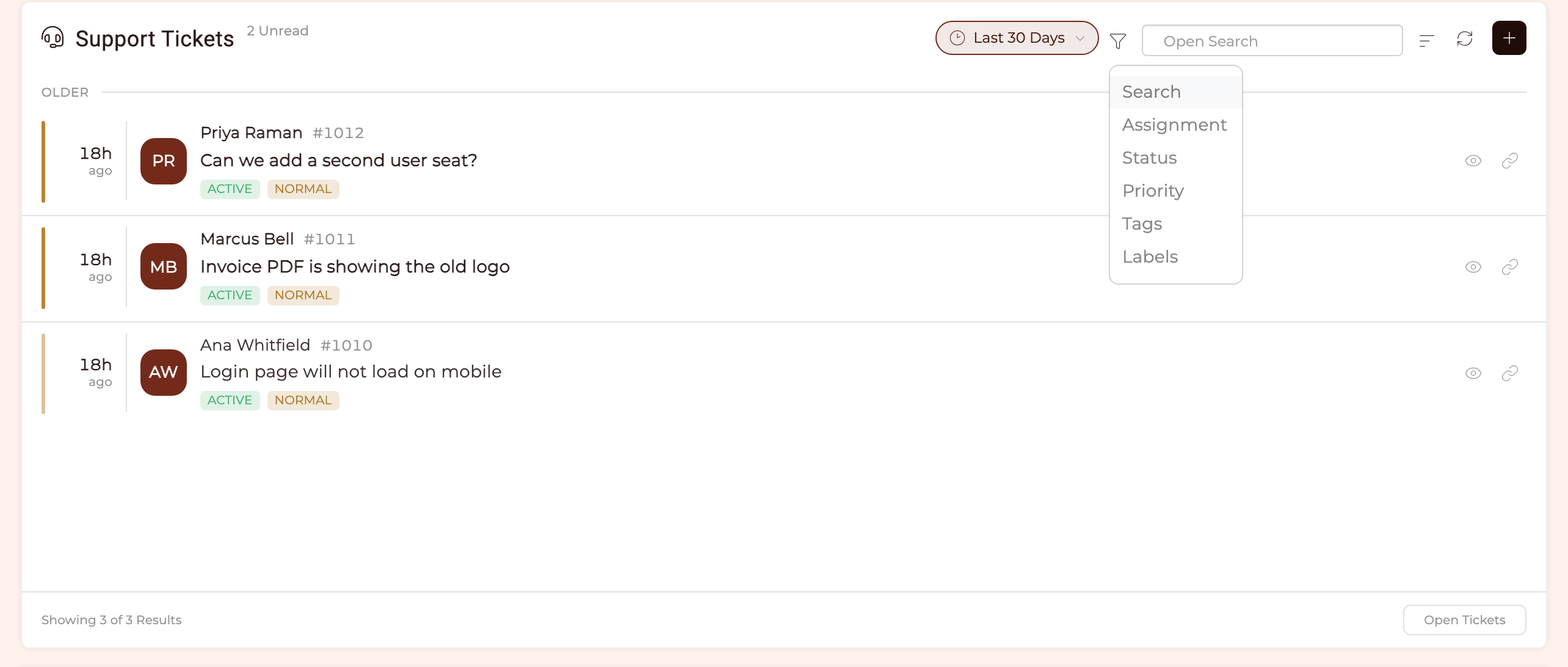
Your Staff get the full view. The header carries the date range, a filter, a search box, a sort control and a refresh. The filter menu offers Search, Assignment, Status, Priority, Tags and Labels. You can filter the way you would on the Support Tickets page, by assignment, Status, Priority, Tags and labels, and sort by requester, subject, assignee, ticket number, created date, last activity, Priority or Status. It arrives sorted by last activity, newest first. A ticket's Status or Priority can be changed inline, straight from its pill on the row.
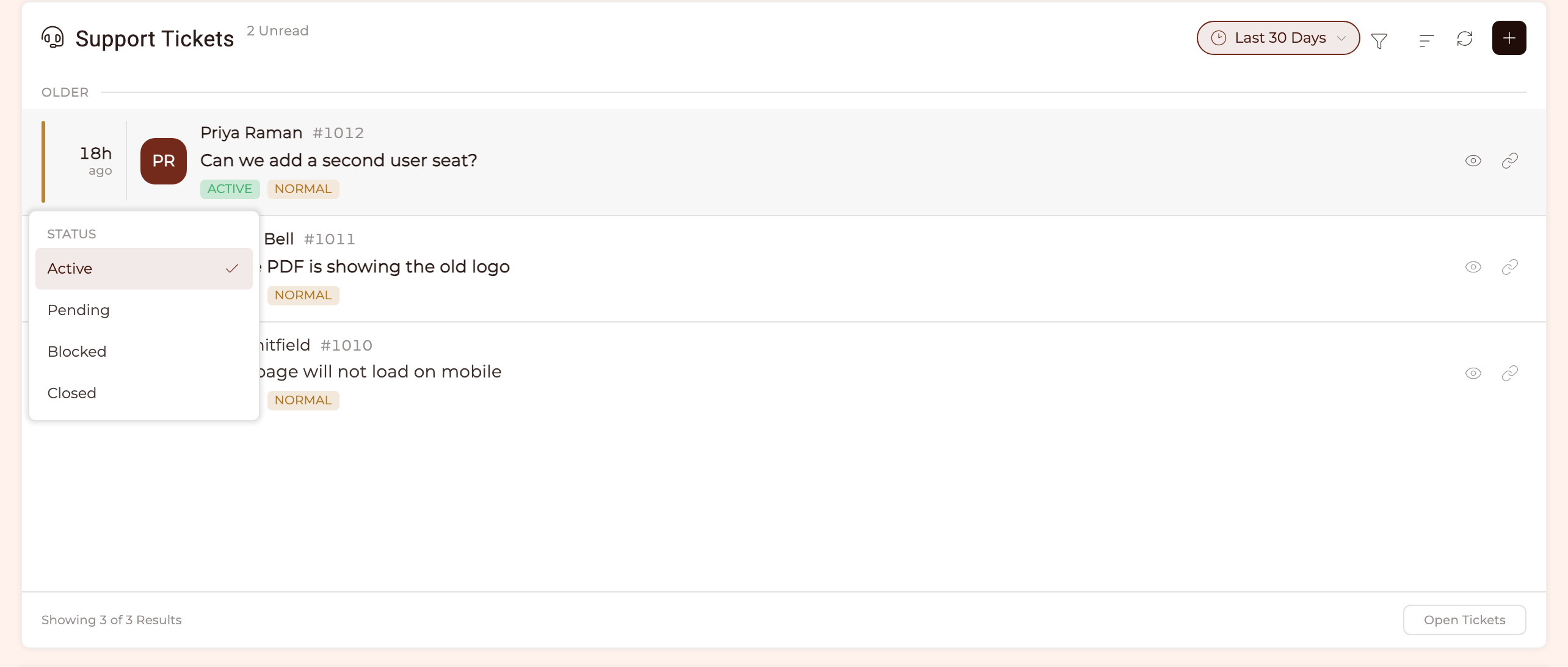
Changing a ticket's Status or Priority does not need the drawer at all. Click its pill on the row and pick the new one.
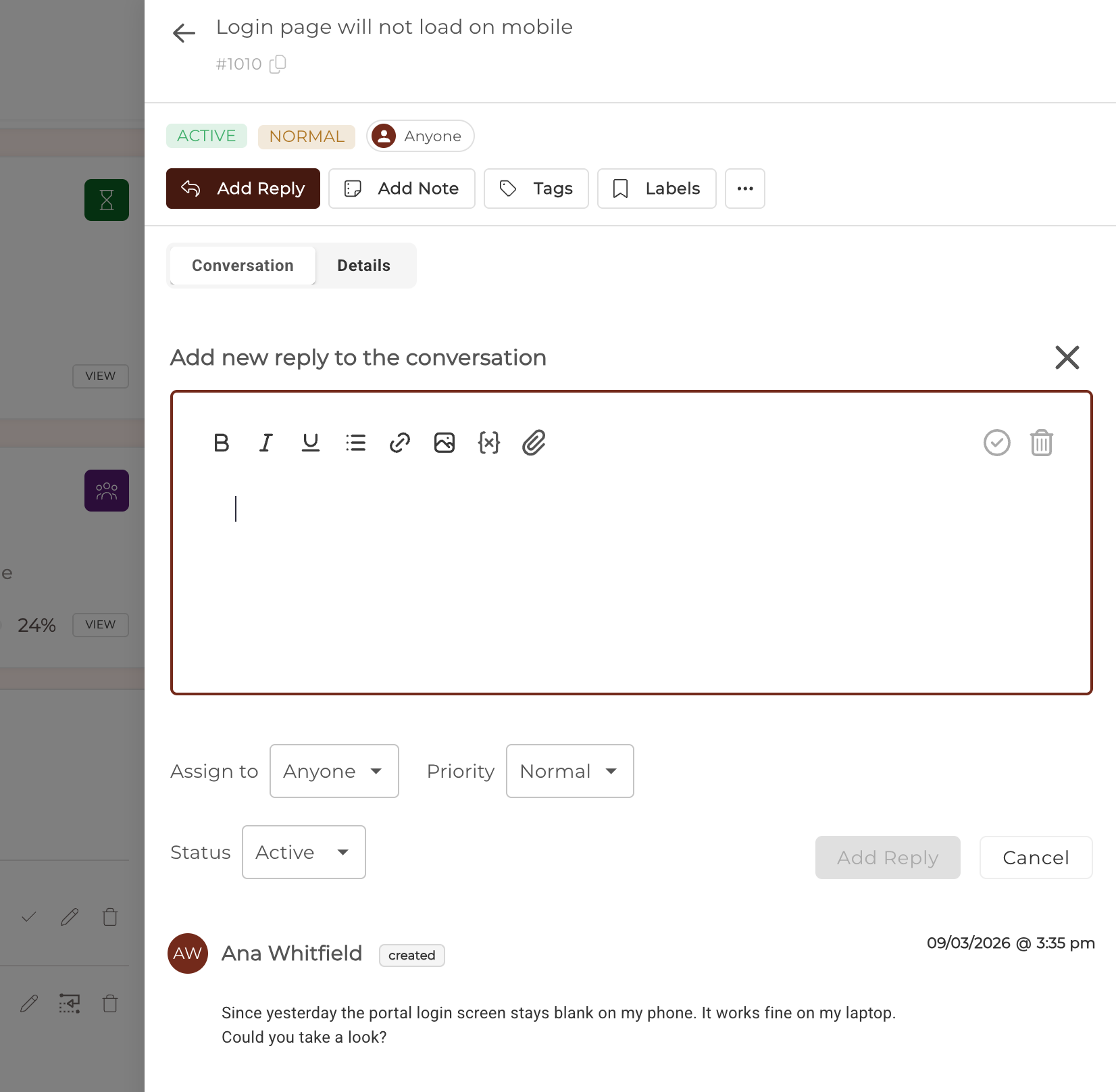
Opening a ticket slides it into a drawer with a Conversation and Details toggle, and the whole desk toolbar comes with it: Add Reply, Add Note for an internal note your Client never sees, Tags and Labels. A reply can carry an attachment, and the same box lets you set Assign to, Priority and Status as you send it, so one action can answer and re-triage at once. Tickets can be deleted where your desk allows it. Every action respects your existing Support Tickets permissions, so a Staff member without reply permission gets a read-only view, and tickets that are not theirs to see stay out of reach.
TIP: The Waiting flag is a neglect signal, not a clock. It appears only when the requester spoke last, so it never counts time against a ticket you have already answered. It stays quiet for the first four hours, turns amber after that, and turns red once a ticket has been waiting a day.
How do I create a new ticket from the block?
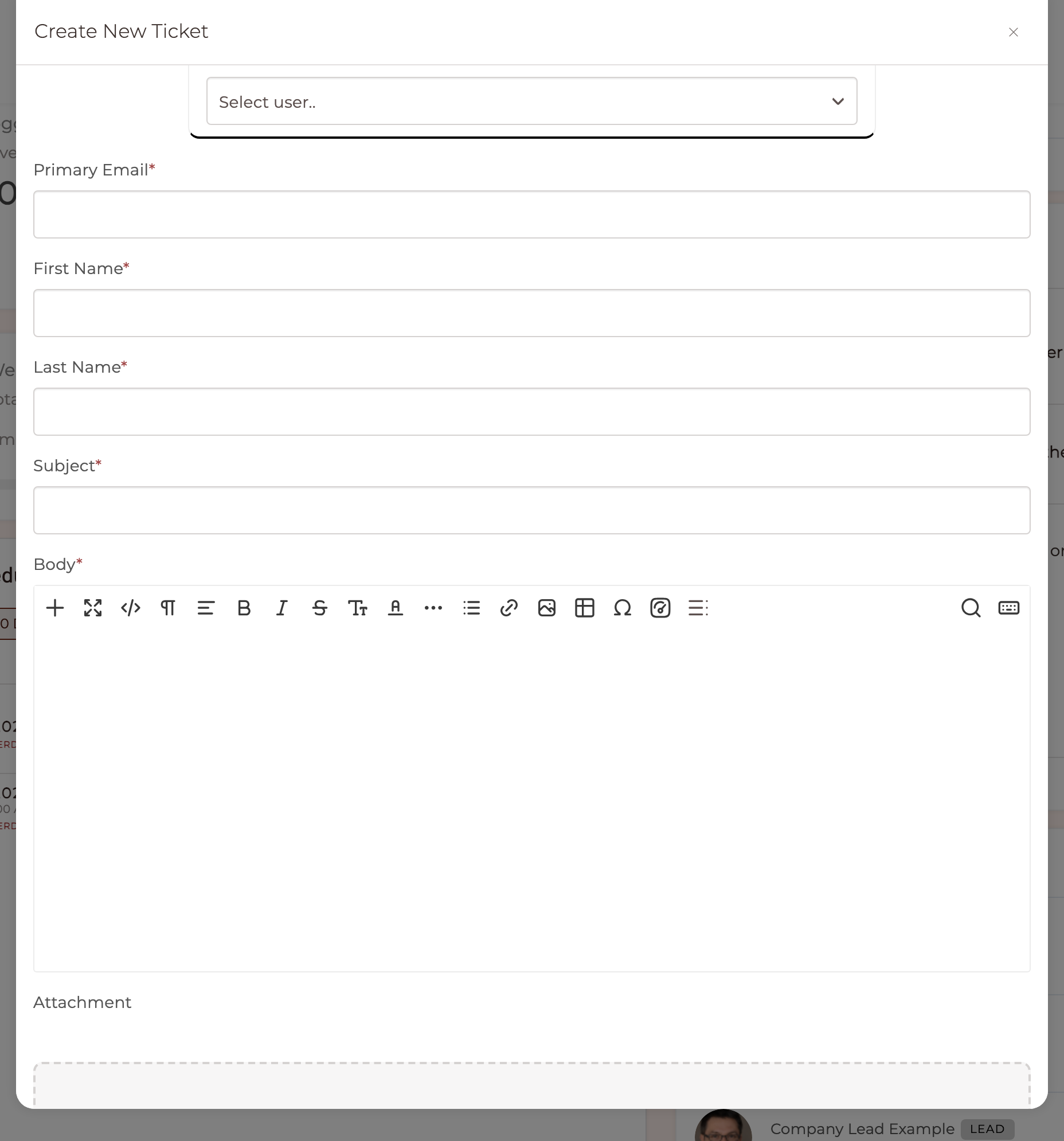
When a ticket form is set up, a + appears in the block's header. It opens that form in a dialog, and the list refreshes when you close it, so a new request lands without a trip to the Support Tickets page. Staff and Contacts are offered their own form, chosen from the role of the person looking, and the + is hidden when no form is configured for them.
What do Clients see?
A Client sees a quiet, read-only view of their own Support Tickets: the time, their avatar and name, and the subject. Unread rows are bold for them too. The Status and Priority pills, the assignee, the reply counts and the Waiting flag are all Staff triage signals and are absent from the Client's view entirely.
Opening one slides in a drawer with their own conversation, where they can reply and attach a file. Clients never see Staff filters, internal notes, or anyone else's tickets.