
Managed Texting: Status on the Integrations Page
What is the Managed Texting status card?
Once you start setting up Managed Texting, the Text Messaging row on the Integrations page shows a status card. The card tells you at a glance where your texting number stands and whether anything is needed from you.
Navigate to Flyout Menu > Integrations and find the Text Messaging row.
IMPORTANT: Only the Super Admin sees the status card, and only after Managed Texting setup has started. Everyone else sees the Text Messaging row as usual.
What does the card show?
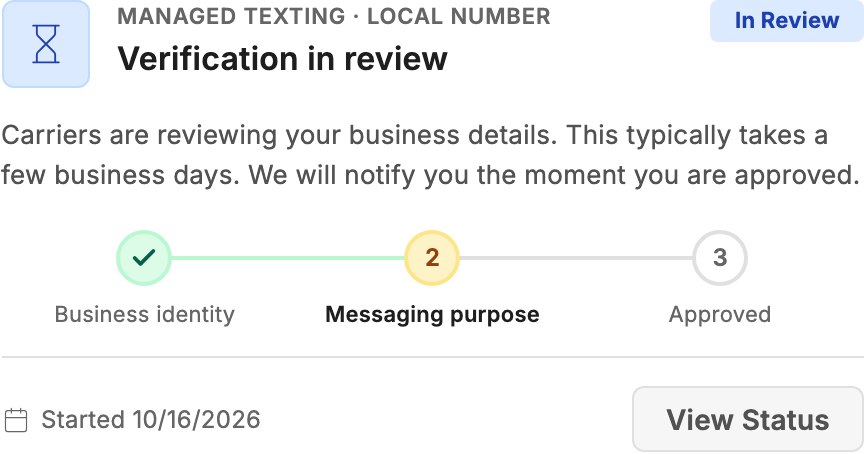
- A coloured tile and badge: blue while you wait, green when your number is live, red when you need to act, and amber when texting is on hold or paused.
- The kind of number: for example Managed Texting · Toll-Free Number or Managed Texting · Local Number.
- A title and one sentence saying what happens next and whether you need to do anything.
- The carrier review track, only while carriers are reviewing your details. A check marks each finished step.
- Your texting number, once it is live, turned off or suspended.
- The date setup started and a View Status button.
What does each status mean?
Setting Up
Your number is being secured and your carrier filing is being prepared. Nothing is needed from you.
In Review
Carriers are reviewing your business details. This typically takes a few business days, and you are notified the moment you are approved. The card shows the review track: a toll-free number has the steps Verification and Approved; a local number has Business identity, Messaging purpose and Approved.
Live
Your number has been verified by carriers and sending is unlocked. The card shows your number. If sending is paused because the monthly charge for your number could not be covered by your balance, the card says so. Add funds and texting restores instantly.
Declined: Action Needed
Carriers declined your filing. Click View Status, correct your business details and resubmit. Your number is untouched. Resubmitting a toll-free filing is free; resubmitting a local filing is charged a resubmission fee.
On Hold
Your carrier filing is paused until you answer a few questions. Click View Status, answer them, then resume the filing.
Action Needed: number not secured
The number you chose could not be secured, and you were not charged for it. Click View Status and choose another number to continue.
Delayed
Your number was secured, but setup could not be finished. The support team has been notified and will complete it. No action is needed from you.
Turned Off
You turned texting off. Your number is kept. Click View Status to turn sending back on whenever you are ready.
Suspended for Compliance Review
Texting is suspended while a compliance review takes place, and the card shows the reason. This cannot be restored from the card; contact support.
What does View Status do?
Click View Status to open the full Managed Texting status, where you can take the next step for your current status. On cards that need you to act, View Status is the highlighted button.
If you change something there, such as resubmitting or turning sending back on, the Integrations page reloads when you close the status so the card shows your new status. If you close it without changing anything, the page stays as it is.