
PARTNER: AUTOP1LOT
AUTOP1LOT
AUTOP1LOT is a subscription available to SU1TE Partners that want to create white labelled Child Accounts via automation. It allows you to connect your own dedicated domain, apply your own branding, and automatically provision new accounts for your clients, all secured with SSL.
Let customers select Plans, Power-Ups, and Service Subscriptions directly from your website or landing page. Upon checkout, their branded environment is created instantly, with automated recurring billing and payment management under your control.
What This Feature Is Used For
You can use AUTOP1LOT to build and grow your own branded software business. It is designed for SU1TE Partners who want to deliver a fully white labelled experience and automate the creation of Child Accounts for their customers.
- Create white labelled Child Accounts automatically
- Connect your own dedicated domain with automatic SSL
- Apply your own branding across every account you create
- Sell Packages, Add-ons, and Offers to your clients
- Centralise the management of all your client accounts in one place
What AUTOP1LOT Partners Will See
When you open AUTOP1LOT, you will see a dedicated management area with everything needed to run your white labelled business. The menu on the left gives you access to each part of the setup.
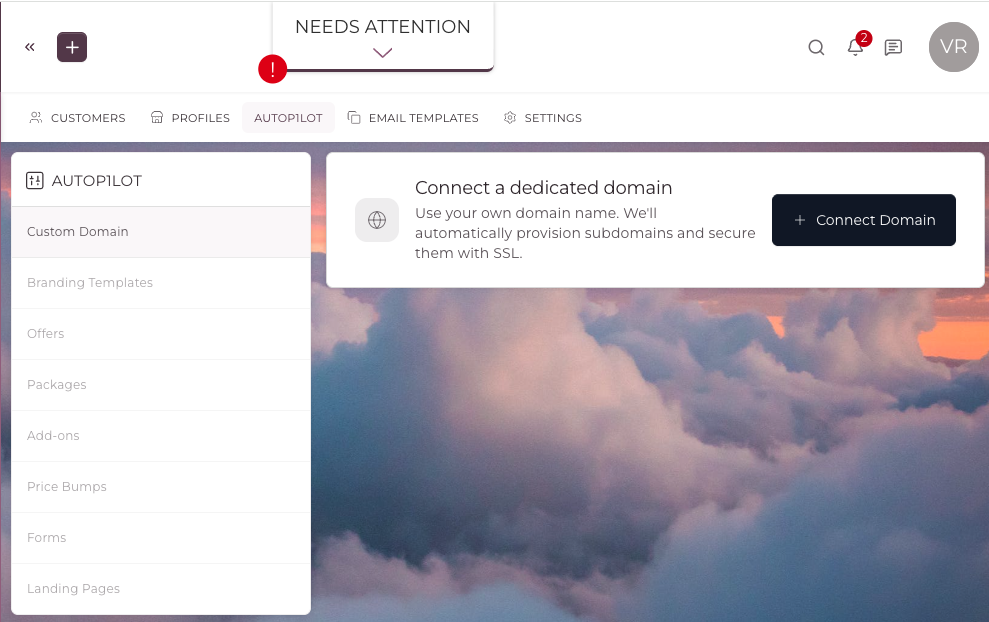
- Custom Domain, where you connect and verify your own domain
- Branding Templates, where you define the look and feel applied to your accounts
- Offers, Packages, Add-ons, and Price Bumps, where you build what you sell
- Forms and Landing Pages, where you capture and convert new clients
How to Connect Your Custom Domain
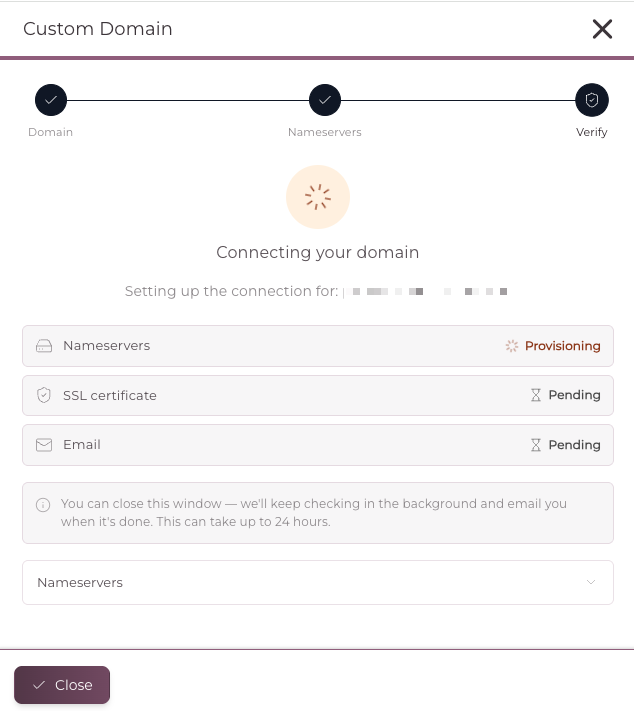
The first step in setting up AUTOP1LOT is connecting your own dedicated domain. From the AUTOP1LOT menu, select Custom Domain, then click Connect Domain to begin. The setup runs through three steps, Domain, Name servers, and Verify.
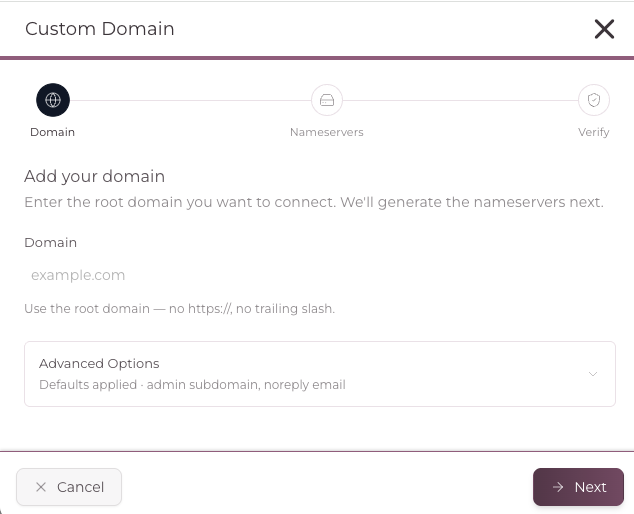
1 Add your domain
Enter the root domain you want to connect. Use the root domain only, with no https:// and no trailing slash. AUTOP1LOT will generate the nameservers for you next.
2 Set your Advanced Options
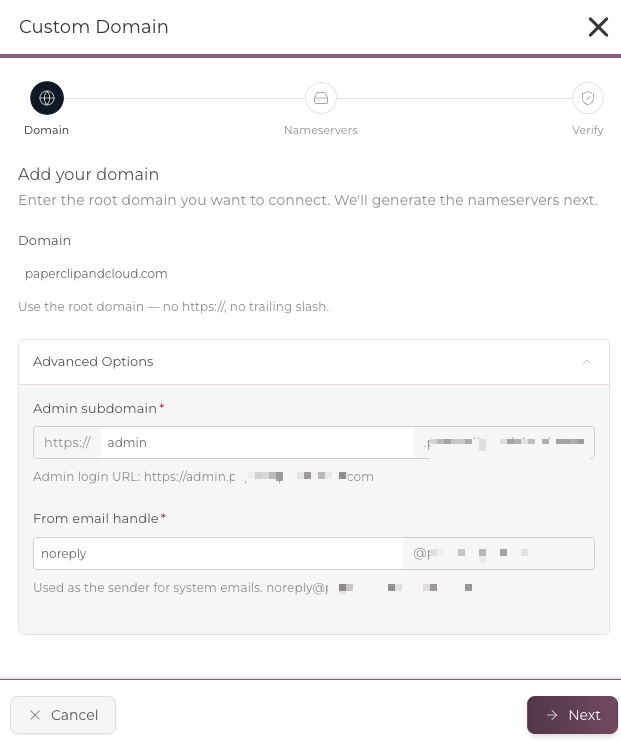
Within Advanced Options you can set your Admin subdomain, which becomes your admin login URL, and your From email handle, which is used as the sender for system emails. Defaults are applied automatically if you choose not to change them.
3 Point your nameservers
Log in to your domain registrar and replace the existing nameservers with the four provided by AUTOP1LOT. Use the Copy all option to copy them quickly, then tick the box to confirm that AUTOP1LOT can manage the DNS records for your domain and click I've updated nameservers.
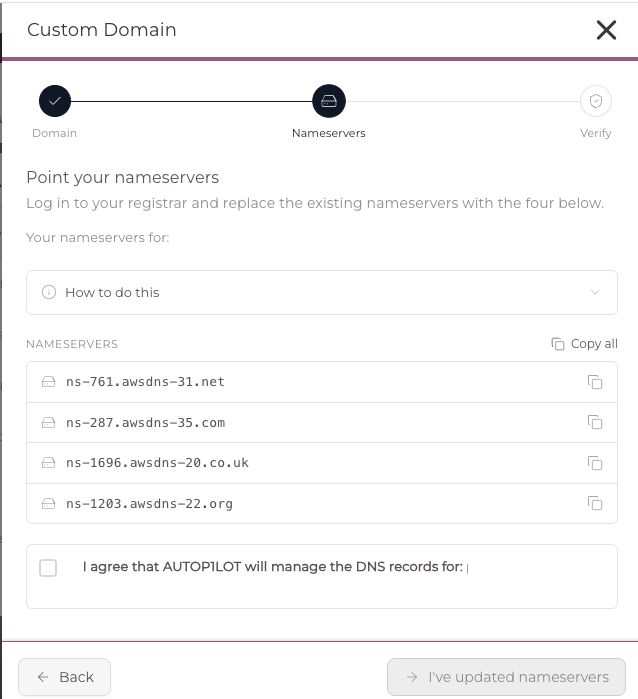
Once your nameservers have been updated, AUTOP1LOT will move to the Verify step and secure your domain with SSL automatically.
How to Configure the Rest of AUTOP1LOT
With your domain connected, you can work through the remaining areas in the AUTOP1LOT menu to prepare what you offer your clients.
- Create a Branding Template with your logo, colours, and theme so every new Child Account inherits your look and feel.
- Build your Packages and Add-ons to define what your clients can purchase.
- Set up Offers and Price Bumps to shape your pricing and promotions.
- Use Forms and Landing Pages to capture new clients and convert them into Child Accounts.
As soon as your domain, branding, and offers are in place, AUTOP1LOT can automatically provision new white labelled Child Accounts for your clients.
How do I organize my AUTOP1LOT items by WORLD?
You can assign a WORLD to your AUTOP1LOT catalog items and filter each list by WORLD, so the items belonging to one WORLD stay separate from the rest and are quick to find. That makes a large catalog spread across several WORLDs far easier to manage.
It works the same way across all six kinds of AUTOP1LOT item:
- Offers
- Packages
- Add-ons
- Price Bumps
- Branding Templates
- Forms
On an item's Add or Edit screen you choose which WORLD it belongs to. On each list you filter by WORLD to see only that WORLD's items.
TIP: Putting your Offers, Packages, Add-ons, Price Bumps, Branding Templates and Forms into the right WORLD keeps each WORLD's catalog clean and takes you straight to whatever you are working on.
IMPORTANT: WORLDs is a Power-Up. On an account without it these screens look exactly as they did before, with no WORLD field on the item and no WORLD filter on the list, so nothing changes for you until the Power-Up is active.
Best Practices
To ensure a professional experience for your clients, it is important to complete your domain and branding setup before you begin selling.
- Connect and verify your custom domain before creating any Child Accounts.
- Build your Branding Template first so new accounts inherit it automatically.
- Decide on your Packages, Add-ons, and pricing in advance.
- Test your Forms and Landing Pages before making them live.
TIP: Use the Copy all option on the Nameservers step to copy all four nameservers at once, then paste them straight into your registrar. This is faster and avoids mistakes when updating your DNS.
IMPORTANT: The AUTOP1LOT subscription is only available to SU1TE Partners. You must be a SU1TE Partner to access and use AUTOP1LOT.
RELATED ARTICLES
To get started you will need to login to your SU1TE Account and head on over to your SU1TE Dashboard. You will see an AUTOP1LOT Tab there to purchase.
CLICK HERE to learn more about the SU1TE Program if you are not already a SU1TE Partner.