
FORMS: Work Request Form
What is a Work Request Form?
A Work Request Form is a tailored intake form your Clients use to request work from you. You can build a different form for each type of job you handle (print, web, marketing, and so on), collect payment at the moment a request is submitted, and have each submission automatically move to the next stage such as an Invoice, Estimate, Project, or Task.
Work Request Forms are a form type inside the Forms toolkit, alongside your other forms. You can create as many as you need, one per workflow, each with its own items, settings, and access rules.
How do I create a Work Request Form?
From your Forms area, create a new form and choose the Work Request type.

Each Work Request Form is built as a guided, multi-step flow. Your Client moves forward and back through the steps, and their selections are preserved as they go. When you choose the request type, you pick between two ways your Clients can tell you what they need:
- Itemized: your Clients choose from a set of pre-configured, priced items you have set up.
- Free-Form: your Clients describe what they need in their own words, with the option to build their own line items.
TIP: If you change a form's settings after it is live, the form detects the change and reloads with the new configuration, so your Clients always see the current version.
How do I set up an Itemized request form?
For an itemized form, you add your pre-configured items to the form, and your Clients pick from them on the first step. Totals update live as they choose, taking quantity, rate, discount, and tax into account.

You can optionally require payment at submission. When payment is enabled, the flow adds a payment step where the Client pays through your chosen gateway (Stripe and other supported gateways) before the request is submitted. A paid Invoice is generated instantly on submission.

How do I set up a Free-Form request form?
For a free-form request, your Clients describe their needs in a rich-text editor rather than picking from a list. This is ideal when the work is too varied to itemize up front.

You can also let Clients build their own line items, each with a title, quantity, and rate, so they can spell out exactly what they are requesting.
How do I ask questions about each item on a Work Request?
On a free-form Work Request Form, you can now decide exactly what a Client tells you about every Item they request. Before this, a Client could only give each Item a title and a description, so everything else got crammed into the description and retyped by your Staff later, which meant every request cost a round of emails before work could start. Now the answers arrive structured, attached to the right Item.
Open Configure Work Request Items on the Form and choose the questions Clients answer for each Item they add. The questions are defined once at the account level and reused across Forms, and you pick and order them per Form. The built-in title and description stay as they are.
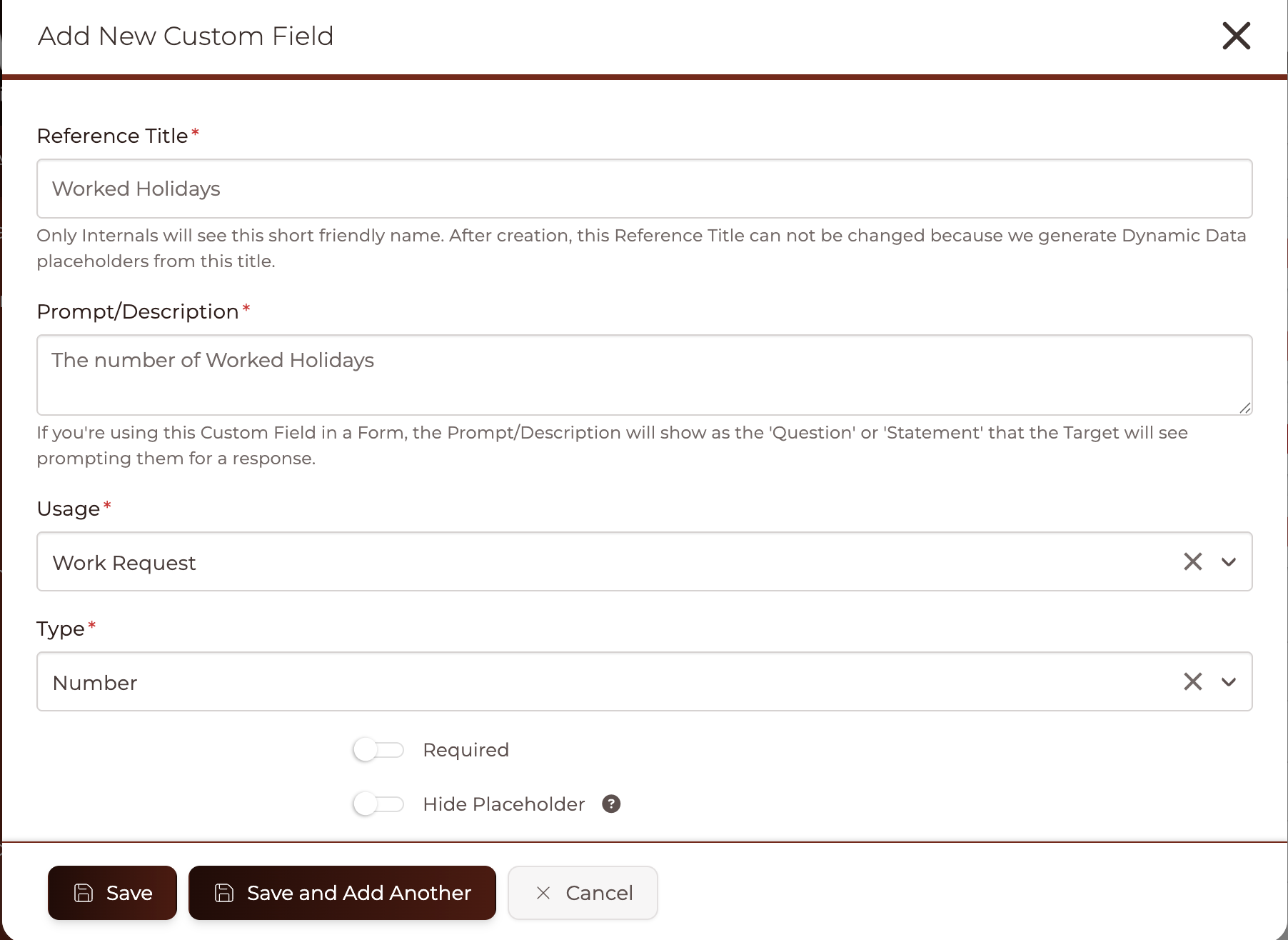
TIP: No questions are configured by default. An existing Form behaves exactly as it did before until you add questions to it. The Configure Work Request Items option appears when your Form lets Clients add their own Items. If you have turned Item creation off, there are no per-Item questions to set.
What kinds of questions can I add?
Your questions use the same field kinds as Custom Fields elsewhere in the platform, including:
- Single Line Text, Multi-Line Text Area, and WYSIWYG Text Area
- Dropdown Menu, Radio Buttons, and Checkbox
- Date Field, Number, and URL
- File Upload
Any field can be marked required, and if a Client leaves one blank they are told exactly which Item is incomplete.
How are the answers kept and used?
- Answers belong to the Item. A request with five Items keeps five separate sets of answers.
- Files travel with the line. A screenshot attached to one Item stays with that Item, all the way onto the Task it becomes.
- Guests are included, and progress is kept. No account is needed to fill in a Work Request, and a half-finished request survives a page reload.
Your Staff see the answers everywhere they work: on the request itself, in the submission record and its PDF, and on a FLOW's Form Step, with any attachments shown as links.
What happens when a Work Request is converted?
When you convert a Work Request into a Project, each Task arrives with that Item's answers as a labelled block and its own files attached, so the person doing the work has everything they need without chasing it down.
IMPORTANT: Occasionally an Item cannot be added to the Project during conversion. When that happens you are told how many Items were affected, and those Items need to be added to the Project by hand. Check the Project after converting a large request.
Work Request Notification
To select who should be notified via email when the Form is submitted, toggle one of the following options.

Form Field Options
You can apply all of the standard Form Fields to your Work Request Form, including Default Fields, Custom Fields, and Advanced Blocks, allowing you to capture exactly the information you need. A Work Request Form can be configured for either Private or Public access which means it can be accessed from the Portal or externally (you choose). For this reason, Name, Email and a Work Request Subject field are compulsory.

In addition, you can add dedicated Work Request Fields, which ensure that Work Request-specific information is stored separately for each request you receive. You can select existing Work Request Fields from the dropdown menu, or click the + icon to create new ones as needed.

Form Assignments and Automations
Like other Forms that have the ability to be accessed externally, Work Request Forms include separate Assignments and Automations for Unknown Contacts and Known Contacts. These options, along with other form features such as Conditional Logic, function identically to those available in a Kickoff Form.
CLICK HERE to learn about Kickoff Forms
How do I make a form public or private?
- Private: Because the submitter is known, the form can offer a Project dropdown so the request is tied to the right Project.
- Public: Anyone with the link can submit, with no login required. The Project dropdown is automatically hidden, since there is no logged-in Client to attach.
Each form can be configured for either Private or Public access.
If you’d like only logged-in Clients to be able to view and submit the form, you can add it to a Dashboard or Portal page. Alternatively, if you’d like to make the form available externally, you can use the direct link found on the Link/Embed page of the form.

How do my Clients find the form?
You decide where each form lives. You can place a Work Request Form using a custom menu item, a Dashboard link, or a button, so it fits naturally into how your Clients already navigate your Portal.
How does automatic conversion work?
Every Work Request Form can automatically convert each submission into the document you want. Per form, you choose one of:
- New or Existing Invoice
- New or Existing Estimate
- New Project, or a Task on an Existing Project
- No auto-convert: the request is created and left open for you to handle manually.

You can also convert any request manually on demand at any time. Every conversion is recorded in the activity log, and you can optionally send a conversion email to the Client.
You control the outcome status too, such as which status to set when a request is converted, and which Task status to apply when a request becomes a Task.
How do I manage Work Request Items?
Your Work Request Items are managed centrally, in Project Settings. This is where you can search, filter, and sort by column to find any item quickly. Items carry the same pricing details you use elsewhere (rate, quantity, tax), so they behave consistently across your forms.

If you have the WORLDs Power-up, Items visibility can be controlled with Worlds, so you can decide which audiences see which items.
What happens to my existing Work Requests?
Nothing you have set up is lost. Existing accounts keep working exactly as before. Your legacy work request items and settings migrate automatically into an Alpha Form, a compatibility bridge that carries your previous configuration forward. There are no duplicate default forms created and no data loss.
IMPORTANT: The Alpha Form preserves your older Circle-based item visibility for continuity, but that visibility only applies to logged-in users. For new forms going forward, use Worlds to control which items are shown.
What is the Journey Map for Kickoff Forms?
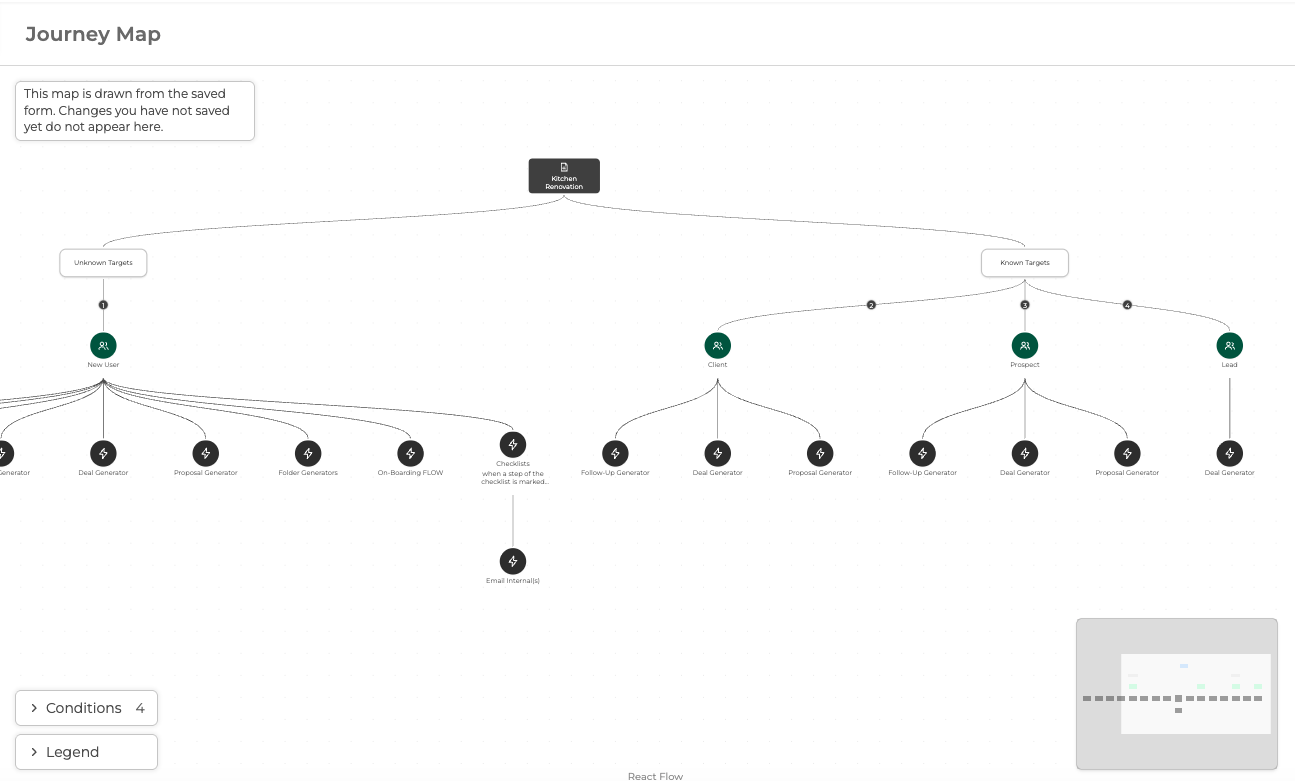
The Journey Map shows exactly what a Kickoff Form sets in motion. It draws the full automation cascade behind the form: the Projects it starts, the Contracts it generates, the Deals it creates, and every automation those steps set off in turn. Before this, the only way to know what a form would really do was to open every settings panel one by one and hold the whole chain in your head. Now you can see it all on one screen.
The map is drawn live from your own configuration, branch by branch, however deep it runs, so it is always an accurate picture of what your form actually does.
How do I open the Journey Map?
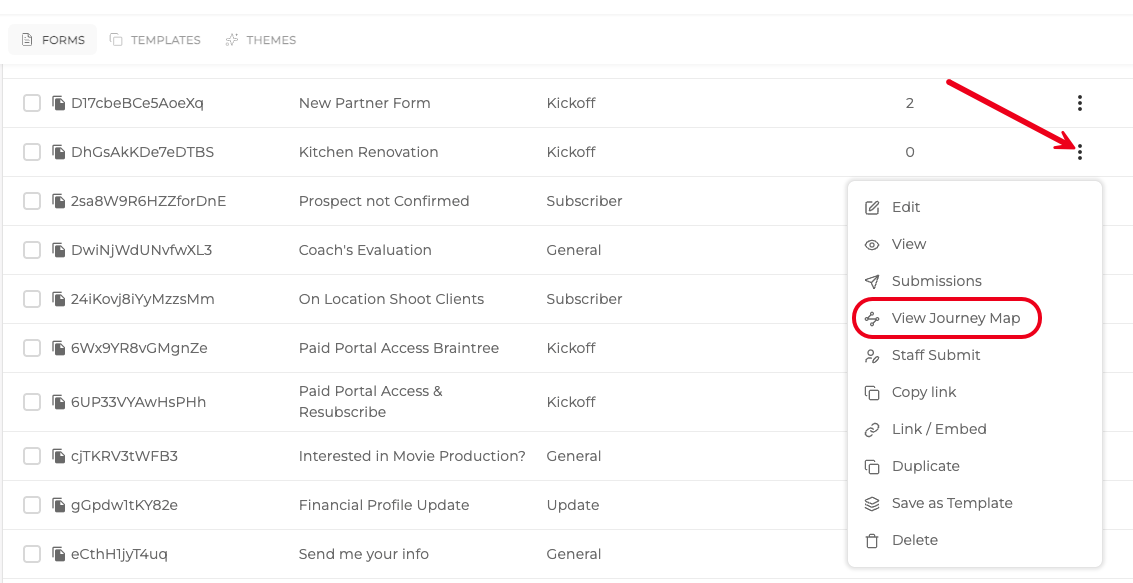
Go to your Form list and click the three dot options menu and select View Journey Map button to draw the map for that form.
TIP: Large journeys open folded so the screen stays readable, and you can expand any branch to look deeper exactly where you want.
How do I read the map?
Every step is clearly marked so you know what will actually run:
- Live: the step runs as configured.
- Conditional: the step runs only when its condition is met.
- Manual: the step waits for someone to trigger it.
- Dormant: the step is drawn but will not run because your plan does not include it, along with the reason.
- Broken: a step pointing at something that has been deleted is drawn as broken, so you can spot a misconfiguration before a Client does.\
How do I see what each step acts on?
The map names the actual records a step acts on, not just the action. You see which Circles a step adds to, not simply "Add to Circle(s)", and which template a step generates, not simply "Generate Document". Click any step to see its complete list, its status, and why it will or will not run.
Can I get a plain-language explanation?
Yes. When A.I. is available on your account, a storyteller panel explains the map in friendly words, for example "When a new Client submits this form, a Contract is created. When they sign it, a Project starts...". This runs on the paid A.I. Service or on your own connected A.I. key (BYOK). TIP: The map works perfectly on its own. If A.I. is not available on your account, only the story panel is hidden, and the picture itself is always the authoritative view.