
KNOWLEDGE BASE: Article Templates
What is an Article Template?
An Article Template is a saved layout you can start a new Knowledge Base article from, so every article of the same kind looks the same without you rebuilding it each time.
If all your how-to articles open with a heading, then a numbered set of steps, then a button to the relevant screen, save that arrangement once as a template and every new how-to starts from it.
IMPORTANT: A template carries the blocks only. It does not carry the title, the summary, the category, the friendly URL, the SEO fields or the featured setting. Those belong to the article, not to the shape of it, and you fill them in each time.
How do I save one?
Open a Knowledge Base at Content > Knowledge Base Pages, go to the Articles tab, and choose Save as Template from the article's row menu.
You are asked for a Template Name, which starts as the article's own title. Change it to something that describes the shape rather than the subject, because that is what you will be choosing from later. "How-To Article Layout" is more useful than "How We Run a Project".
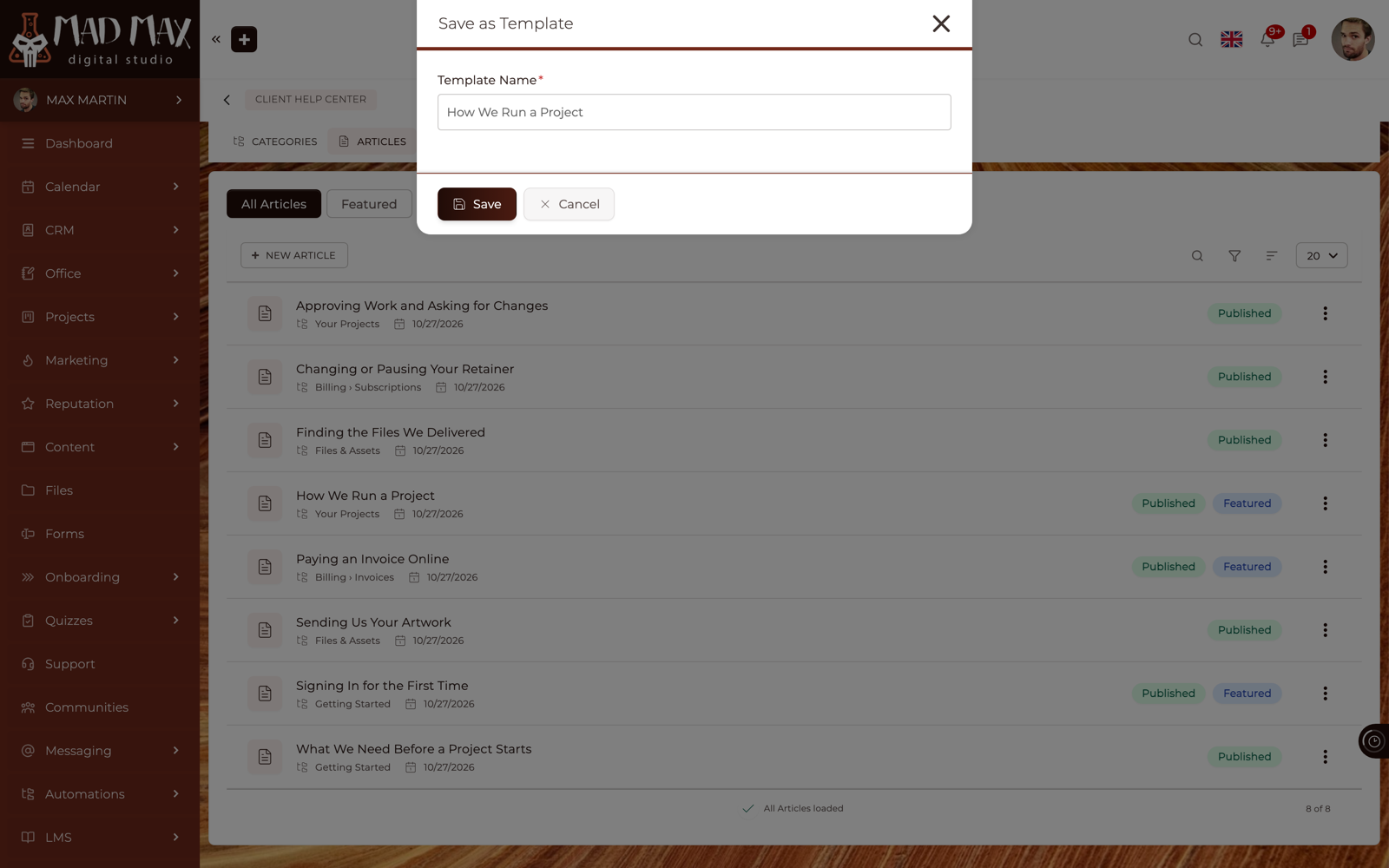
The article itself is untouched. Saving a template takes a copy of its blocks and leaves everything as it was.
TIP: The quickest way to build a template from nothing is to write one article the way you want them all to look, save it as a template, and carry on. You get a real article and a reusable layout from the same effort.
How do I start an article from one?
Create or open an article, and use Load Template in the editor. You get a Select Template picker listing every template in the account.
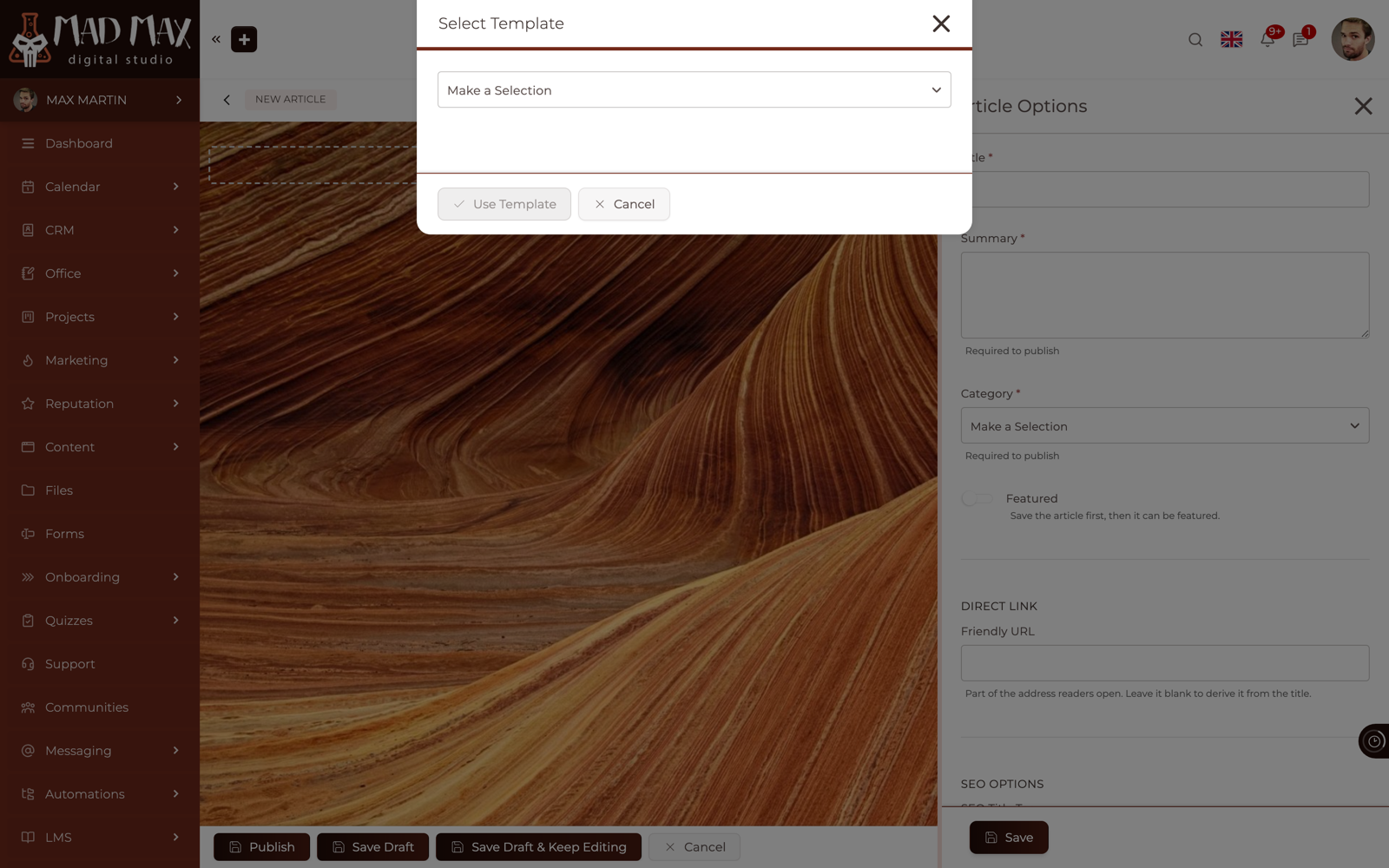
Choose one and press Use Template. The blocks arrive on the canvas, ready to edit.
IMPORTANT: Loading a template replaces the current content of the article. The editor warns you before it does. On a new, empty article there is nothing to lose, but on an article you have already written, this wipes the body.
Nothing is saved until you save the article. If you load a template and change your mind, cancel out of the editor and the article is as it was.
How do I manage my templates?
Go to Content > Knowledge Base Pages and switch to the Manage Templates tab. Templates live at the account level, not inside one Knowledge Base, so a template saved from one is offered in all of them.
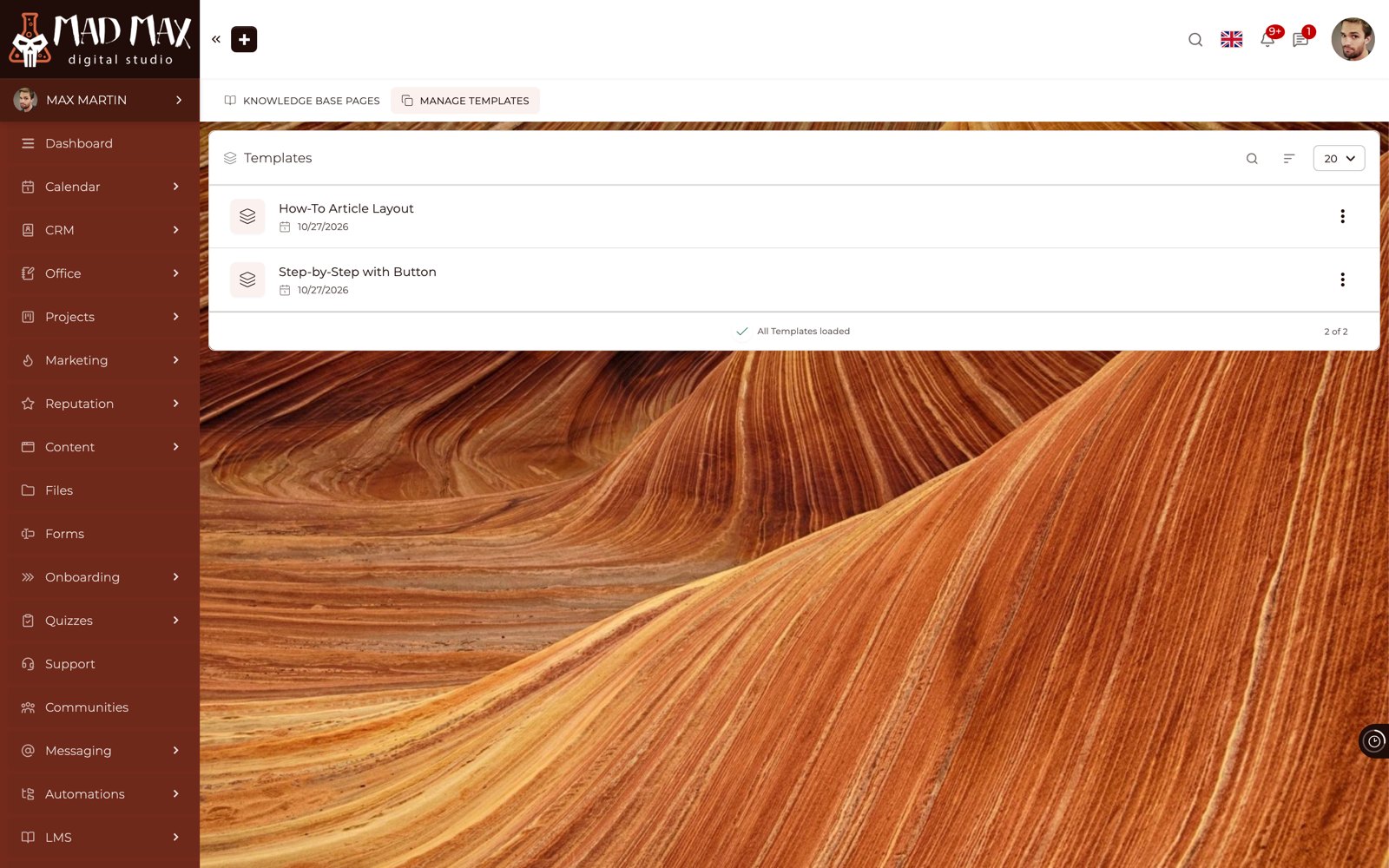
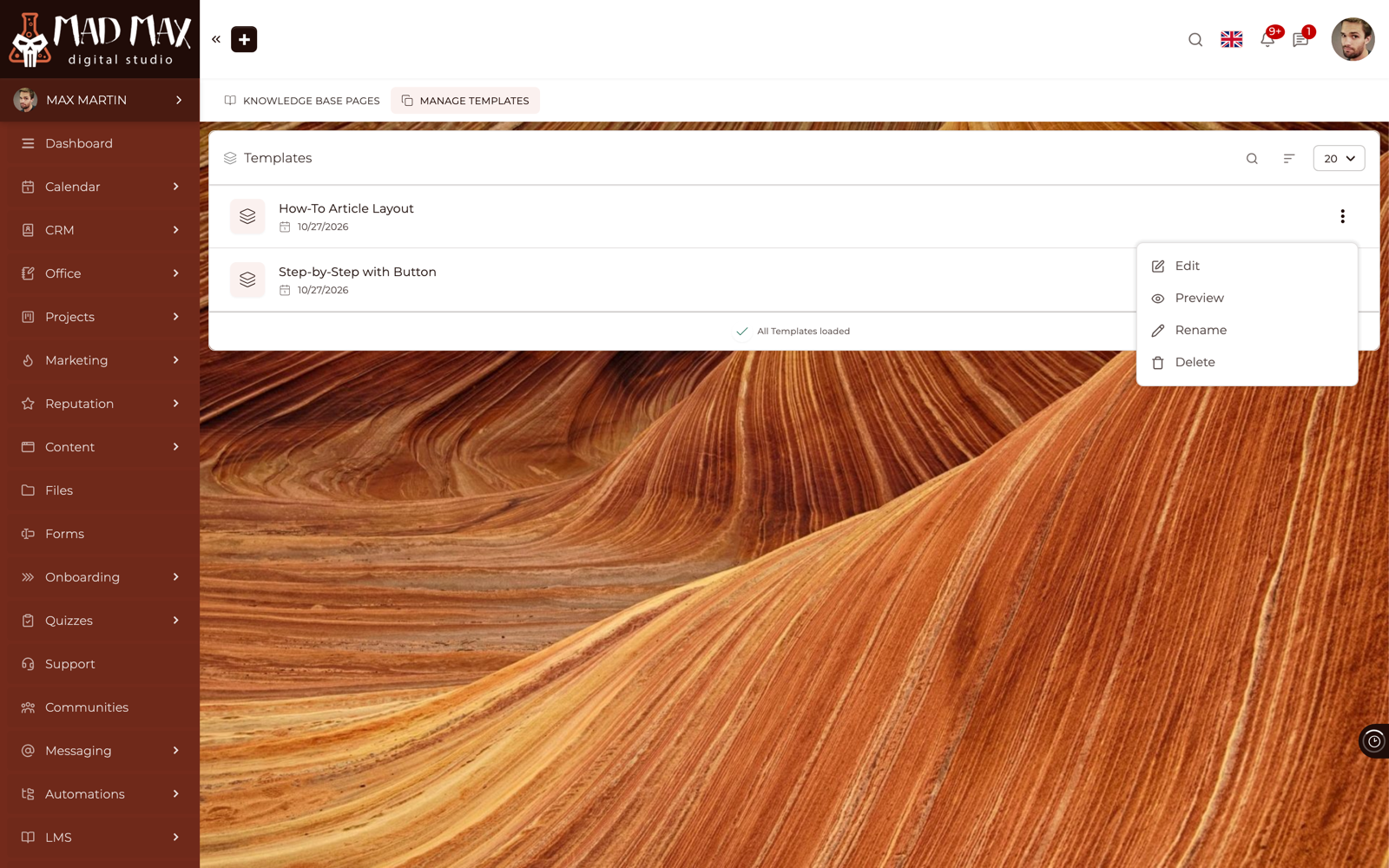
Each row has a menu:
Edit: Opens the template's blocks in the editor, so you can change the layout itself. A template needs at least one block: "Add at least one block before saving the template."
Preview: Shows the layout as it will arrive in an article.
Rename: Changes the name in the picker.
Delete: Removes the template. This cannot be undone.
TIP: Editing a template changes only what future articles start from. Articles already written from it are untouched, because the template was copied into them when it was loaded, not linked.
Are these the same as other Templates in the platform?
No. Article Templates belong to Knowledge Base articles alone. They are a separate set from Portal Page Templates, Public Page Templates, Form Templates, Task Templates, Proposal Templates and the rest, and they do not mix.
CLICK HERE to learn how to build a Knowledge Base.
CLICK HERE to learn more about the Content Block Editor.