
REPUTATION: What Your Clients See
Every review request you send opens the same short page, whether it went out by email, by text message, as a notice in your Client's Portal, or from the Leave a Review button on one of your Portal Pages. It carries your branding, asks one question, and guides your Client to the right next step.
CLICK HERE to learn about setting Reputation up
What does the page ask?
The page greets your Client by their first name and asks How did we do?, with a line underneath saying what the request is about, such as the Invoice, the appointment or the project it followed. Depending on the Question Style you picked in Request Studio, they answer with It Went Well or Not So Well, or with a star rating. With stars, a rating at or above your Positive Rating Threshold counts as a positive answer.
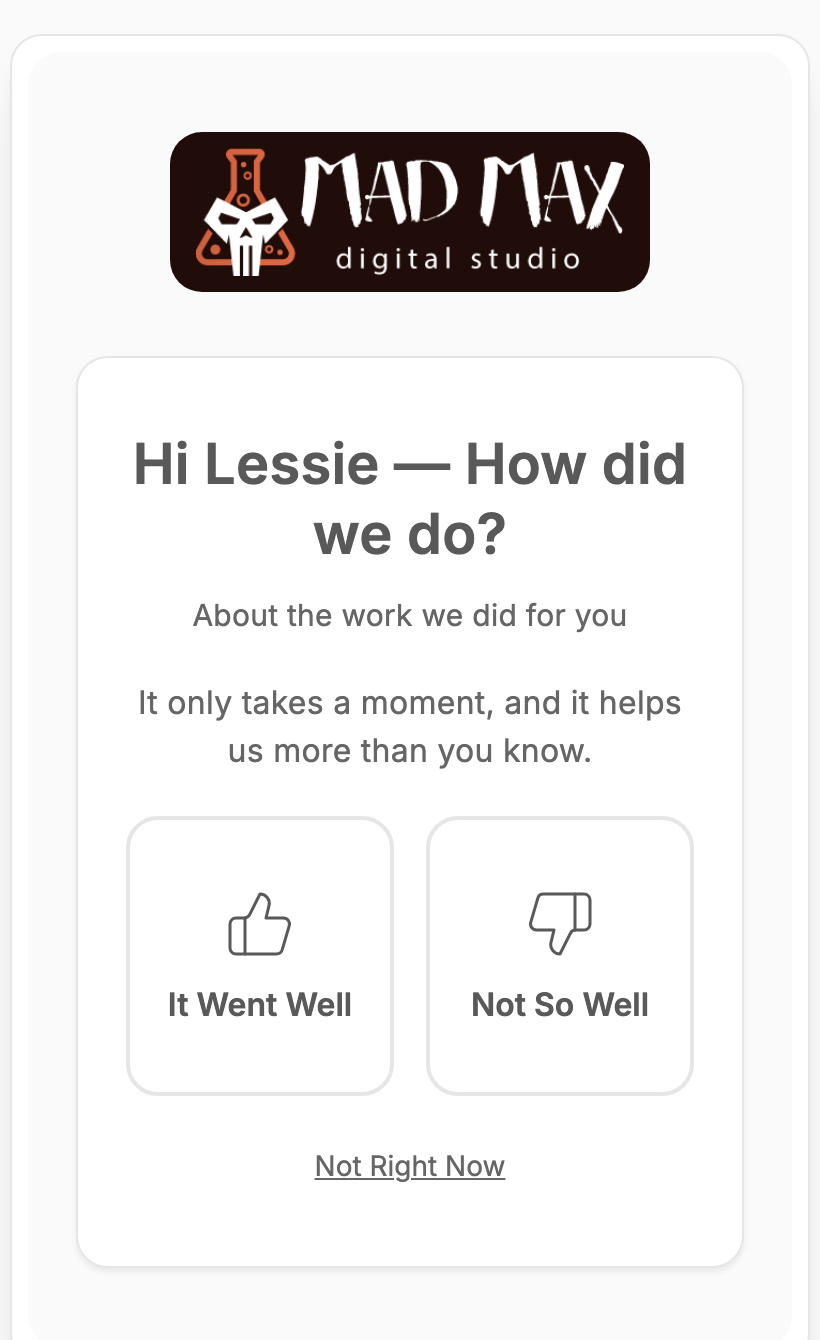
A Client who would rather not answer can choose Not Right Now. That request closes politely, and they are not asked again until your cooldown has passed.
What happens after a positive answer?
Your Client is thanked and shown the Channels you have switched on, in the order you put them in, each under the button label you gave it. The first one is shown most prominently, so the place you most want reviews is the easy choice. Under each button is a quiet line naming what it is, such as Continue to Google or Written Recommendation.
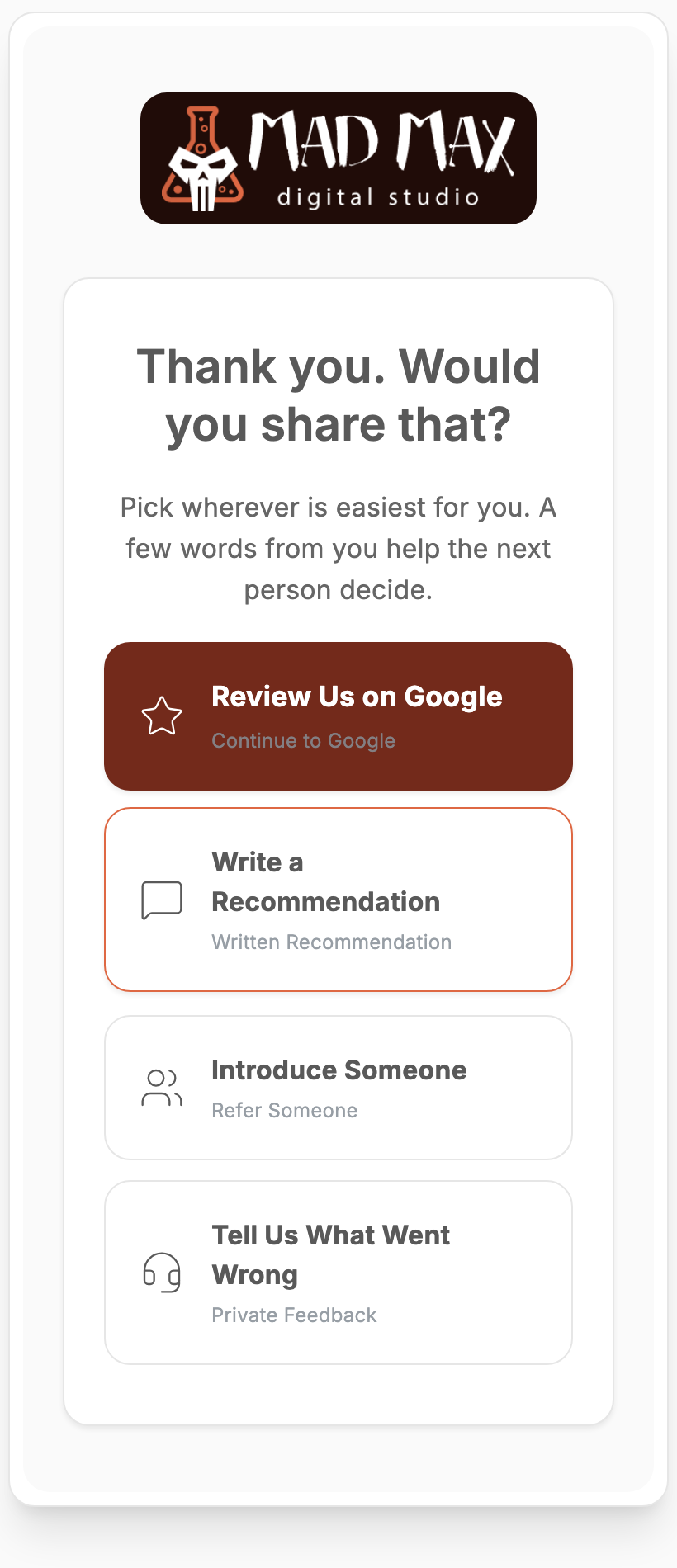
- A review site such as Google, Facebook, Yelp or Trustpilot opens that site, already on its write-a-review page. This is recorded as a tap, not a review, because no platform can see whether a review was actually written.
- Written Recommendation opens a short form on your own page. What they write can become a Testimonial once they allow it and you publish it.
- Refer Someone opens a form for an introduction. The person introduced becomes a Lead in your CRM.
- Private Feedback appears here too, if you have switched it on as a Channel. A happy Client who still has something to tell you privately can use it without leaving a public review.
What is on the Written Recommendation form?
A star rating, a box for their own words, their name, their role, and a choice of how they want to be credited: Full Name and Role, First Name and Initial, or Anonymous. The last line asks whether they are happy for you to publish it.
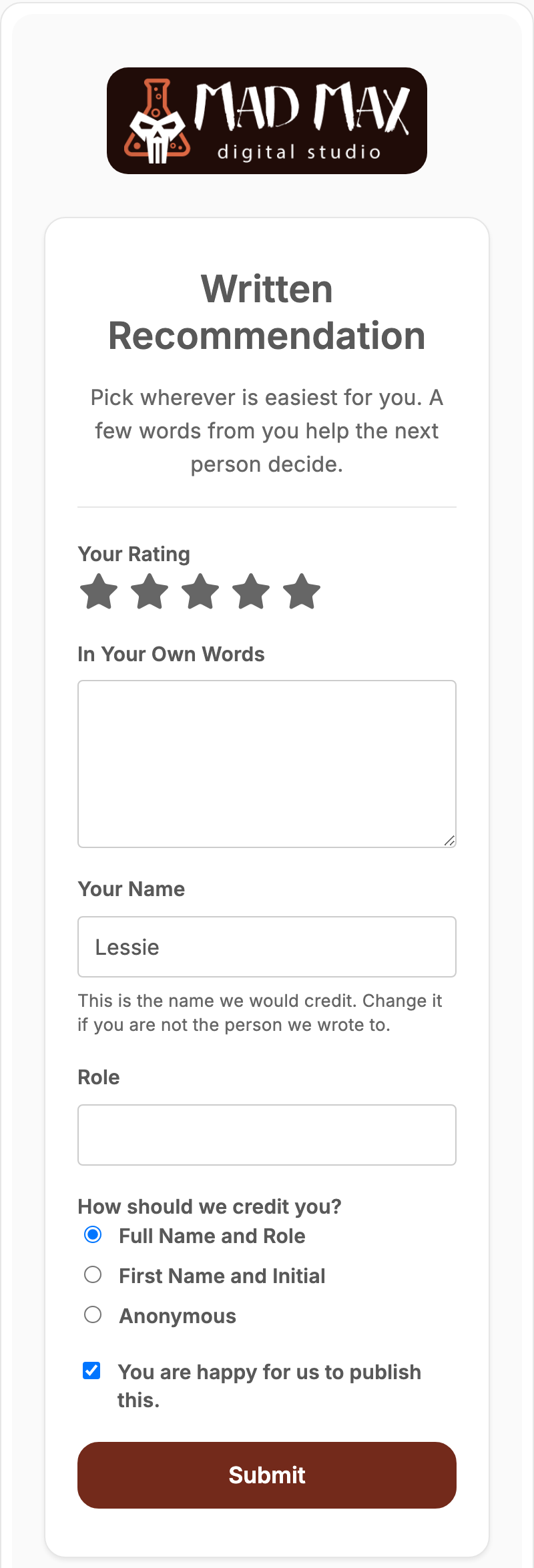
The name is filled in for them, with a note saying to change it if they are not the person you wrote to. Nothing from this form is published automatically. It reaches your Responses list as Needs a Decision, and only appears publicly if you publish it.
IMPORTANT: If your Client does not tick the publish box, you cannot publish that recommendation at all. It is marked Cannot Be Published and stays private. The choice is theirs, and nothing in your account overrides it.
What is on the Refer Someone form?
First name, last name, email, phone and an optional note, plus the name of whoever is making the introduction so you know who to thank.
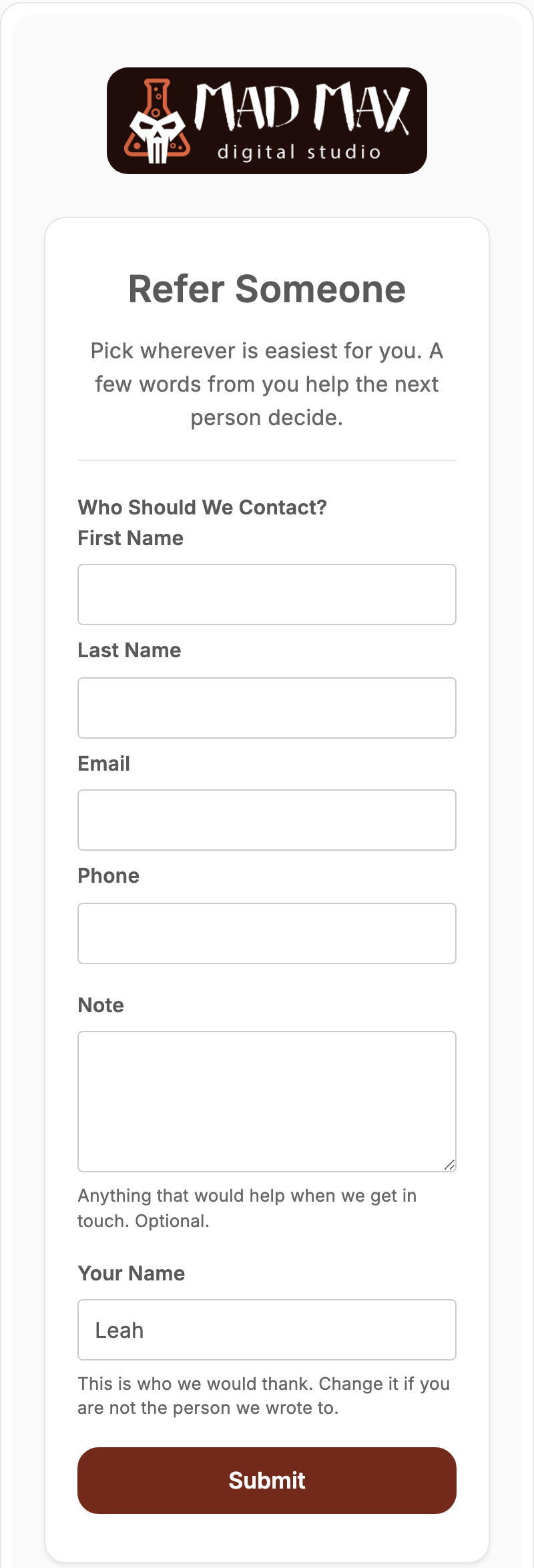
When they submit it, the person they introduced is created in your CRM as a Lead, with the note attached, and the response records who introduced them.
What happens after a negative answer?
A negative answer always leads to private feedback, under the heading Tell us what went wrong. The page tells your Client plainly that it comes straight to your team and is never posted anywhere. It reaches you in Responses under Private Feedback, and there is no route by which it can be published.
Can I change the wording?
Yes. Request Studio > Client-Facing Wording lets you replace the heading and message on the question page, the happy page and the unhappy page. Each box shows the current wording as a placeholder; type your own to replace it.
TIP: Leave a box empty and you keep the platform wording, which is kept up to date for you as the copy improves. Anything you type is yours and is never changed.
How does the page carry my branding?
It wears the same look as the rest of your Portal: your logo and the colors of the Preset Theme you chose in Platform Branding, including the Mr. Clean theme in both its light and dark versions, so a Client who knows your Portal recognizes the page straight away.
CLICK HERE to learn about Platform Branding
TIP: If your logo is dark, upload a Dark Mode logo in Platform Branding as well. Without one, a dark logo can be hard to see when the page shows in dark mode.
What if the link has already been used?
- A request your Client already answered or declined still opens, on a thank-you page, so a second click is never a dead end.
- A request that has expired or was closed shows This link is no longer active. on your branded page.
- Refreshing the page after sending never records a second response.