
REPUTATION: Ask Clients for Reviews
Reputation Management asks your Clients how the work went, sends the happy ones to the review sites you care about, and keeps the unhappy ones private so you hear about a problem before the internet does. Everything it sends is held back by rules you set once, so no automation can ever talk a Client into being pestered.
It is a Power-Up. Once it is on your account, Reputation appears in your main menu.
CLICK HERE to learn about Power-Ups
What does my Client actually get?
One short page, carrying your branding, that asks a single question: How did we do? A positive answer opens the Channels you have switched on, so they can review you on Google, write you a recommendation, or introduce someone. A negative answer goes straight to a private feedback box that never gets published by any route.
CLICK HERE to see every screen your Clients see
Where do I find Reputation?
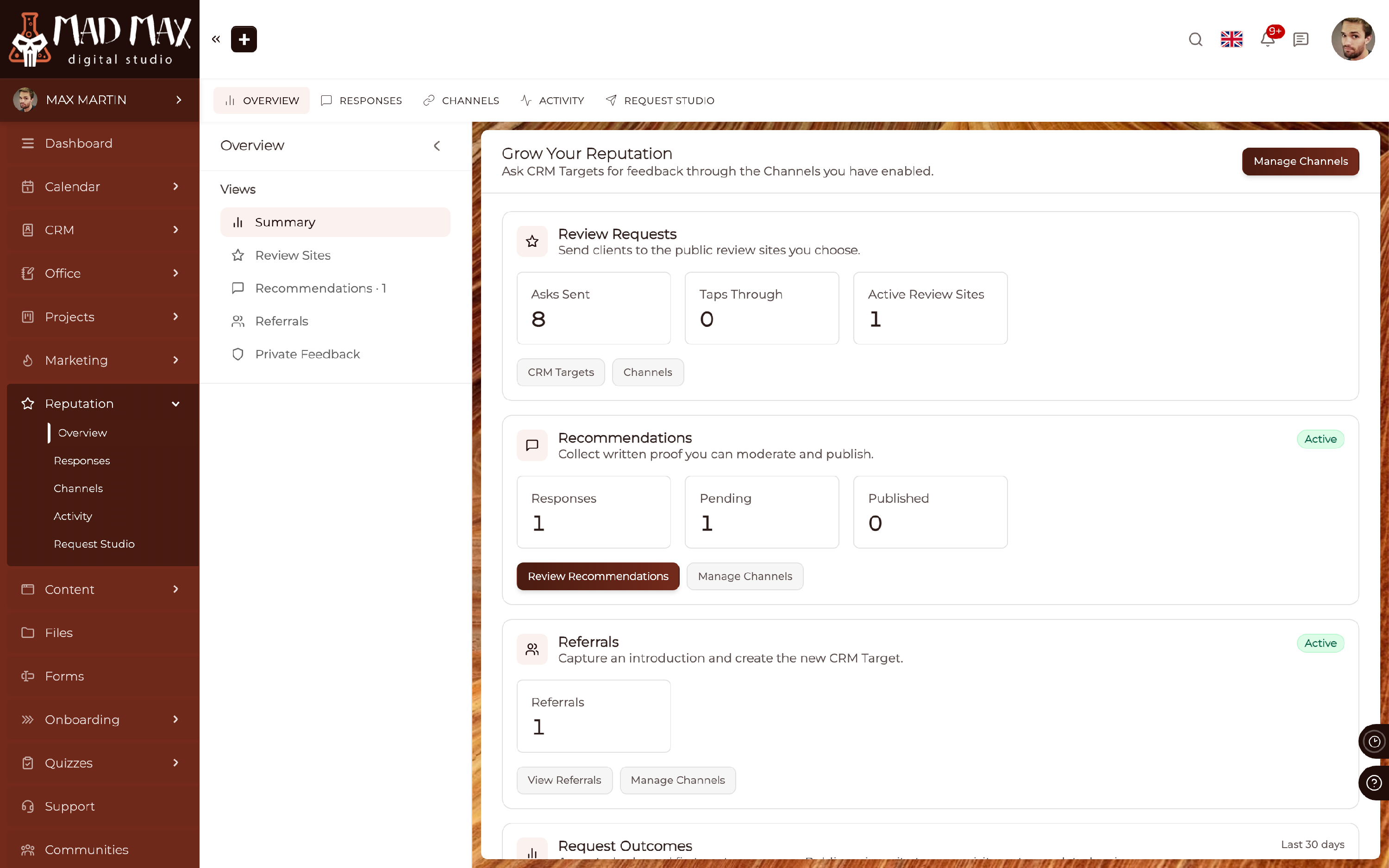
Reputation in your main menu opens five screens:
- Overview is the summary: how many asks went out, how many taps through to a review site, how many recommendations are waiting on you, and how the last 30 days of requests turned out.
- Responses is everything that came back, and where you decide what to publish.
- Channels is where you choose the places a happy Client can leave a review.
- Activity is every request, including the ones that were held back, with the reason.
- Request Studio is where you set the wording and the rules.
How do I set up my Channels?
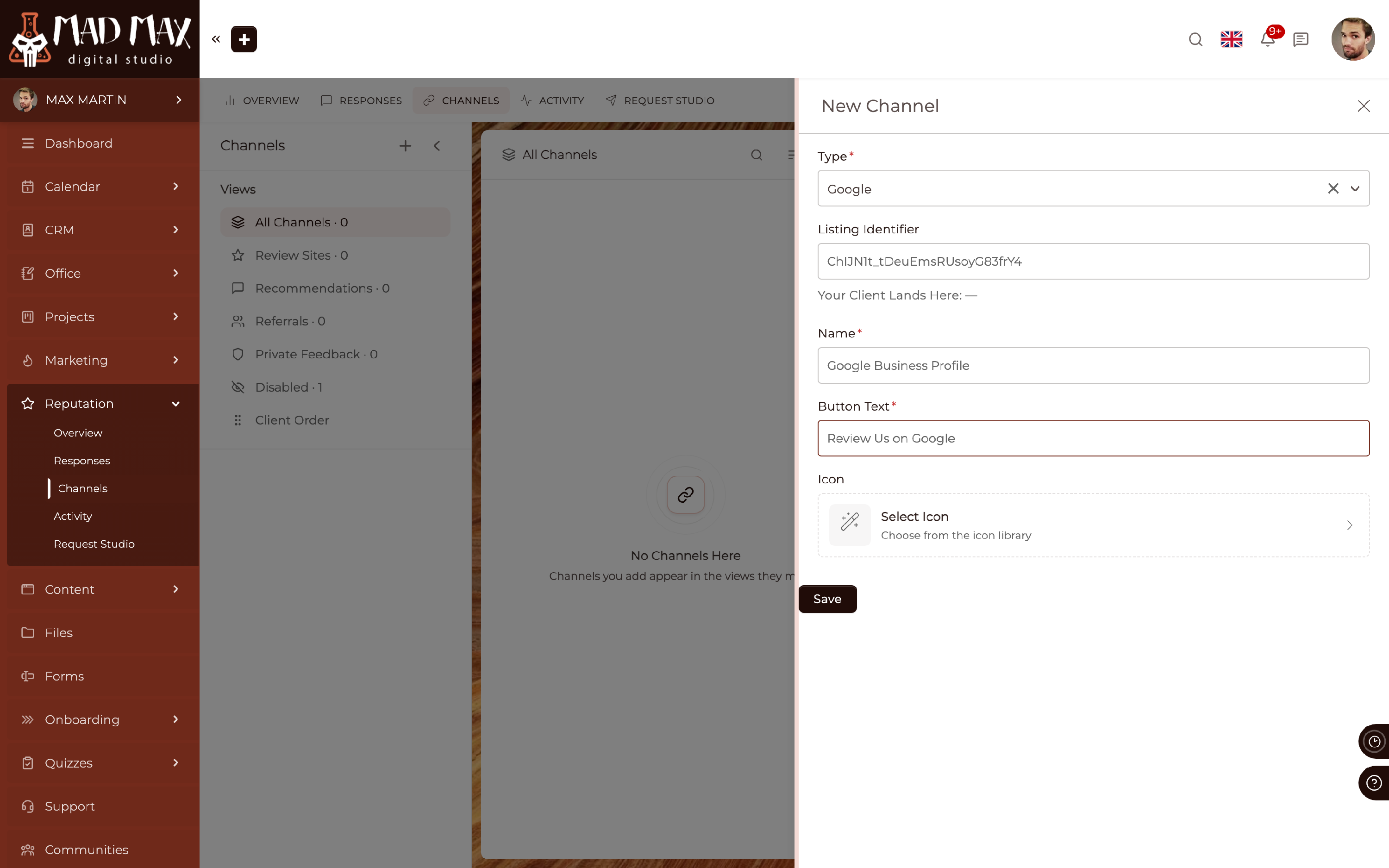
A Channel is one place a happy Client can go. Open Reputation > Channels and add one for each. There are two kinds.
Review sites are Google, Facebook, Yelp and Trustpilot. For each you give a Listing Identifier, which is the part of your listing's address that identifies your business, and the screen shows you the exact address your Client will land on so you can check it before you save.
Channels hosted on your own Portal need nothing configured, because the page is yours already: Written Recommendation, Refer Someone and Private Feedback.
Every Channel also takes a Name for your own lists, the Button Text your Client reads, and an icon.
The Client Order view lets you drag your Channels into the order your Clients see them. The first one is shown most prominently, so put the site you most want reviews on at the top.
TIP: A Channel that already has responses cannot be deleted, so your records stay intact. Switch it off instead. Clients stop being offered it straight away, and what came through it before is still there.
How do I send a review request?
Three ways, and all three obey the same rules.
- By hand, from a CRM record. Open the Target and choose Send Reputation Request. Before anything goes out you are shown exactly who it will reach, at which address, and a plain-language list of the rules in force, so there is no guessing.
- From an Automation. The Send Reputation Request action asks for the Channel, how it should go out (Email, SMS or Portal Notice), an optional message of your own, a delay in minutes, and whether to use your account reminder policy. Put it after the step where the work finishes.
- In the Portal. Add the in-Portal ask block to a Portal Page and signed-in Clients see a Leave a Review button, with no email at all. Staff never see it, and neither does a Client who has already answered.
CLICK HERE to learn about Automations
What stops a request going out?
This is the part that protects you. Set it once in Request Studio, and every route obeys it: the button on a CRM record, the Automation, and the Portal block alike. A request is held back when any of these is true.
- The Target has no email address, or mail to them has hard bounced before.
- They have opted out.
- They were asked inside your cooldown window.
- Too many asks in a row have gone unanswered.
- They have an open Support Ticket, if you switched that rule on.
- They have an overdue Invoice, if you switched that rule on.
- It is outside your working hours, if you set them. The request is held, not dropped, and goes out when your hours start again.
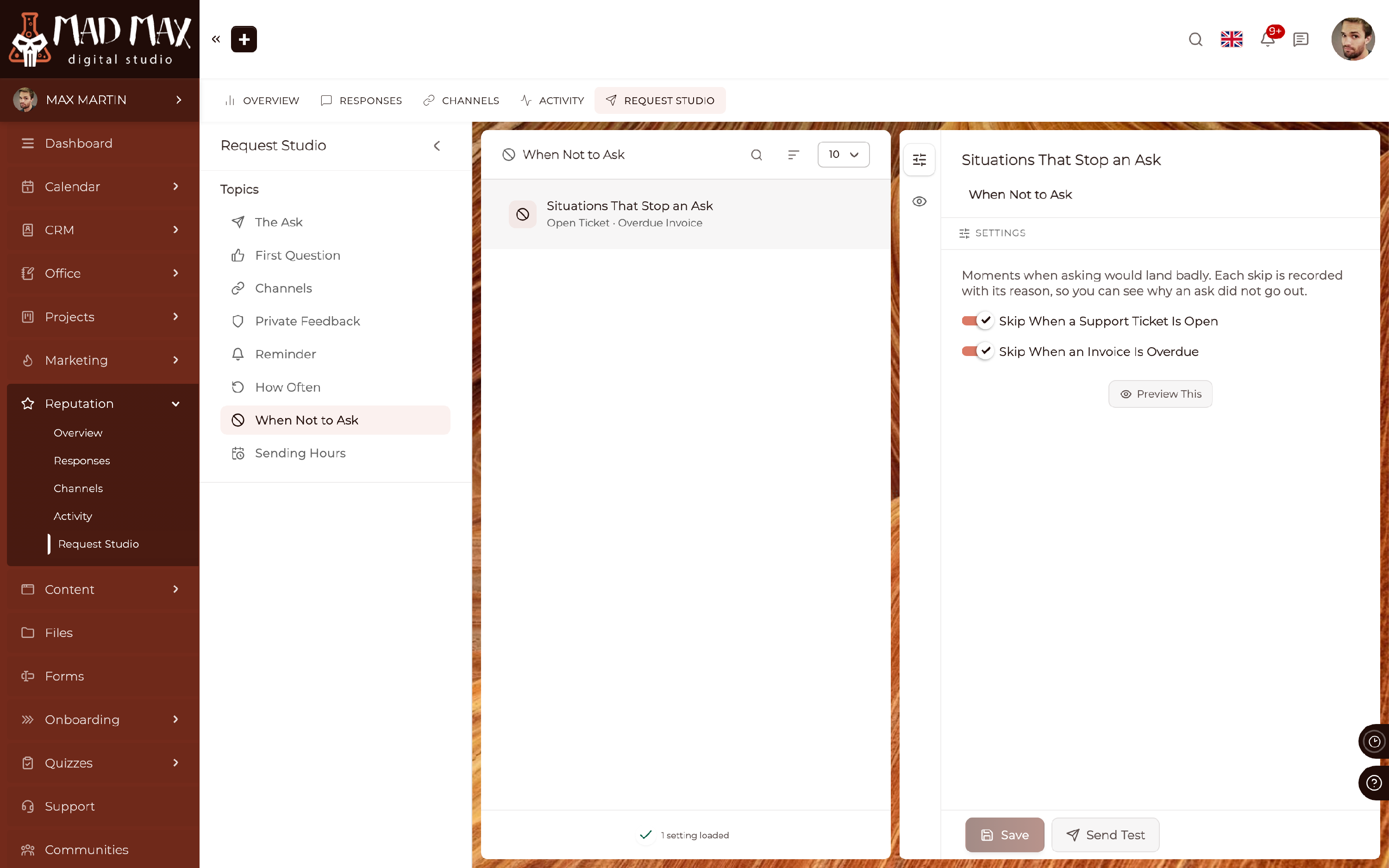
Every one of these is recorded on the Activity screen with its reason, so when somebody asks why a Client was never contacted, the answer is on the screen rather than a guess.
TIP: The working-hours hold uses your Client's own time zone when your account has one recorded for them, and your account time zone otherwise. A Client in another country is not woken up at 3am.
How often is the same person asked?
Request Studio > How Often holds three numbers:
- Days Before Asking the Same Person Again, between 30 and 365. Someone asked inside this window is skipped, whatever triggered the ask.
- Unanswered Asks Before Stopping. After this many asks in a row with nothing back, that person stops being asked. Choosing Not Right Now counts as unanswered.
- Days Before the Link Expires, which is how long a Client has to act before the link stops working.
Request Studio > Reminder adds at most one nudge, a set number of days later, and only when nothing has come back. Someone who has already answered is never reminded.
Where do I see what came back?
Reputation > Responses, filtered by what you need to do with it: Everything, Needs a Decision, Published, Hidden, Private Feedback and Taps.
A written recommendation arrives as Needs a Decision. Open it and set it to Published or Hidden. Nothing is ever published for you.
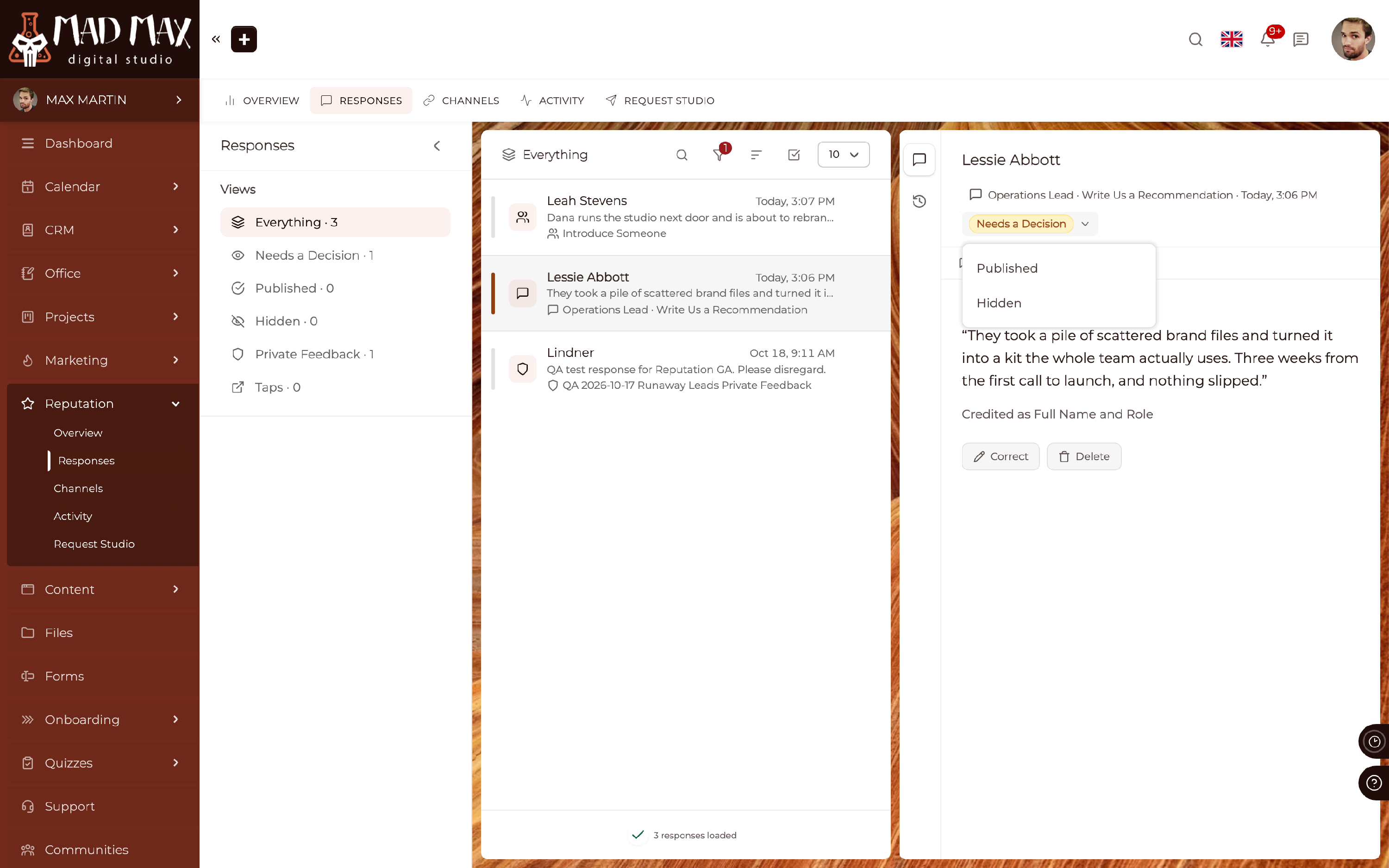
Each response records how your Client chose to be credited: Full Name and Role, First Name and Initial, or Anonymous. A referral shows who was introduced, with a link through to the new Lead. A tap through to a review site is recorded as exactly that, a tap, because no platform can tell you whether a review was actually written.
IMPORTANT: Correct Wording lets you fix a typo, or credit a Client less identifiably than they chose. It does not let you change what they said, and it does not let you credit them more identifiably. Private feedback is never published by any route, and a recommendation your Client did not give permission for cannot be published at all.
How do I show my testimonials?
Add the Testimonials block to any Portal Page or Public Page. Only recommendations you have published appear in it, each credited exactly as your Client chose.
CLICK HERE to learn about building Portal Pages
How do I see whether a request worked?
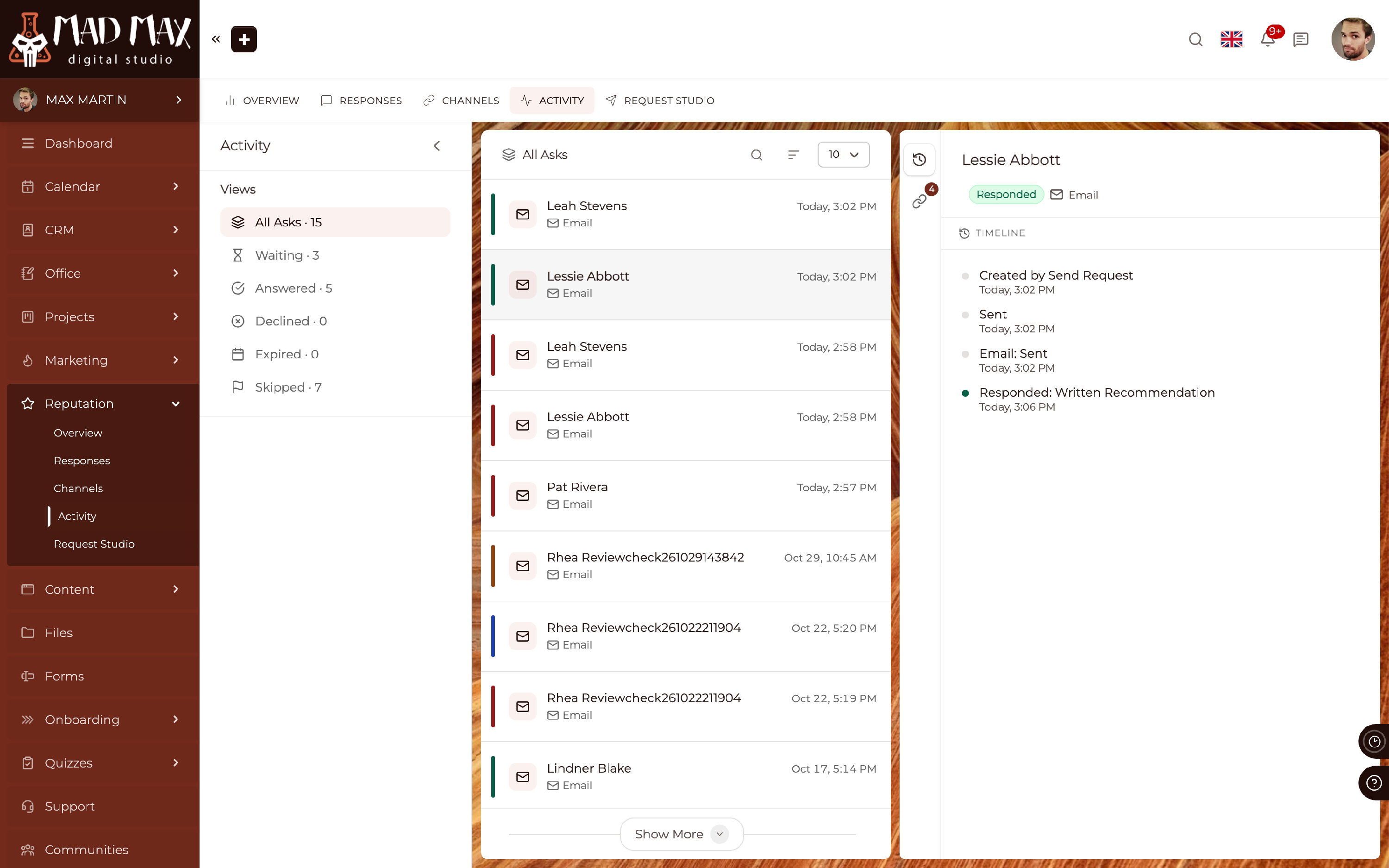
Reputation > Activity lists every ask, grouped as Waiting, Answered, Declined, Expired and Skipped. Open one and the timeline tells you the whole story: what created it, when it was sent, how it went out, whether a reminder followed, whether it was held until working hours, and what came back.
Can I change what my Clients read?
Yes, in Request Studio.
- The Ask sets the subject and message of the invitation email. Leave them blank to use the default. Your message appears inside the branded Review Request email, above the review button, which is added for you.
- Client-Facing Wording sets the heading and message on the question page, the happy page and the unhappy page. Each box shows the current wording; type your own to replace it. Leave a box empty and the platform wording stays, kept up to date for you.
- The greeting, layout and the Review Reminder are edited under Email Templates.
IMPORTANT: If you edit the Review Request email template, keep its [reputation:message] placeholder. Without it, the message you wrote in Request Studio will not appear in the email.
CLICK HERE to learn about Email Templates
Good to know
- Requests can go out by email, by SMS, or as a notice in your Client's Portal. SMS uses whichever texting your account already has set up.
- Preview This in Request Studio shows you the page or email as your Client will see it. It creates no ask, notifies nobody and changes no measurements.
- Send Test sends one to yourself, at the address on your own CRM record, so you can read it in your own inbox. It is a real request and obeys the same rules, so if something holds it back, the screen tells you which rule did.
- Staff contacts cannot be sent a review request. It is for your Clients, Leads and Prospects.
- A Channel is offered only while it is switched on, including to someone who kept the link and came back later.
CLICK HERE to learn about texting your contacts