
REPUTATION: Find Your Google Listing
When you add a Google review Channel, you no longer need to dig up your listing's Place ID first. Search for your business by name and city, pick the right location from the list, and the Place ID fills itself in. Your Clients then land on the Google review page for exactly that location.
CLICK HERE to learn about Reputation and its Channels
Where do I find it?
Open Reputation > Channels and click New Channel, or open an existing Google Channel to edit it. Set Type to Google. The identifier field is now labeled Place ID, and a Find Your Google Listing button sits just above it.
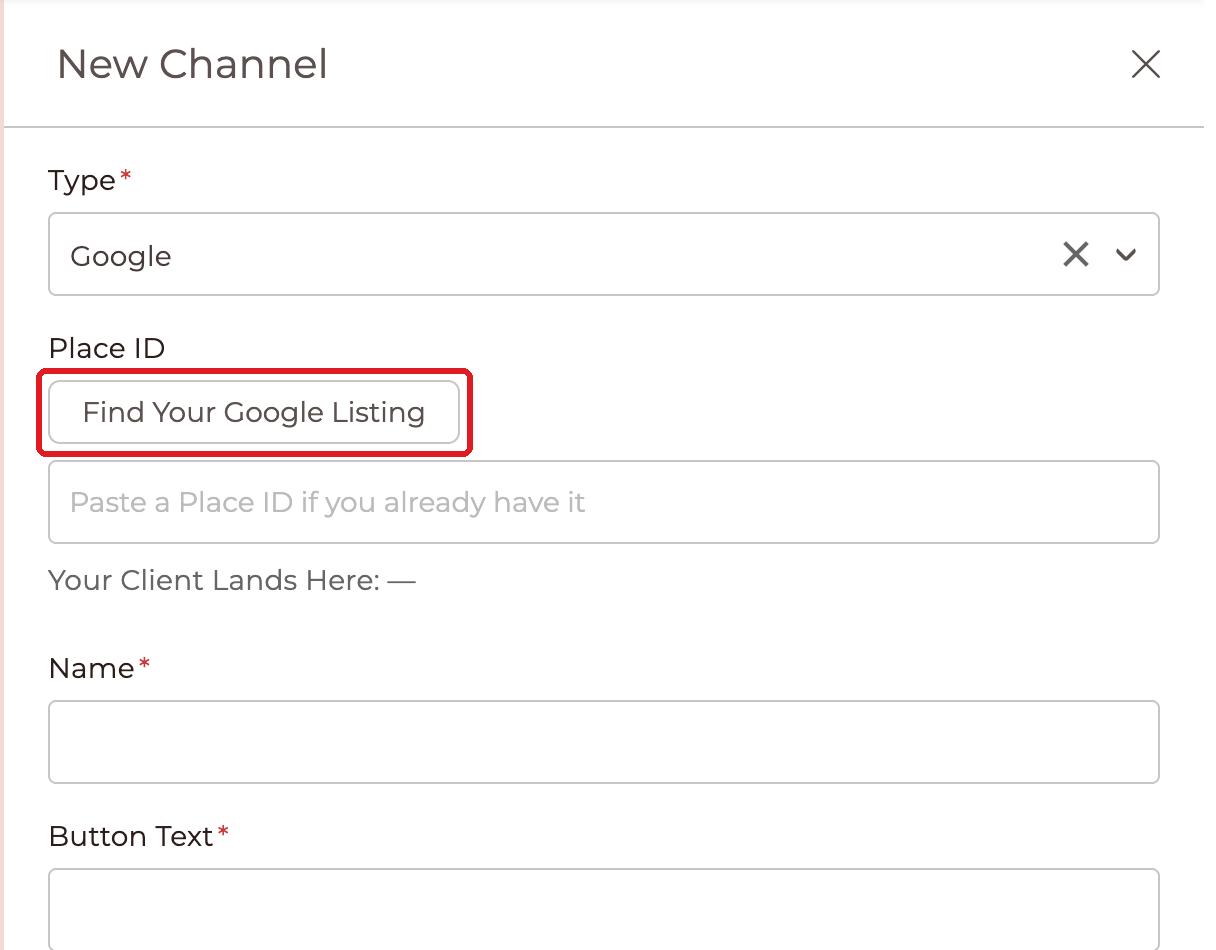
Anyone on your team who is allowed to create Channels (for a new one) or edit Channels (for an existing one) can use the search. Your Clients never see Channel setup.
How do I find my listing?
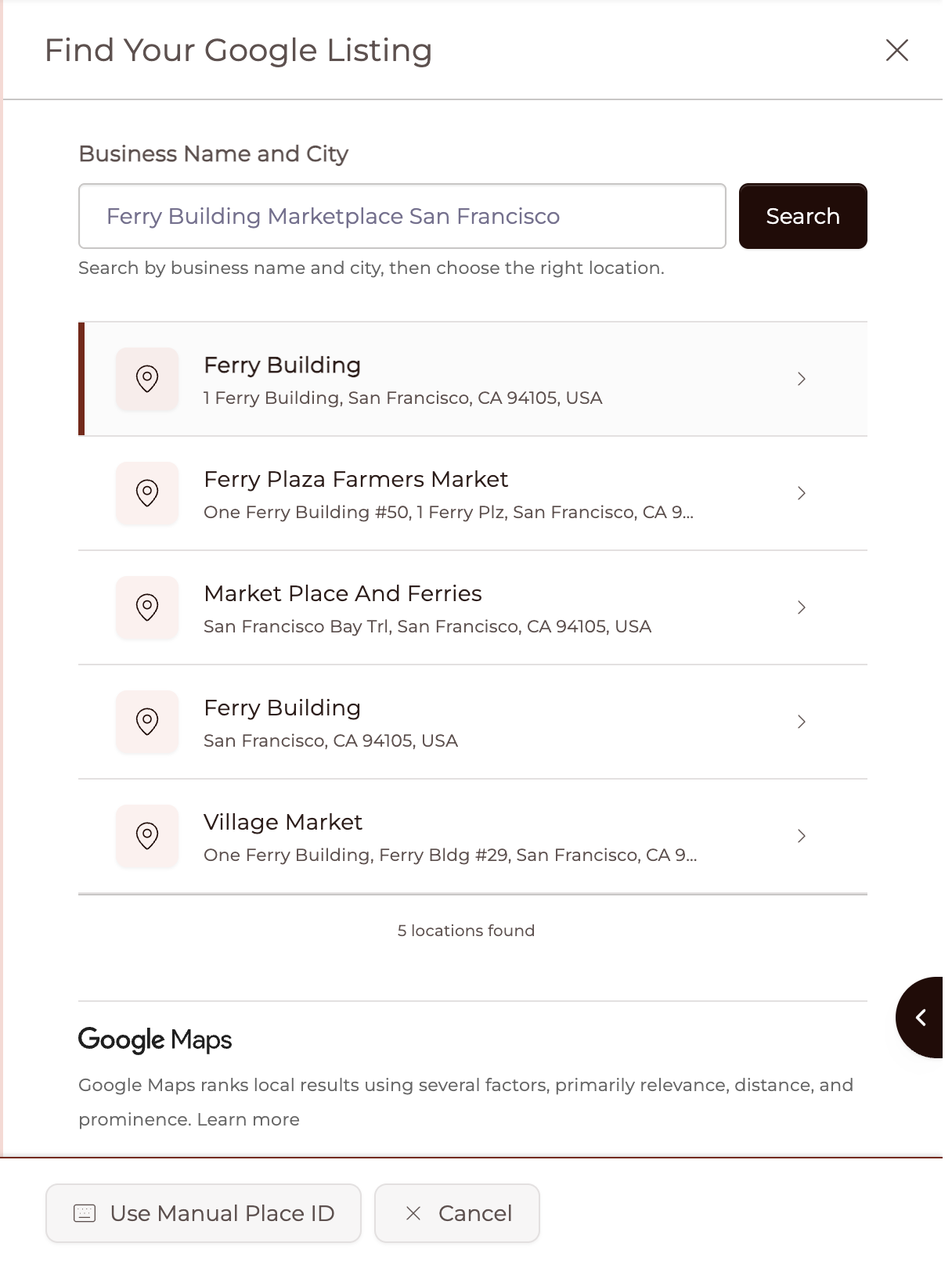
- Click Find Your Google Listing. A second panel opens beside the Channel.
- In Business Name and City, type your business name, plus the city or area it is in, and click Search.
- Up to five matching locations appear, each with its name and full address. Check the address, then click the location you want.
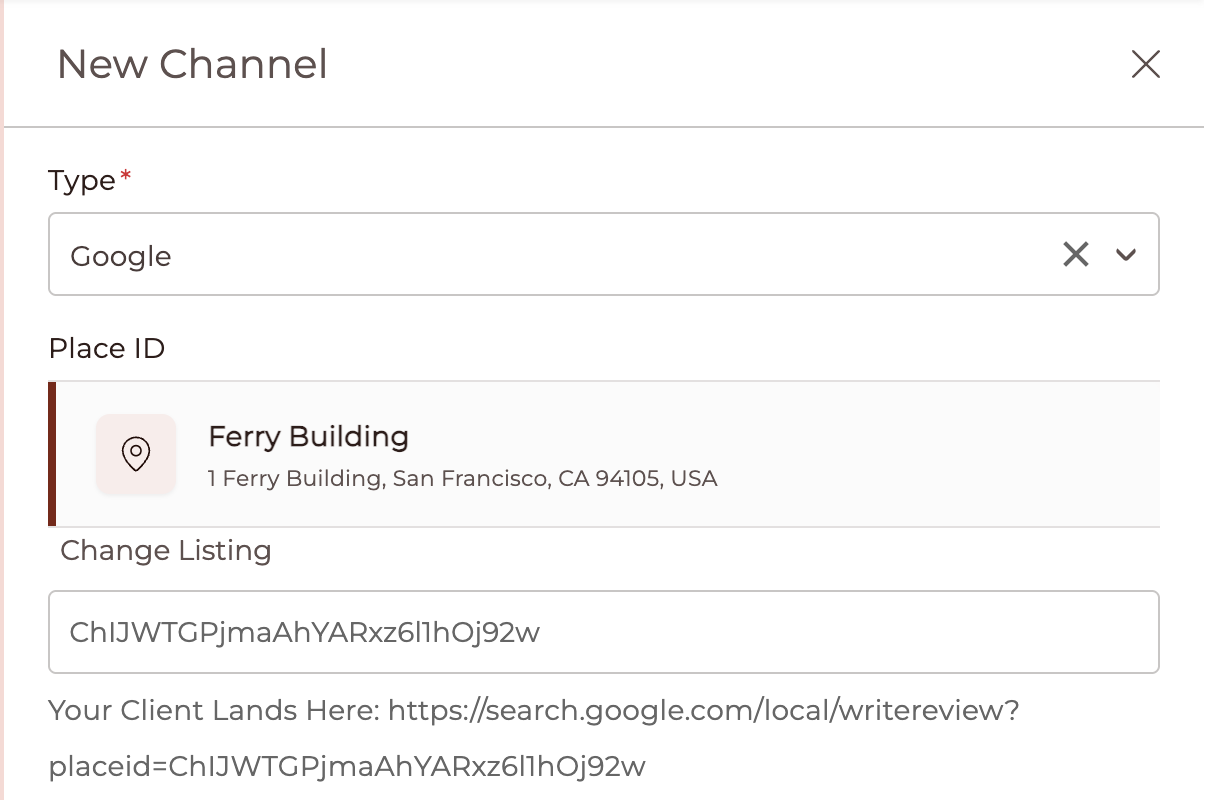
The panel closes and your chosen location appears under Place ID, with its Place ID filled into the field. Your Client Lands Here now shows the exact review address your Clients will be sent to. Give the Channel its Name and Button Text, then click Save as usual.
TIP: Businesses with several branches often get several results with the same name. The address is what tells them apart, so pick by address, not by name. A wrong pick sends your Clients to another branch's review page.
To pick a different location later, click Change Listing under the chosen location and search again. If you type or paste a Place ID into the field yourself, the chosen location card is cleared and the Channel uses what you typed.
What if the search does not find it?
You can always enter the Place ID by hand. Close the search with Use Manual Place ID or Cancel; either one leaves the Place ID field exactly as it was. The search panel also tells you what happened:
- No Matches: nothing matched your words. Try another spelling of the name, or a different city or area.
- Google listing search is unavailable right now: the search could not reach Google. Click Try Again, or enter the Place ID by hand.
- Today's search limit has been reached: the day's searches have been used up. You can still enter a Place ID manually, and the search is available again the next day.
IMPORTANT: Each account can run up to 10 searches a day, counted on Pacific time. Every search you submit counts, even one that finds nothing or fails, so include the city in your first search to get the right result quickly.
Good to know
- The search only picks the public review page your Clients are sent to. It does not connect your Google account, and it does not prove you own the listing.
- It does not import your Google reviews, show your rating, or reply to reviews.
- Results come from Google Maps, which ranks local results by relevance, distance and prominence.
- Other Channel types, such as Facebook, Yelp and Trustpilot, keep their Listing Identifier field and have no search.