
PortalBank
What is PortalBank?
The PortalBank is designed to simplify and enhance the way you manage critical functionalities such as Email Marketing and Video Hosting/Streaming. With PortalBank, you gain greater convenience, control, and cost-efficiency, all through an easy-to-use, a la carte payment model.
With the Easy Balance Top-Up feature, you can effortlessly add funds to your PortalBank balance, ensuring that you always have the necessary funds to utilize powerful functionalities whenever you need them.
PortalBank operates on a “ pay only for what you use” model, meaning you are only charged for the specific services you utilize. Whether it’s sending out an Email Marketing campaign, hosting a video, or purchasing a template from the Marketplace, PortalBank ensures that your costs are aligned with your actual usage. This cost-effective usage enables you to spend wisely, optimizing your budget and eliminating unnecessary expenses.
PortalBank also streamlines your financial management by enabling you to collect payments and withdraw funds directly from your balance. This feature simplifies the transaction process, making it easier to manage your finances.
TIP: This PortalBank is your own account's wallet. To sell prepaid hours, session credits or money to your Clients and track what each one has left, see the Portal Bank Balance Power-Up instead.
CLICK HERE to learn about Portal Bank for Clients
 To add credit to your PortalBank, go to flyout>Manage Account>PortalBank.

Click the ' Add to Balance' button.

Add your preferred amount and click ' Next Step' to proceed to the payment window.
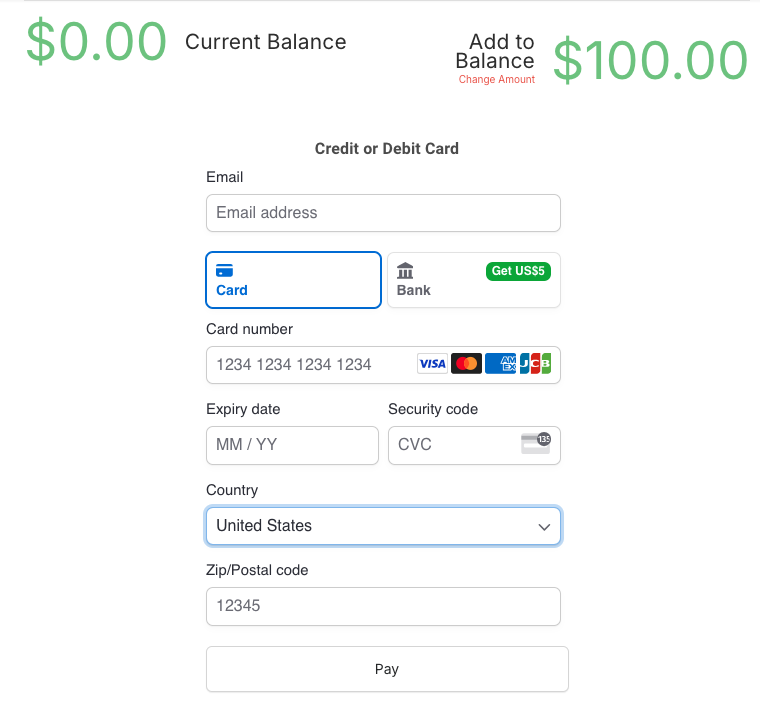
Add your Credit or Debit Card details and click the Pay button to confirm the payment.
How do I find one type of charge?
Your balance history lists every top-up and charge against your PortalBank. To see just one kind of line, such as a deposit or an incoming text, filter the history by Type.
- Navigate to Flyout Menu > Manage Account > PortalBank.
- Click the Filter icon above the balance history.
- Open Type, next to Date, and pick the kind of charge you want to see.
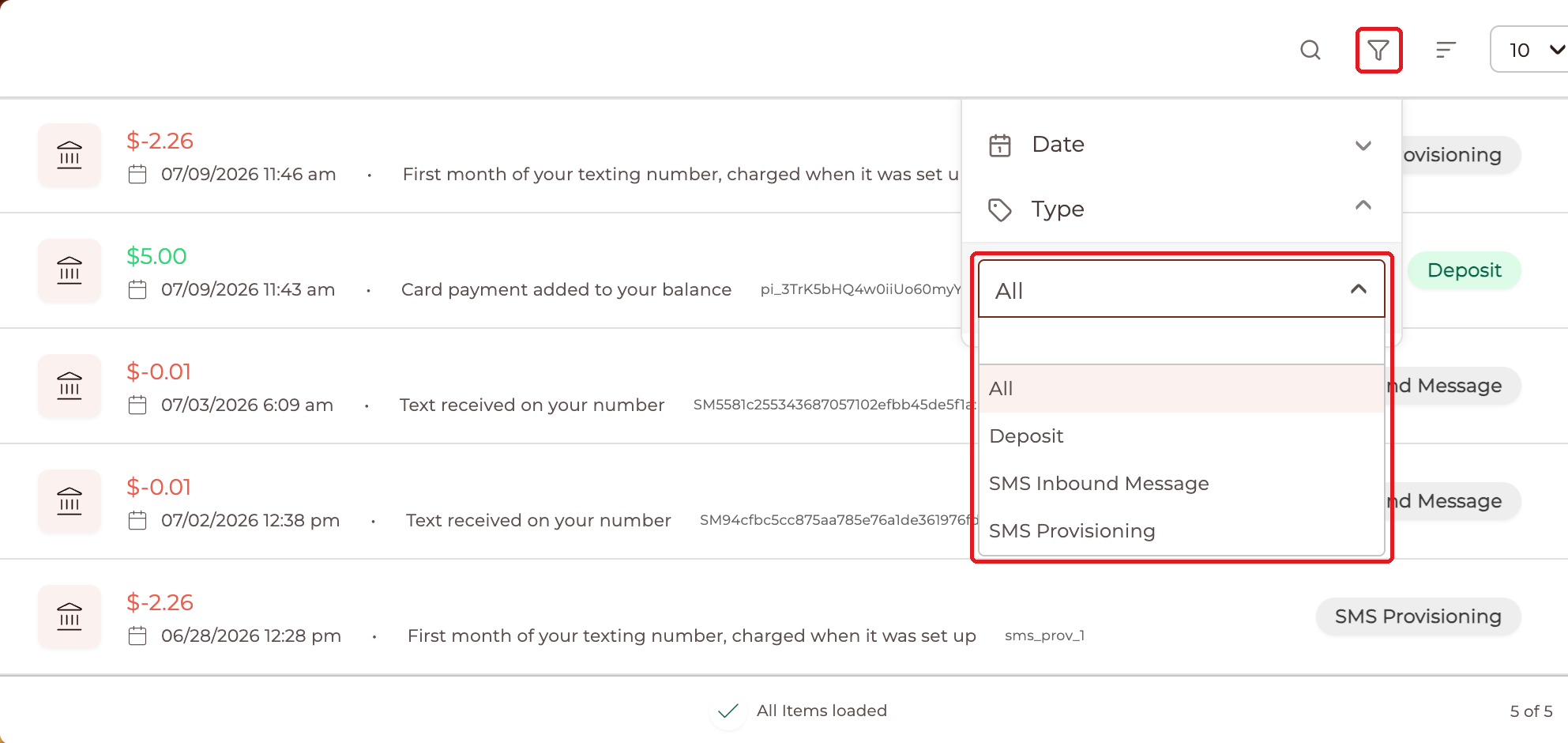
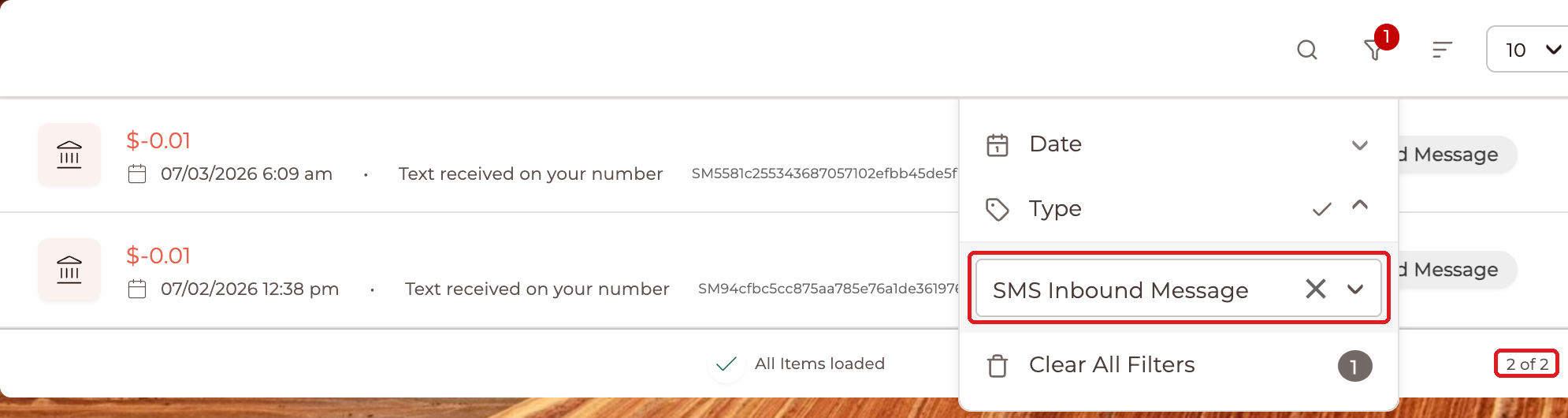
The list then shows only lines of exactly that type, and the count at the bottom of the list updates to match.
Good to know
- Type starts with All, then lists only the kinds of charges your account has actually had, A to Z. The names match the badges on your rows.
- You can pick one type at a time. It works together with Date, search and sort, so you can look at one kind of charge over one month.
- To see everything again, pick All or click Clear All Filters.
- Reloading the page, going back to it or opening it in a new tab starts again with the full list.
- Only people who can open your account's subscription settings can open PortalBank. Your Clients never see it.
If you use Managed Texting, its usage page has a Type filter that matches in the same way. See Managed Texting: Setting Up and Texting Your Contacts.