
OFFICE: Authorized Payment Methods
What are Authorized Payment Methods?
Authorized Payment Methods is the updated name for what was previously called Authorized Credit Cards. The section supports both Credit Cards and Bank Accounts (via Stripe ACH), giving your clients more flexibility in how they pay for recurring charges.
Clients can manage their authorized payment methods from the My Billing area in their portal, under the Authorized Payments tab. This tab is only visible to clients who already have at least one authorized method on file.
CLICK HERE to learn about My Billing.
How do clients manage their Authorized Payment Methods?
From the Authorized Payments tab inside My Billing, clients can view all of their saved payment methods. Each entry shows the payment type and, for bank accounts, whether the account is verified or not.

Clients have the following options from this tab:
- Set Primary Method: Click the star icon next to any method to mark it as the default. The star turns gold to indicate the primary selection. This is the method that will be used first when Auto Pay runs.
- Add New Payment Method: Click the Add New Payment Method button to be redirected to the Card-on-File authorization flow, where a new card or bank account can be securely added.
- Delete a Method: Click the delete icon to remove a saved method. Methods tied to active subscriptions cannot be deleted. When the primary method is deleted, primary status is removed and no other method is automatically promoted.
TIP: Encourage clients to set a primary payment method of each type (Credit Card and Bank Account) if they plan to use AutoPay on invoices. This ensures AutoPay always has a fallback if the preferred type is unavailable.
How do I request a client's Authorized Payment Info as a staff member?
You can send a client a secure link to add their payment method without needing their login credentials. In the CRM Dashboard, click the manage Profile icon and select Request Authorized Payment Info to generate and send a link to the client.

You will have the opportunity to customize and edit email prior to sending.

When the client clicks the link, they are taken directly to the Card-on-File authorization where they can securely add a credit card or bank account. Once added, the method is automatically saved as an authorized payment method on their account.

IMPORTANT: As a staff member, when processing a payment manually on behalf of a client, you can only select from their existing authorized payment methods. There is no option to add a new card directly from the staff payment action screen.
Can a Client put a bank account on file, not just a card?
Yes. A Client can authorize a bank account the same way they already authorize a card, and your Staff can then charge it on the Client's behalf. It works on whichever of your gateways offers a bank method: Stripe, Braintree or Authorize.net. Previously this only worked end to end on Stripe ACH.
Authorizing charges nothing. No Invoice is involved and no money moves, which is the whole point of asking for the method up front.
How does a Client authorize a bank account?
Two ways, both mirroring how a card is authorized:
- From a payment-request link. The Client picks the Bank tab and saves their account. On Authorize.net this used to end with a "payment failed" message even though nothing was being charged, which is fixed.
- From My Billing. The Client can add and manage an authorized bank account themselves, without waiting for you to send a request link.
TIP: Whether a bank account needs verifying depends on the gateway. Authorize.net has no verification step, so its accounts can be charged straight away, while Stripe and Braintree may ask for micro-deposit confirmation first. The Client's list names each account by its bank and last four digits rather than describing it as a card, and any Verify prompt is sent to the gateway that can actually complete it. Going through verification never costs the Client their authorization.
How do Staff charge an authorized bank account?
When you charge a stored method on a Client's behalf, a Bank tab now appears alongside the cards, not on Stripe ACH alone. It is backed by whichever of your gateways offers a bank method, and where more than one does, Stripe ACH is used because it carries its own add-a-bank flow. Pick the authorized bank account and charge it exactly as you would a stored card.
IMPORTANT: A bank debit is not instant, and that now holds on every gateway rather than on Stripe alone. Charging one tells you the debit was submitted, not that the Invoice was paid, and the Invoice sits at Processing while the bank works through it, typically two to three business days. The platform follows the debit until the bank answers, and if the bank later returns it, that comes back to the Invoice as a failed payment rather than quietly disappearing. A submitted debit is never counted as money received before it arrives.
What is AutoPay on a Recurring Invoice Generator?
AutoPay is available on Recurring Invoice Generators and Accumulating Invoice Generators. When enabled, invoices generated by the generator will be automatically charged to the client's authorized payment method, no manual action will be required.
The AutoPay checkbox only appears when the Generate As setting is set to Open. It is not available for invoices generated in Draft or other statuses.
How do I configure AutoPay on an Invoice Generator?
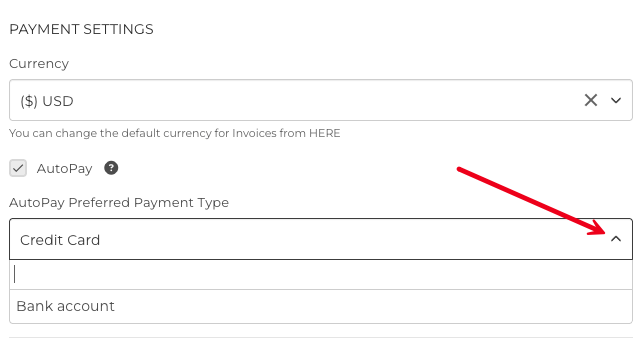
When editing a Recurring or Accumulating Invoice Generator, set Generate As to Open, then check the Auto Pay checkbox.
Once AutoPay is enabled, the following settings appear and others are hidden:
- AutoPay Preferred Payment Type: Choose whether Auto Pay should attempt to charge a Credit Card or a Bank Account first. Credit Card is preselected by default. The system will use the client's primary authorized method of this type when the invoice is due.
When Auto Pay is enabled, the following fields are automatically hidden as they are not applicable:
- No Online Payment
- 3rd Party Link
- Available Gateways
TIP: Set AutoPay Preferred Payment Type to match the payment method your client most commonly uses. If that method is unavailable, AutoPay will fall back to the other type automatically.
How does AutoPay process a charge?
When an AutoPay invoice is due, the gateway attempts to charge the client using the following order of priority:
- First, the client's primary authorized method of the preferred payment type (Credit Card or Bank Account, as configured).
- If no authorized method of that type exists, the system falls back to the client's primary authorized method of the other type.
- If the client has no authorized payment methods at all, the invoice is created with Open status and no charge is attempted. A failure notification email is sent to both the staff member and the client.
For Bank Account (Stripe ACH) charges, the invoice will show a Processing status while the payment is pending settlement. This is normal and expected for ACH transactions, which can take a few business days to clear.
IMPORTANT: If AutoPay cannot find any authorized payment method for a client, both you and the client will receive a notification email. The invoice will remain Open, and you will need to collect payment manually or ask the client to add an authorized payment method.
CLICK HERE to learn about Recurring Invoice Generators.
CLICK HERE to learn about Accumulating Invoice Generators.