
Translations: Multi-Language Support
What is Multi-Language Support?
Multi-Language Support lets your account hold several languages at once and show each person the one they belong to. A Staff member set to French sees the platform in French, a Client set to Spanish reads their Portal in Spanish, and your system emails go out in each recipient's language once you have translated them. You manage all of it from Flyout Menu > Translations.
You can tell at a glance whether your account already has it. A Translations page with Multi-Language Support carries a row of tabs across the top, and the first tab names the language you are editing.

If your Translations page has no tabs, your account is still on the original system, where your account has one set of wording for everybody. Your account owner can move it over whenever they like, and that is the next section.
CLICK HERE to learn about the Translations Toolkit
How do I move my account to Multi-Language?
Only the account owner, your Super Admin, can make this move, and only while Enable translation functionality is switched on. Admins and everyone else go on seeing the Translations page exactly as they do today.
Go to Flyout Menu > Translations. At the top of the page you will find Offer Several Languages.

Click Move to Multi-Language and a two step guide opens.
1. Your Wording. The guide asks which language the labels and messages in your account are written in today, counting everything you have ever changed on the Translations page. Choose A Real Language if your wording is written in one language, such as Spanish or German, or Our Own Terminology if you have renamed terms rather than translated them, such as Matters instead of Projects. Then pick the language itself. If enough of your wording matches one of our official translations, that language is already chosen for you and a note tells you so.
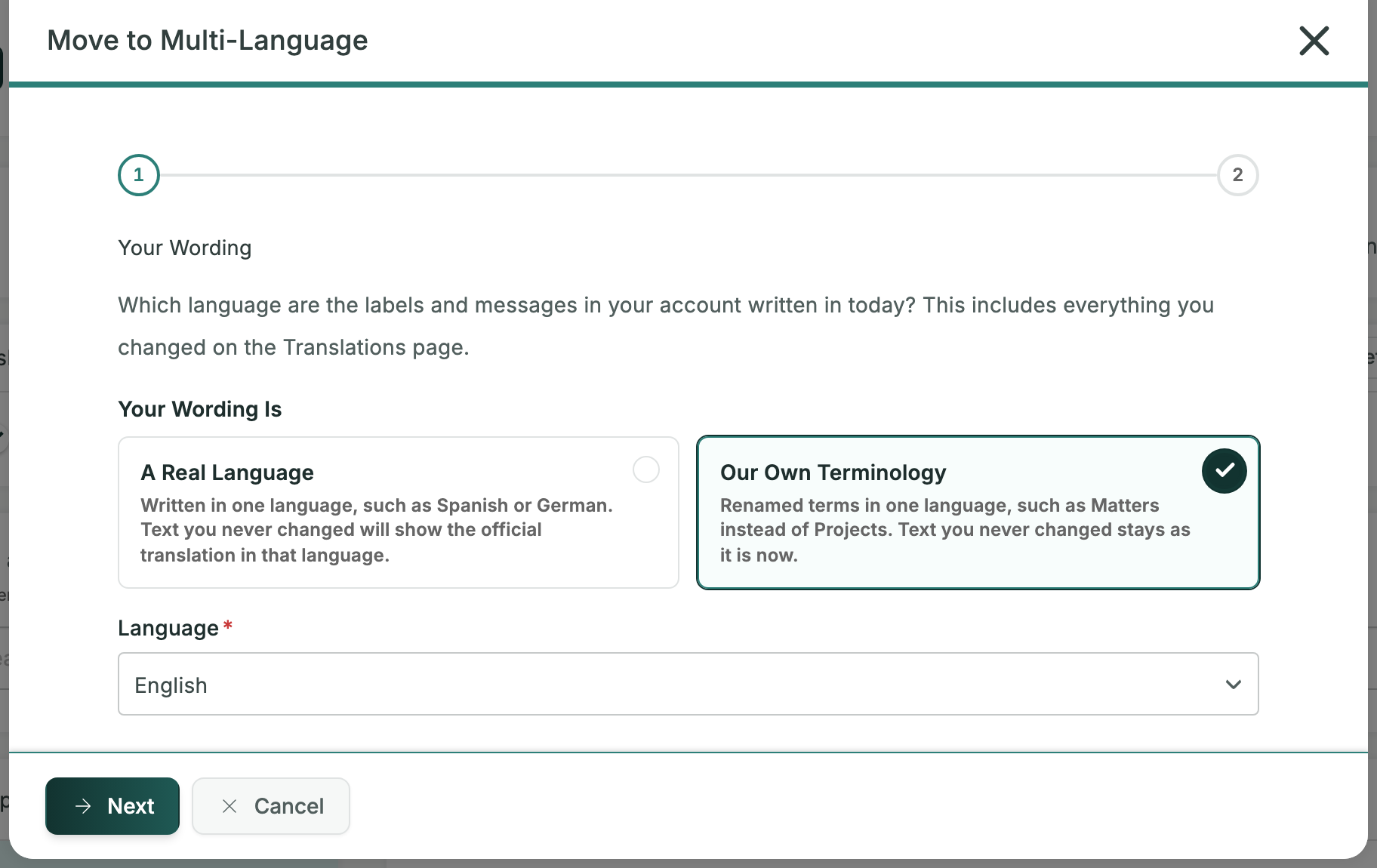
2. What Happens. Before anything changes, you are told exactly what the move will do: how many of your changed words and phrases are kept and the language they will be recorded as, which language becomes your main one, what happens to the text you never changed, what becomes possible afterwards, and that you cannot move back by yourself.
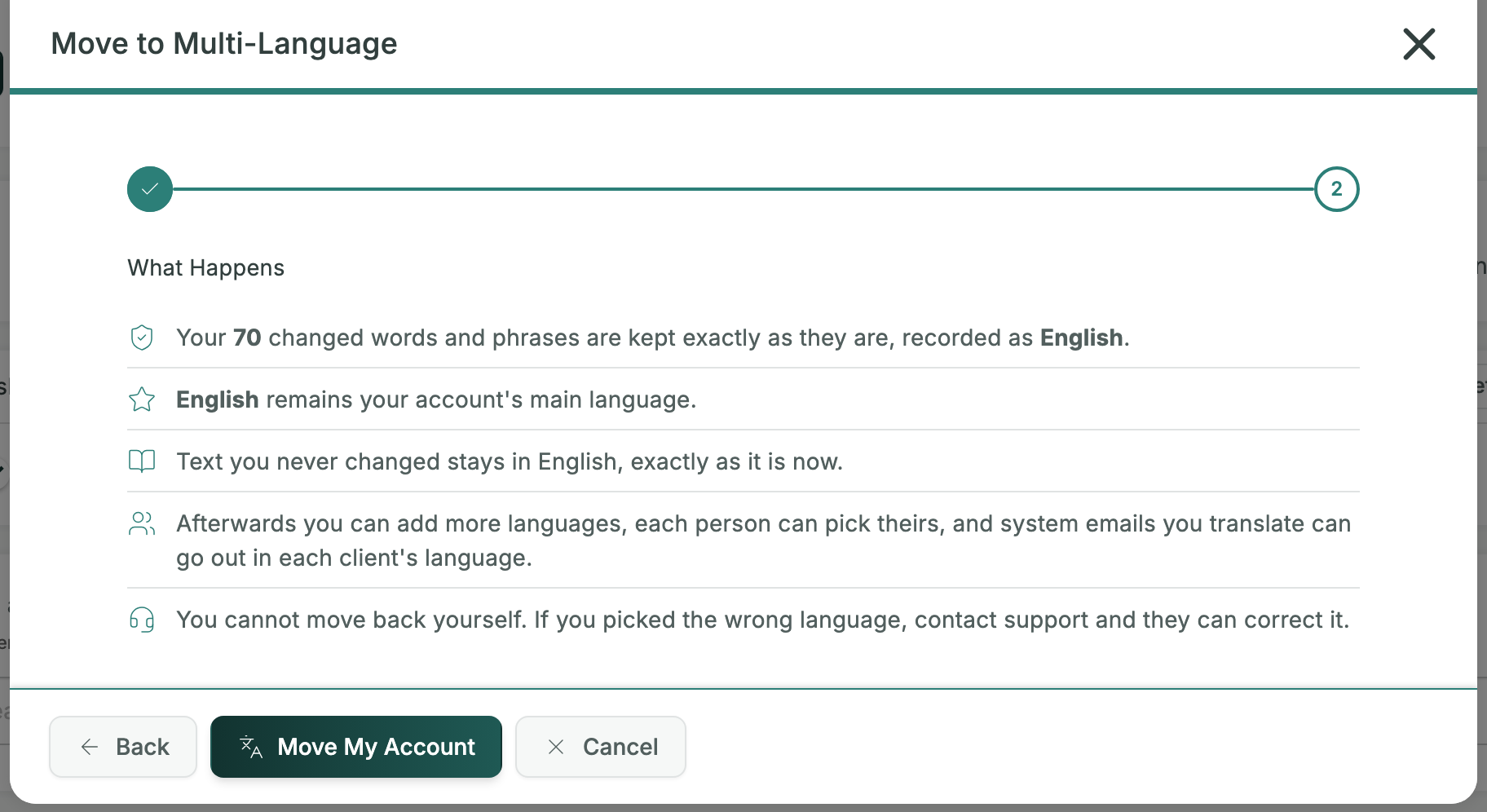
Click Move My Account. While it runs, the dialog cannot be closed or stepped back. When it is done you see Your Account Is Multi-Language and an Add Language button that takes you straight to your languages.
IMPORTANT: The move never rewrites your wording. It records which language your wording is in, and keeps every word of it. What you cannot do is move back by yourself. If you pick the wrong language, contact support and they can correct it.
TIP: If your account contributes to our official translations, you will see a short note in place of the button. Support makes the move for you, so that your contributions are handled correctly.
CLICK HERE to learn about Official Translators
How do I add and manage my languages?
Your languages live in the Language panel, which Super Admins and Admins can open. Click the globe on the right edge of the Translations page or of its Settings tab. While you are editing a language you can also just click the Translations tab itself.
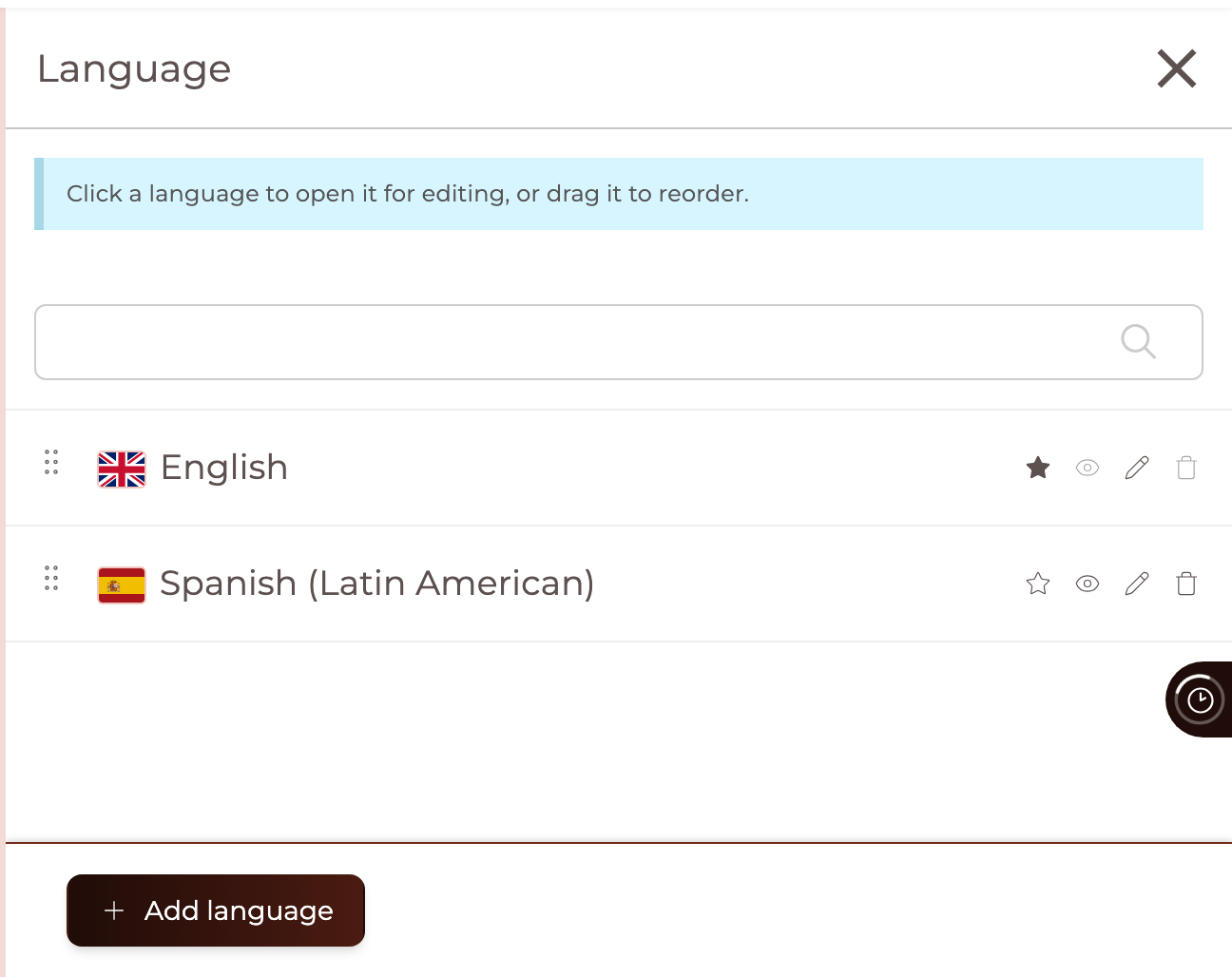
Each row carries the same handful of controls on the right:
- The star makes that language your main one. A filled star marks the language that already is.
- The eye decides whether the language is offered to your users. Your main language is always offered, so its eye is greyed out. Stopping a language keeps every translation in it, and anyone set to it goes back to your main language.
- The pencil opens Rename Language. This is the name your users see. Leave it empty to use the official name.
- The bin deletes the language, and is greyed out when that language cannot be deleted.
Click a row to open that language for editing, or drag it by the handle on the left to change the order your users see. Every one of these takes effect straight away: there is no Save button on this panel, and a reorder is stored the moment you drop the row. Dragging is locked while there is text in the filter box, so a filtered list cannot scramble your order.
Add language at the bottom lists every language we have an official translation set for that you do not already have. Loading one adds it alongside the languages you have, and none of your existing languages or wording is overwritten. The very first set you load becomes your main language.
TIP: Loading a language you already have brings in the latest version from our community of Official Translators. Anything you have locked is kept, and only that one language is touched.
IMPORTANT: Deleting a language takes it out of your account for good and destroys every word and phrase translated into it. You are asked to type DELETE to confirm, and the same dialog offers Disable instead, which keeps every translation exactly as it is. Your main language cannot be deleted, and neither can the only language in your account.
How do I edit the wording in a language?
Click a language in the panel to open it. The Translations tab then shows that language and its flag, so you always know which one you are changing. From there it works just as it always has: search for a word or phrase, type your wording, and click Save Group. Each language keeps its own wording, so a change you make in Spanish never touches your English.
The padlock beside a word keeps your wording when that language's official text is reloaded, so lock anything you have worded deliberately.
CLICK HERE to learn how to rename your Contact and Staff Roles
How do I give each person their language?
Set the Language field on the person's own record: on a Staff member's form, and on a Contact's form when that Contact has a Portal login. Anyone left on Use company defaults sees your main language.
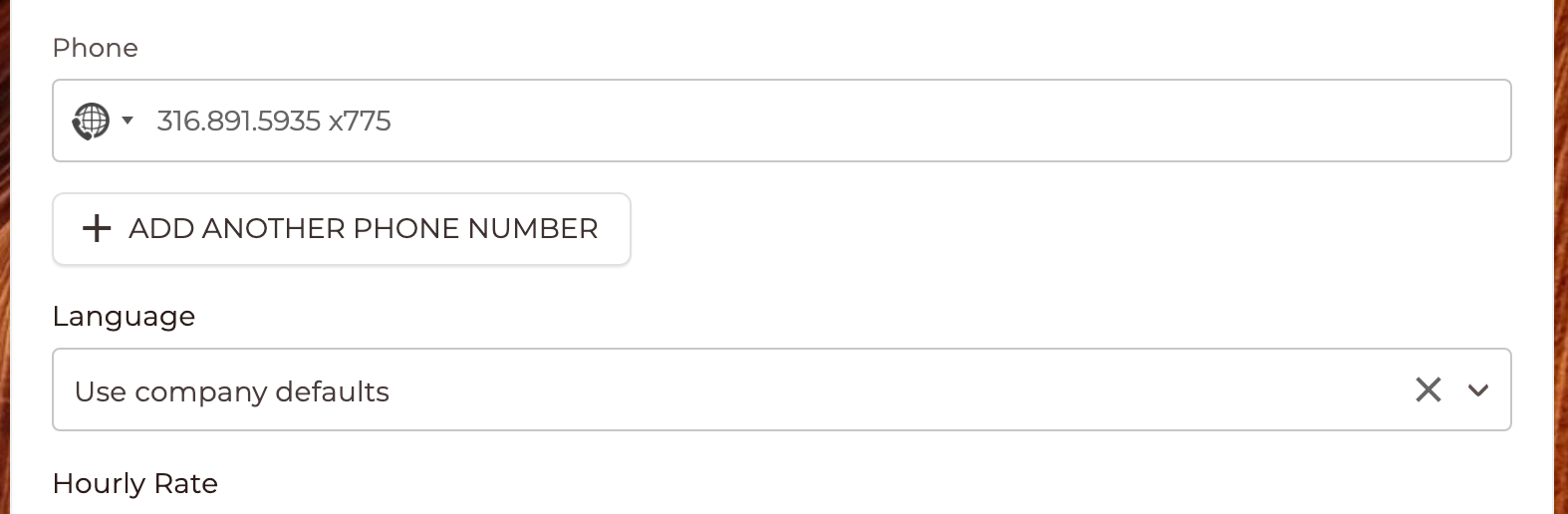
Each person can also set their own, from the Translation field on their My Profile page. The list offers the languages you are currently offering, plus your main language.
CLICK HERE to learn about My Profile
Can people switch language themselves?
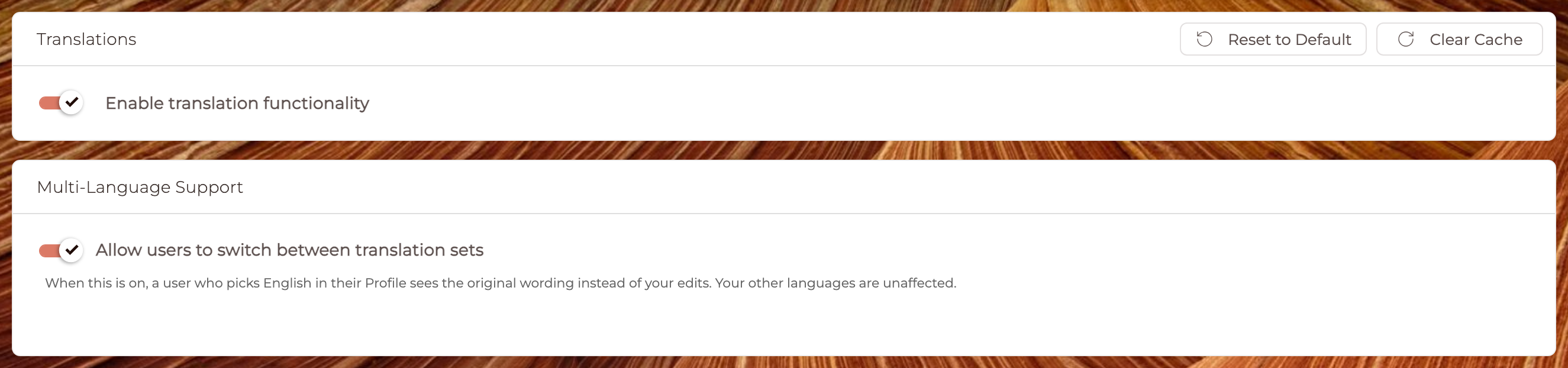
Yes, once you let them. Go to Translations > Settings and switch on Allow users to switch between translation sets, under Multi-Language Support.
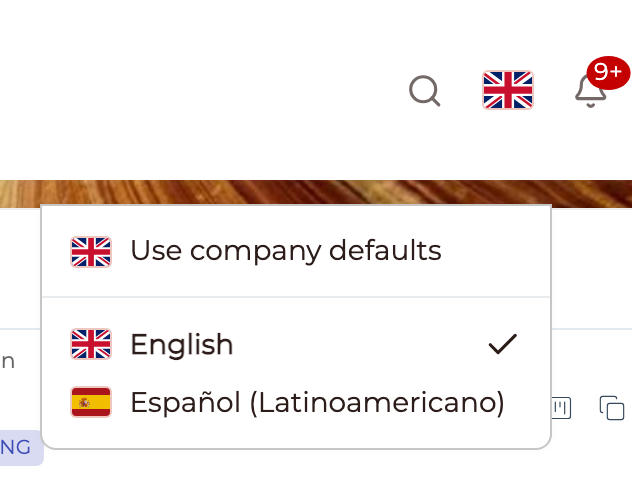
With that on, and at least two languages offered, a flag appears in the top bar. Clicking it opens Use company defaults, then each of your languages in its own name, with the current one ticked. The page reloads in the chosen language, and the choice is remembered.
TIP: While this is on, someone who picks English sees the platform's original wording rather than your edits. Your other languages are unaffected.
If your account uses its own domain, your login page gets the same flag in the bottom right corner, so a visitor can choose a language before signing in. It opens on their last choice on that browser, then on a language remembered from an earlier sign-in, then on their browser's own language, and finally on your main language. It needs the same setting and at least two offered languages.
Switching the setting off hides both flags again. The Language field on a person's record, and the Translation field on their My Profile page, go on working either way.
What language do my system emails go out in?
Each email follows the person receiving it: their own language when they have one, otherwise your main language.
An email goes out in a language only once you have translated that email's body into it. Until then the whole email goes out in your own wording, in your main language. You never get a half-translated email with a translated subject sitting on an untranslated body.
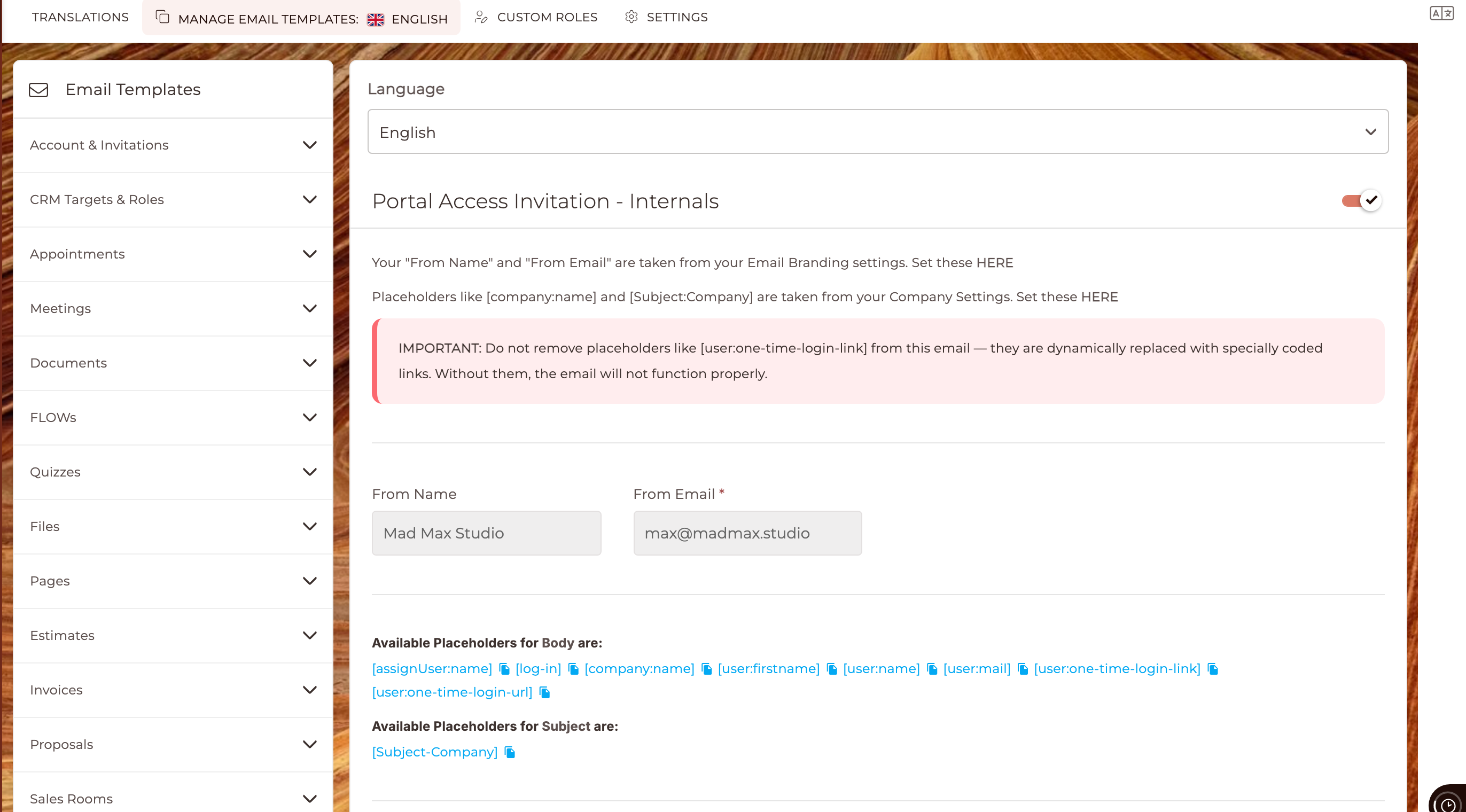
Translate your emails on the Manage Email Templates tab. Pick a template on the left, pick the language at the top, and write the subject and body for that language. This tab names the language you are working in, just as the Translations tab does.
TIP: A template can be exported and imported as a JSON file, which is handy when a translator works outside the platform. The export carries that template's subject and body in every language you have loaded.
TIP: An email you write or edit by hand before sending goes out exactly as you wrote it, whatever the recipient's language.
How do I turn Multi-Language Support off?
On the Settings tab, switch Enable translation functionality off. If more than one language is enabled, you are asked to Turn Off Translations by choosing the one language everybody in your account will see. That language becomes your main language, and from then on everyone reads it, in your own wording, on screen and in email.
IMPORTANT: Every language and every word you have translated is kept. What is not kept is each person's own language: everybody goes back to Use company defaults. If you switch translations on again later, you will need to give people their languages again.
What Multi-Language Support does not do
- It does not translate your own wording for you. Loading an official set gives you our translation of the platform's own text. Anything you have worded yourself stays exactly as you wrote it, in whichever language you wrote it.
- It does not let you move your account back to the original system by yourself. Support can do that for you.
- Making a different language your main one does not change anybody's saved language. It only changes what the people on Use company defaults see.