
BLOCKS: Knowledge Base Block
What is the Knowledge Base Block?
The Knowledge Base Block puts one of your Knowledge Bases on a page. It is the only way a Knowledge Base becomes visible to anybody, and where you put the Block is what decides who can read it.
Put it on a Portal Page behind a login and only the people who can open that page can read the articles. Put it on a published Public Page and anyone on the web can. The same Knowledge Base, two different audiences, decided entirely by where the Block sits.
The Block shows a search field, your featured articles and your categories, and readers click through from there to the articles themselves.

How do I add it?
Edit a Portal Page, a Public Page or a Dashboard, add a Block, and choose Knowledge Base from the gallery, where it is described as "Show a knowledge base: search, featured articles and categories".

The Block's options open as soon as you add it, and you can reopen them at any time.

Block Title: The heading shown above the Block. Required. Block Icon and Icon Color set the mark beside it.
Show # Results: How many rows a search returns per category: 5, 10, 15 or 20. It starts at 5.
Block Height: Fixed, Auto, or a height you set in pixels.
Knowledge Base: Which of your Knowledge Bases this Block shows. Required, and the Block refuses to save without one: "Choose a knowledge base to display."
Layout: How much of the Knowledge Base the Block shows. See below.
The Styling and Access tabs work exactly as they do on every other Block.
What do the three layouts do?
Full shows everything: the search field, the Featured Articles strip and the full list of categories. This is the default and what most help centers want.
Search Only shows the search field by itself. Good for a compact Block in the corner of a Dashboard, where you want people to be able to look something up without the page turning into a library.
Featured Articles Only shows the featured strip and nothing else. Good for a "start here" row at the top of a welcome page.
TIP: You can place the same Knowledge Base more than once, with a different layout each time. A Full Block on a dedicated Help page and a Search Only Block on the Dashboard both read from the same library, so you write an article once and it appears in both.
What do readers see?
At the top, Featured Articles, in the order you dragged them on the Articles tab.
Under that, Categories, each with its icon and colour, its description, and a count. A category with sub-categories reads like "2 Articles · 2 Sub-Categories", and View all opens it.
Opening a category shows its articles, each with its title and summary, and its sub-categories underneath.

Opening an article shows it in full, with Back to the Knowledge Base at the top.
Drafts are never in any of this. A reader only ever sees published articles.
How does the search actually work?
This is worth knowing before you write, because it changes how you word things.
Search looks at four things: the article Title, its Summary, the name of its category, and the name of that category's parent.
It does not look at the body of the article. A word that appears only in the body of an article will not find it.

Every word typed has to match. Searching two words finds only articles where both appear, not either.
Results are grouped by category, up to the Show # Results number per category and up to 20 categories. If there are more matches further down, readers are told: "More articles match in other categories. Try a more specific search."
IMPORTANT: Because the body is not searched, the Summary is doing most of the work. Write it with the words your readers would actually type. An article called "Changing or Pausing Your Retainer" will never be found by somebody searching "cancel" unless that word is in the title, the summary or the category name.
TIP: Searches are capped at six words and 100 characters. A reader who types a whole sentence gets "Too many words. Try a shorter search." rather than a slow query and no results.
What do I see while I am building the page?
In the page editor, the Block fills itself with sample articles and a note: "Sample content generated for this preview. Readers see the published knowledge base." It is showing you the shape of the Block, not your own content, so do not be alarmed by article titles you did not write.
If you have not chosen a Knowledge Base yet, the Block says No Knowledge Base Selected. If the one it points at has since been deleted, it says Knowledge Base Not Found with "Choose another knowledge base to display." Readers never see either of these.
How do I see where a Knowledge Base is placed?
Open the Knowledge Base at Content > Knowledge Base Pages and go to the Placements tab. It lists every page and dashboard showing it, with what kind of page each one is.
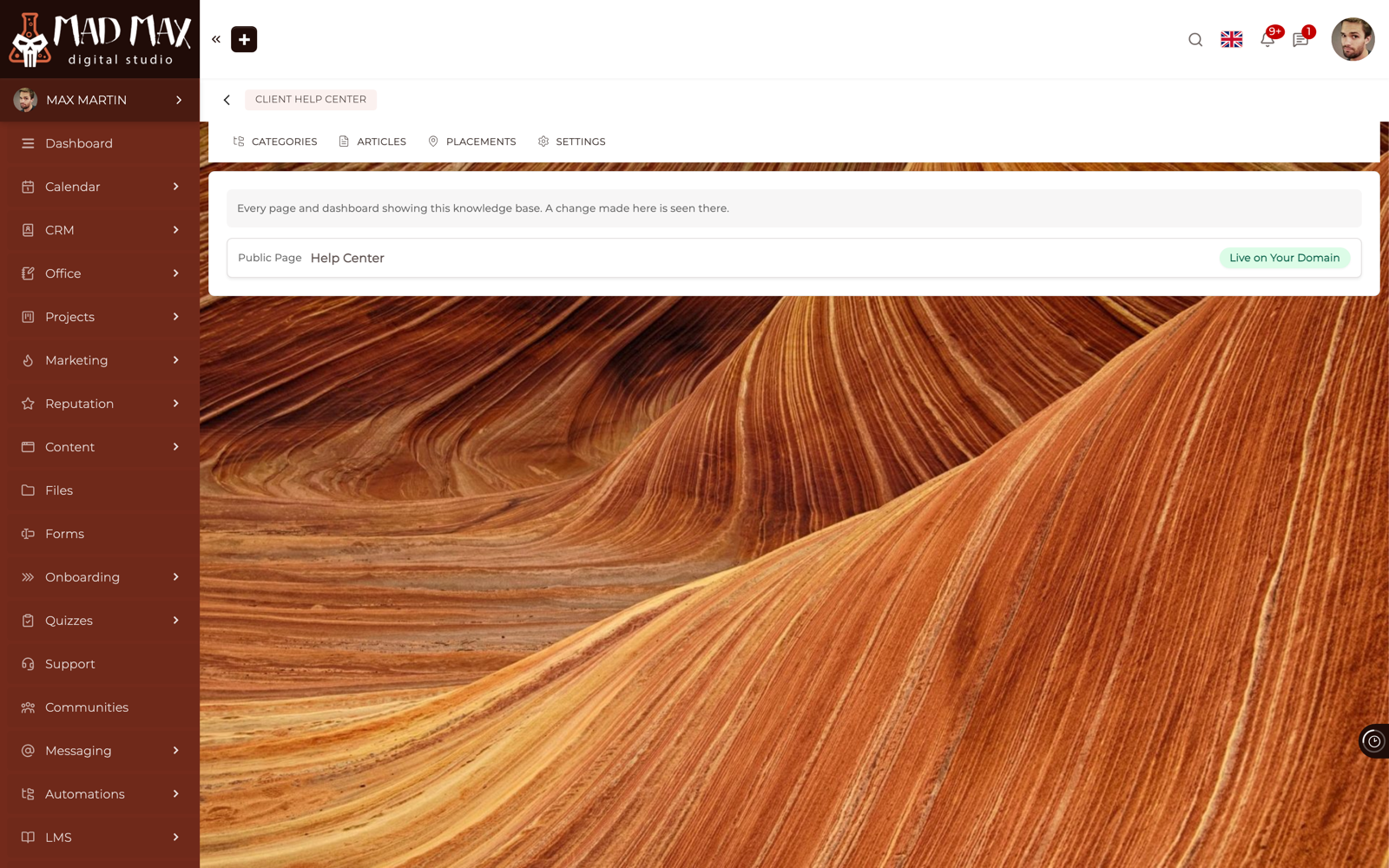
A placement on a published Public Page wears Live on Your Domain when your own domain is set up and secured. If it is not, you are told instead: "Your own domain is not ready yet, so this page is not live on it."
The list keeps itself honest. Remove the Block from a page and the row goes; add it somewhere new and a row appears.
TIP: Check the Placements tab before deleting a Knowledge Base. The confirmation lists the pages it is still on, so you know exactly what will go blank.
Where can I not use this Block?
The Knowledge Base Block is offered on Portal Pages, Public Pages and Dashboards.
It is not available inside a Knowledge Base article itself, and it is not available in a Content Stack. An article is a page in a Knowledge Base, so putting a Knowledge Base inside one would fold the library into itself.
CLICK HERE to learn how to build a Knowledge Base.
CLICK HERE to learn about publishing a Knowledge Base on your own domain.
CLICK HERE to learn more about the Content Block Editor.