
KNOWLEDGE BASE: Your Public Help Center
What makes a Knowledge Base public?
One thing: placing the Knowledge Base Block on a Public Page that is published.
A Knowledge Base on a Portal Page is private. Only people who can sign in and open that page can read it. A Knowledge Base on a published Public Page is open to the web, and every article in it gets its own address that anybody can open, link to or share.
Nothing else is a switch. There is no separate "make public" setting on the Knowledge Base itself, and the Knowledge Base does not know or care how many places it is placed. Where you put the Block is the whole decision.
IMPORTANT: A Public Page that is still a Draft publishes nothing. Until you press Publish on the page, the Knowledge Base on it has no public address.
What do the addresses look like?
On your own domain, an article sits at:
https://yourdomain.com/kb/your-knowledge-base/the-category/the-article
Each of those three last pieces is the Friendly URL of the thing it names. The Knowledge Base's is on its Settings tab, and each article's is in Article Options. Leave either blank and it is derived from the name or the title.

A category has an address of its own, one segment shorter, listing the articles in it. The Knowledge Base's own address, /kb/your-knowledge-base, opens the page the Block sits on, because that page is the front of the library.
TIP: Addresses look after themselves. An article filed under the wrong category in a link somebody typed is quietly redirected to its real address, so a link that is nearly right still lands.
What happens when I rename something?
The old address keeps working and forwards to the new one. Rename a category from "Billing" to "Payments" and a link somebody saved last month still arrives, now at the new address.
A retired address is also kept out of circulation for good. It can never be handed to a different article later, so an old link can never quietly land on something unrelated.
A deleted article is the one case that does not forward, because there is nothing to forward to. Its address answers with a "no longer available" page in your branding, which tells the reader plainly rather than leaving them staring at an error.
What if I do not have my own domain yet?
Everything still works. The same articles are served on the platform's domain, under an address that identifies your account, and readers see them in your branding exactly as they would on your own domain.
Those platform copies are deliberately kept out of search engines. They carry an instruction telling crawlers not to index them, so they can never compete with your own domain in search results or turn up where you would rather see your own address.
The moment your own domain is set up and secured, the platform addresses start forwarding to it. Nobody has to update a link.
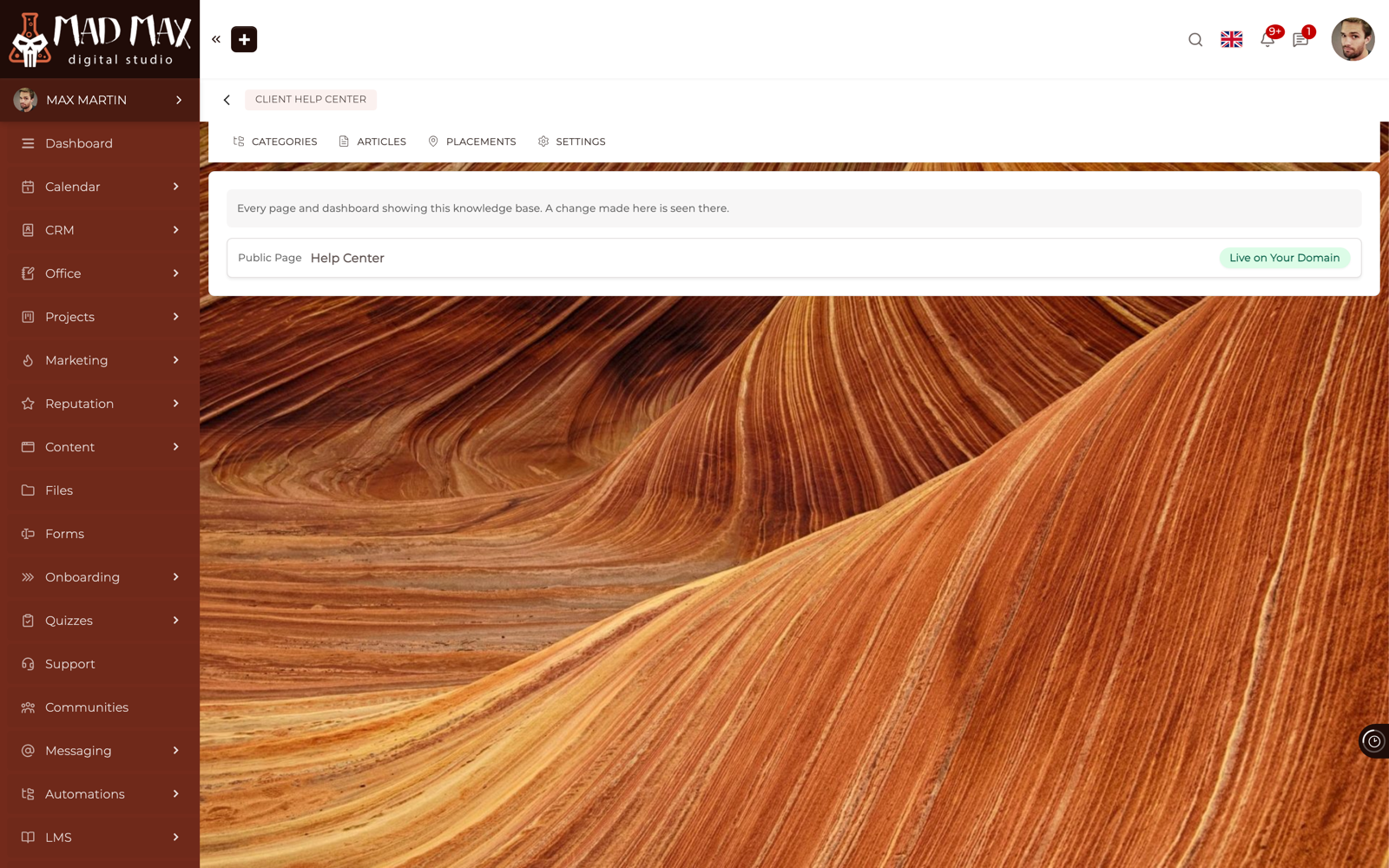
TIP: The Knowledge Base's Placements tab tells you which of the two you are on. A published Public Page reads Live on Your Domain once the domain is ready, and says "Your own domain is not ready yet, so this page is not live on it" while it is not.
I have more than one domain. Which one is used?
Your Primary Domain. If you have set up more than one domain, the one marked Primary is the one your public addresses are built on, and it is the one that appears in links, in canonical tags and in anything a search engine records.
You set it on the same screen where you set up your domains. Each one shows whether it is ready, and Make Primary moves the designation. Only a domain that is active and secured can be made Primary, so you cannot accidentally point your public addresses at a domain that is not serving yet.
What do search engines and link previews see?
Every published article carries what it needs to be found and to look right when it is shared:
A page title: Your SEO Title if you wrote one, otherwise the article's own title.
A description: Your SEO Description if you wrote one, otherwise the article's Summary. This is one more reason to write a real summary rather than leaving it thin.
A canonical address: So a search engine that reaches the article by more than one route records one address for it, not several.
Link preview tags: The title, description and image used when the link is pasted into a chat, a message or a social post.
Structured data: A machine-readable description of the article and the trail of categories above it, which is what lets a search engine show a breadcrumb under the result.
IMPORTANT: Articles get all of this. Category pages do not, deliberately. A category page is a list, with no author's description and no content date of its own, so it is not presented to a search engine as an article.
Who can open a public article?
Anybody, signed in or not. A public article is read with a stranger's view every time, so what a crawler sees and what your Client sees are the same page. Nothing inside an article is hidden from some readers and shown to others.
There is one exception worth knowing. Somebody signed in to a different business's Portal who opens your article is sent to their own start page instead, before anything of yours is read. That is the same rule your Public Pages already follow, and it keeps one account's session from wandering into another's content.
CLICK HERE to learn how to build a Knowledge Base.
CLICK HERE to learn about the Knowledge Base Block.
CLICK HERE to learn more about setting up your Custom URL.