
LMS: Quiz Stops in Courses
What is a Quiz Stop?
A Quiz Stop puts one of your Quizzes into a course's path, so students prove they learned a part of the course before they move on. You can place a stop after a lesson, at the end of a module, and before the whole course counts as complete. One course can hold many stops, but each step takes at most one: one per lesson, one per module, and one for the course.
Each stop is either Required, so the student has to pass it to finish that step, or Optional, so they can take it and are never held back. You can also cap how many attempts each student gets. Every result is collected on the Quiz itself, where you can give a stuck student more attempts or start them over.
Before you start
- The Quiz has to be Published and have a passing score. A Quiz that is still a draft, archived, empty, or has no passing score is not offered as a stop. Outcome Quizzes are not offered either, because a stop needs a pass or fail.
- The passing score comes from the Quiz itself and applies everywhere that Quiz is used. To change it, edit the Quiz.
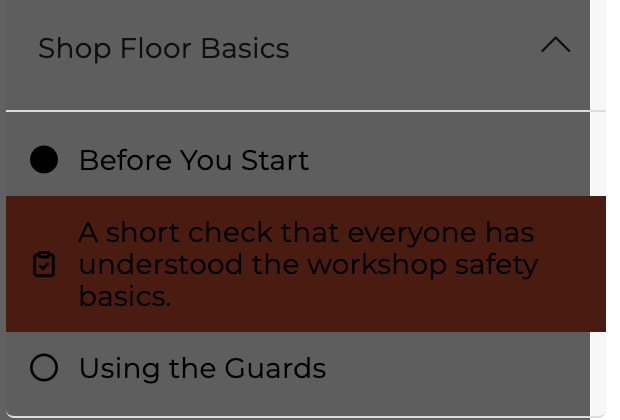
- Your team picks a Quiz by its Reference Title. Students see the Quiz's Description as the name of the stop in their course menu, so give it a name a student will understand.
- To learn how to build a Quiz, see Quizzes.
How do I add a Quiz Stop?
Every stop is set in a Quiz to Pass section. Where you find it depends on what the stop guards:
- After a lesson: open the lesson, then click Settings in the right panel.
- At the end of a module: in Manage Course, open the module's menu and choose Edit Module. The Add Module window carries the same section, so you can set the stop while you create the module.
- Before the course is complete: in Manage Course, click Settings.
Then, in Quiz to Pass:
- Quiz: choose the Quiz. Each option carries its question count and passing score, for example "Workshop Safety Check (1 question · Passing 75%)".
- Requirement: choose Required to Finish This Step or Optional. A new stop starts out as Required.
- Limit Attempts to ... per Student: turn this on to cap the attempts each student gets at this stop, anywhere from 1 to 99. It suggests 3. Leave the switch off and attempts are unlimited.
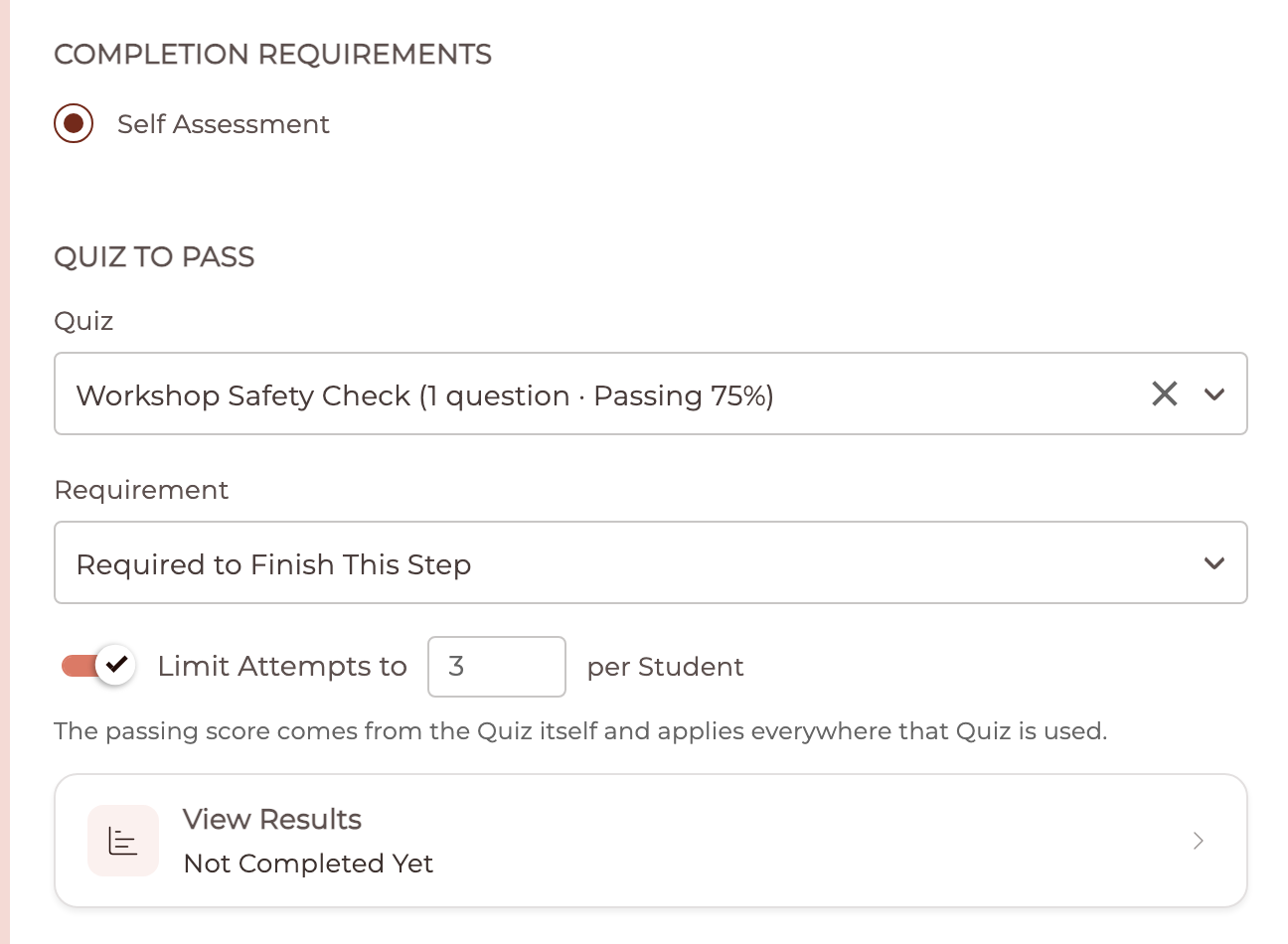
Once students start taking the stop, the View Results card under the section fills in with the numbers at a glance, for example 3 Completed, 1 Passed, 2 Failed. Those count students, not attempts. Click the card to open the full results for that course in a new tab.
To remove a stop, open the same Quiz to Pass section and either choose No Quiz from the list or click the × in the Quiz field.
If you swap the stop to a different Quiz, the results card steps aside while you choose, and a line appears: "Results for the newly selected Quiz appear once the change is saved and this screen is reopened."
If the Quiz you chose later stops being usable, because it was unpublished, archived, emptied, or lost its passing score, the section keeps it selected and tags it No Longer Available with the note "This quiz can no longer be taken, so this step is not requiring anything right now." Nobody is held back by it in the meantime.
Where do stops show in my course?
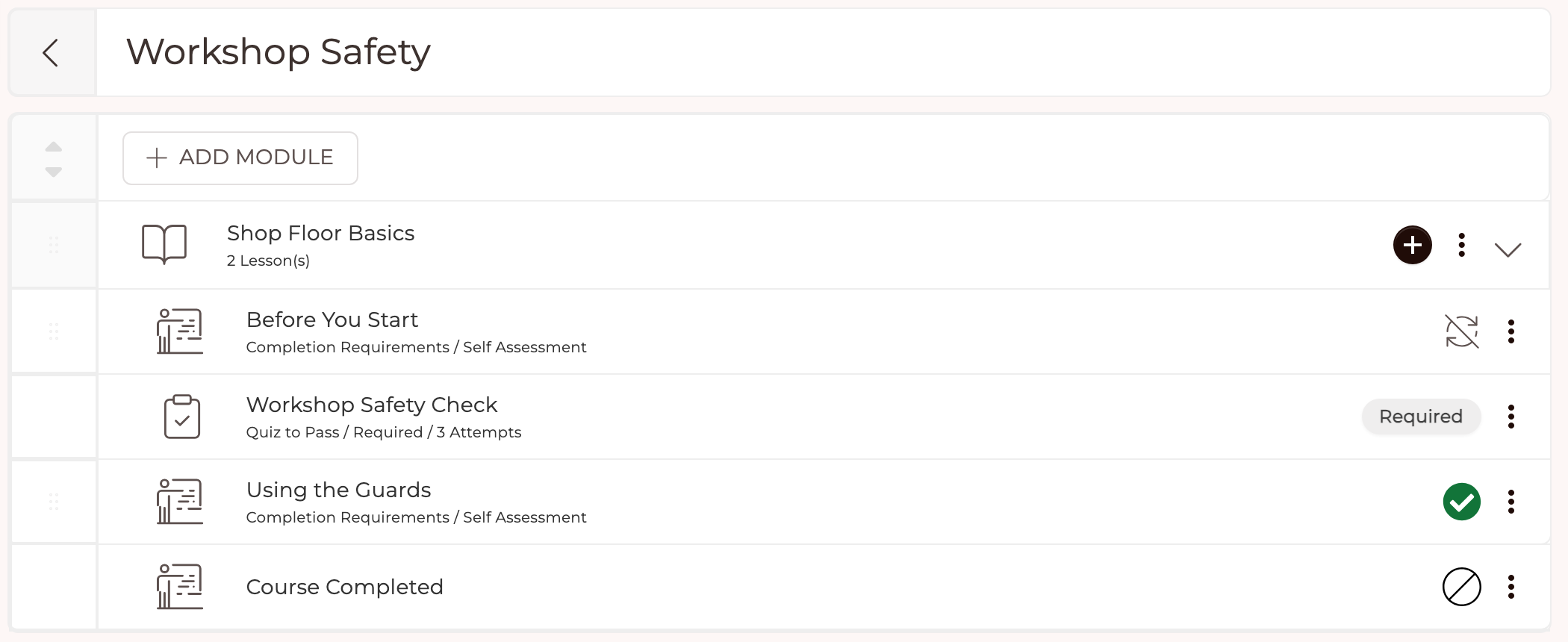
In Manage Course, each stop is its own row in the outline, right after what it guards: a lesson's stop after the lesson, a module's stop after the module's last lesson, and the course's stop in the Course Completed area. The row shows the Quiz's Reference Title, and under it Quiz to Pass / Required / 3 Attempts, with a Required or Optional badge on the right. Click the row, or Edit in its menu, to reopen the settings the stop lives in.
What do students see?
From the start, the course menu lists every stop in order with a clipboard icon, so students always know a quiz is coming. The name they see is the Quiz's Description. A stop can only be selected once it has opened. Once it is done, its icon turns into the same check mark a finished lesson wears. A Required stop counts as done once it is cleared, which also covers a step the student had already finished before you added the stop. An Optional stop only counts as done once they pass it.
A stop opens once what it guards is done:
- A lesson's stop opens once the student meets the lesson's own requirement, by marking it complete or watching enough of its video. When a stop comes next, marking the lesson complete turns the player straight to it.
- A module's stop opens once all of the module's lessons are finished.
- The course's stop opens once every lesson is finished and every required module stop is cleared.
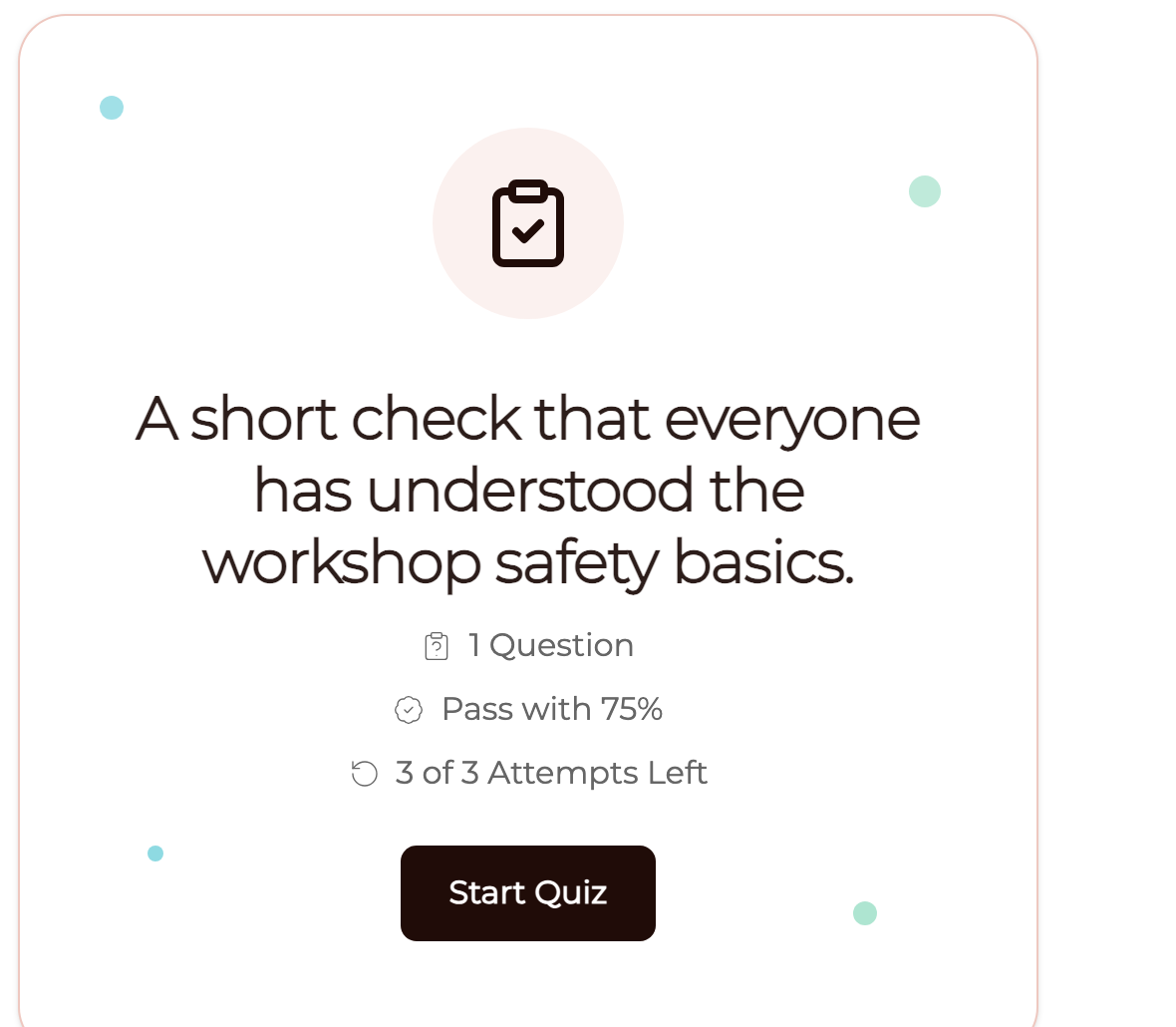
The stop's card tells the student what to expect before they begin: the number of questions, the score needed to pass, and the attempts left when attempts are limited.
After the last answer the student sees Quiz Completed! and clicks See Score to reveal the result:
- You Passed shows the score and what opens next, with a Next button.
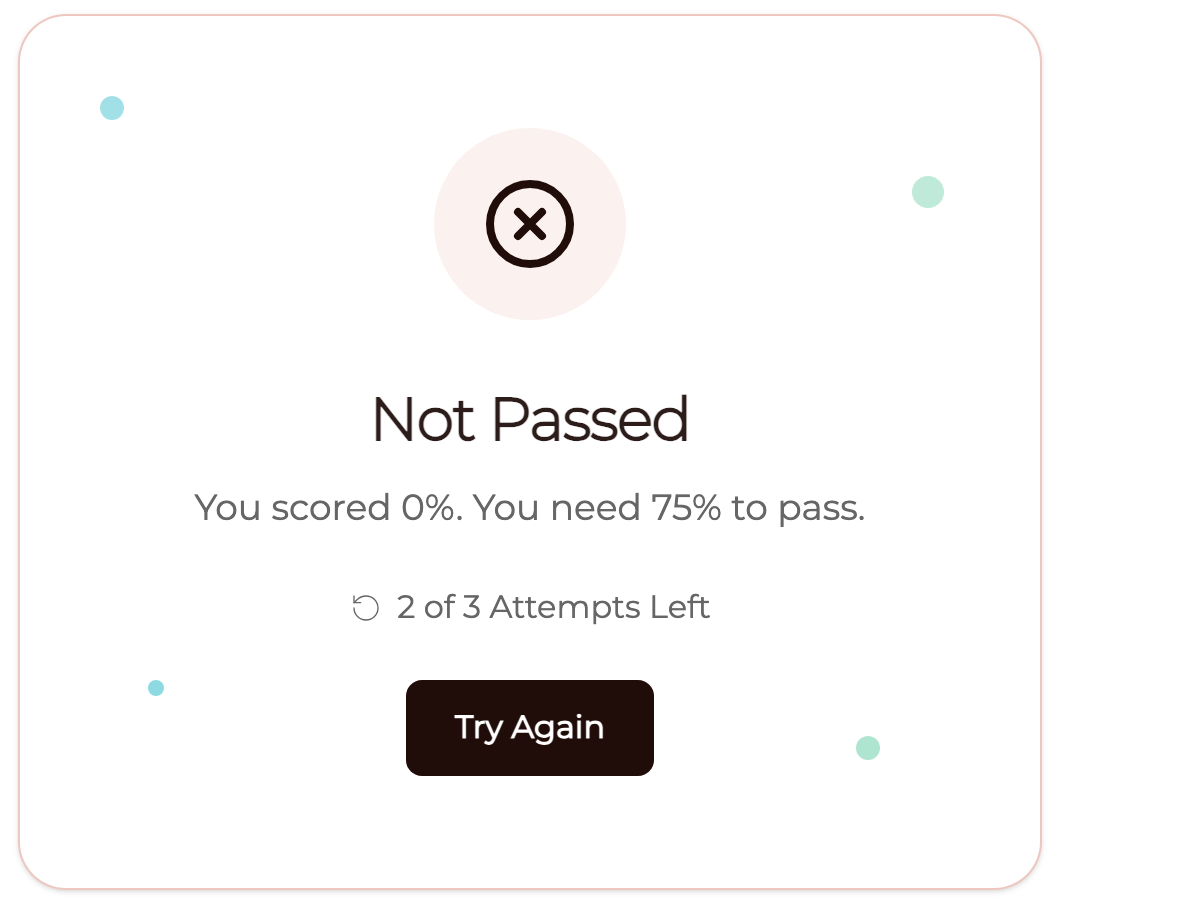
- Not Passed shows the score, the score needed, the attempts left, and a Try Again button.
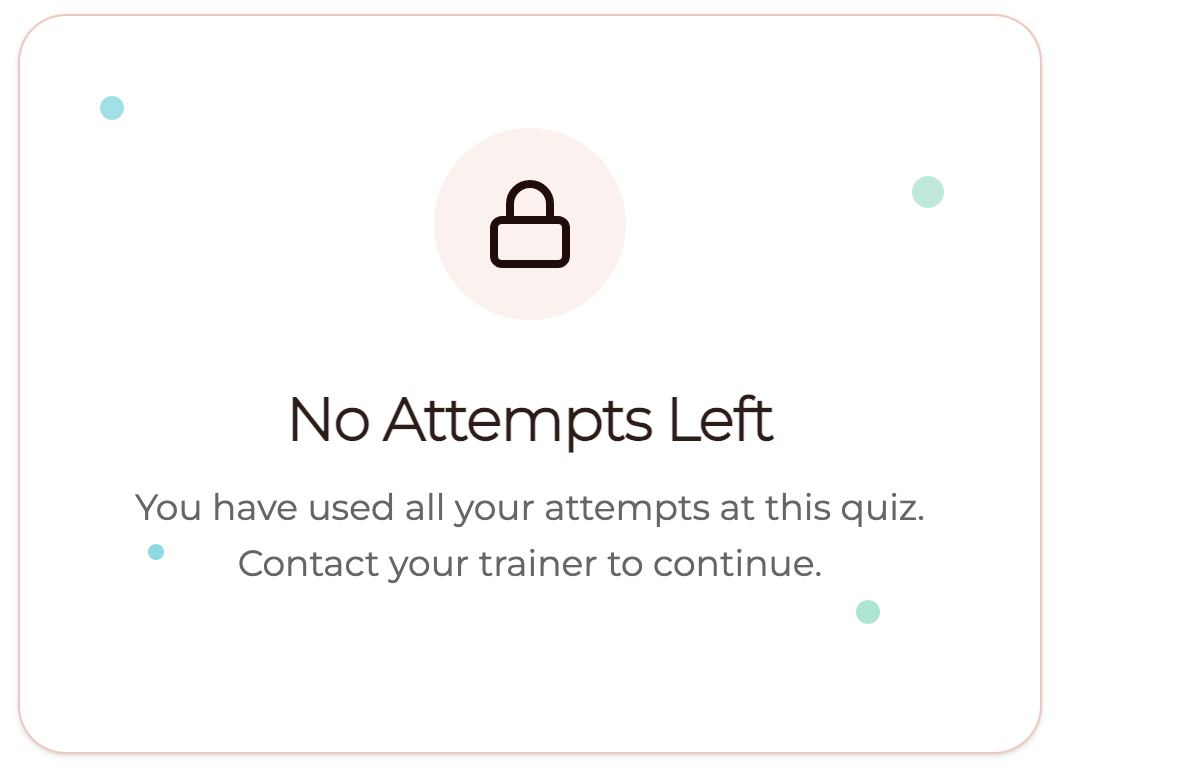
No Attempts Left appears when the student has used every allowed attempt. On a Required stop they still have to pass it, so the card locks: "You have used all your attempts at this quiz. Contact your trainer to continue." There is no button, and they wait for you. On an Optional stop, or one they have already cleared, the card still says No Attempts Left but offers Next so they can carry on.
If a student leaves in the middle of an attempt and comes back, the button reads Continue Quiz and picks up where they left off. On a stop with an attempt limit, the card names the attempt under way, for example Attempt 1 of 3 in Progress.
A stop that holds nothing back always offers a way past it. Alongside Start Quiz there is a Next button, so an Optional stop never traps anyone.
What does a required stop hold back?
That depends on the course's navigation, which you set in the course's Settings:
- Linear Navigation: nothing after a required stop opens until the student passes it. If they open a later lesson from a saved link, the player turns to the stop they still have to pass, and they read "Pass the earlier quiz first."
- Free Navigation: students can look ahead, but the step the stop guards does not count as finished until they pass.
An Optional stop never holds anything back. A finish a student already earned is never taken away by a stop you add later.
How do I see results and help a stuck student?
Open the Quiz in Quizzes and choose the Courses view, or click View Results in a Quiz to Pass section. You get one row per student per place they met the Quiz, showing their latest finished attempt: their name, role and email, where they met it (course and step), the score, Passed, Not Passed or No Attempts Left, how long ago, and which attempt it was. Filter by Course and by Where, search by name or email, and sort by when they started, by name or by score.
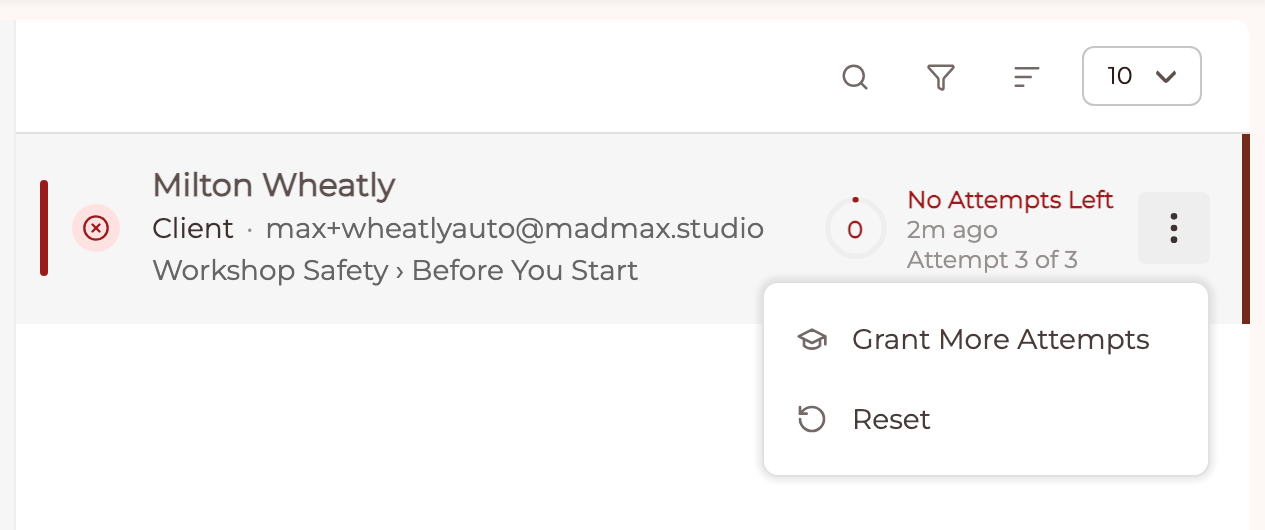
From a row's menu:
- Grant More Attempts appears when a student is out of attempts. It asks you to confirm first, then gives them a fresh set of the stop's attempts, counted from that moment.
- Reset appears for a student who has not passed. It closes any unfinished attempt and starts them over at the stop. It does not ask first.
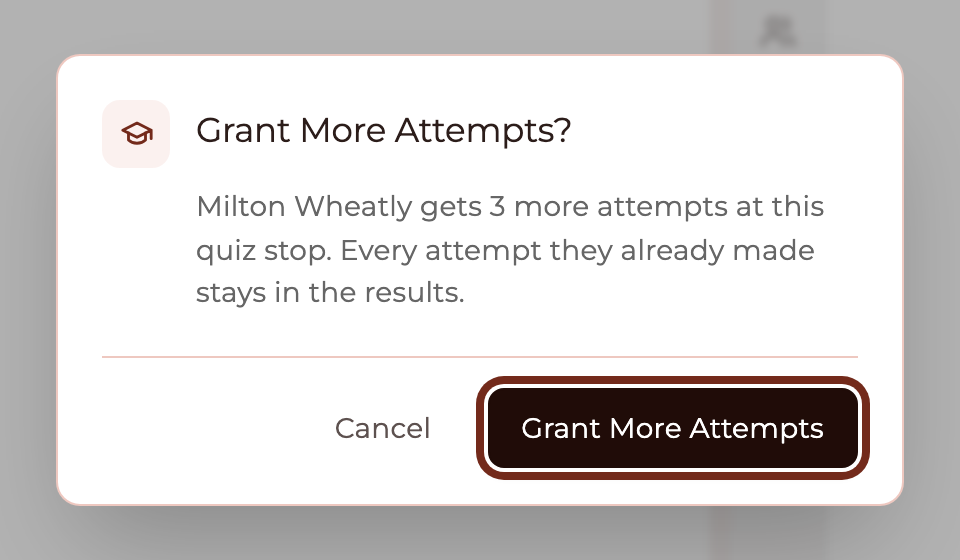
Every earlier attempt stays in the results either way, and a pass is never undone, so neither action is offered to a student who has already passed. Rows for a student who is no longer in the course show No Longer Enrolled, and rows for a stop you have since removed are kept and marked. Neither offers an action. Results from a Quiz Block in a lesson or on a completion page appear in this view too, labelled as such, and offer no actions, because a block has no attempt limit to give more of.
To use the Courses view you need to be a Staff member with LMS access and permission to see Quiz results. Grant More Attempts and Reset also need permission to assign the Quiz.
What happens if I remove a stop or make it optional?
Every student the stop was holding back is re-checked automatically in the background, even if they never come back to the course. A lesson a student had already done their own part of, by marking it complete or watching enough of its video, is marked finished, and any module or course that this completes is recorded, with your completion automations and certificates. Each student is credited once. A lesson a student never did their part of is left for them to finish, and anyone who has lost their seat in the course is skipped.
Good to know
- Duplicating a lesson, a module or a whole course copies its stop, along with its Requirement and attempt limit. Attempts are not copied.
- Stops do not add a waiting period between attempts, do not show the correct answers after an attempt, and do not notify you when a student runs out of attempts.
- When you preview the course as a participant you can walk it freely. A stop opens read only, with Start Quiz turned off.