
Quizzes: Automations
Quiz Automations let each quiz decide what happens after every result. You set it up once on the quiz: send a study guide when someone does not pass, add a tag when they pass, or create a task for a trainer when a student runs out of attempts. From then on, every finished attempt runs the automations for its result, for the person who took the quiz, wherever that quiz is used.
Where to find it
Open any quiz and choose the Automations tab on the quiz's view. The tab shows a small number when automations are set: it counts the CRM Target and Staff Target sections that have at least one automation.
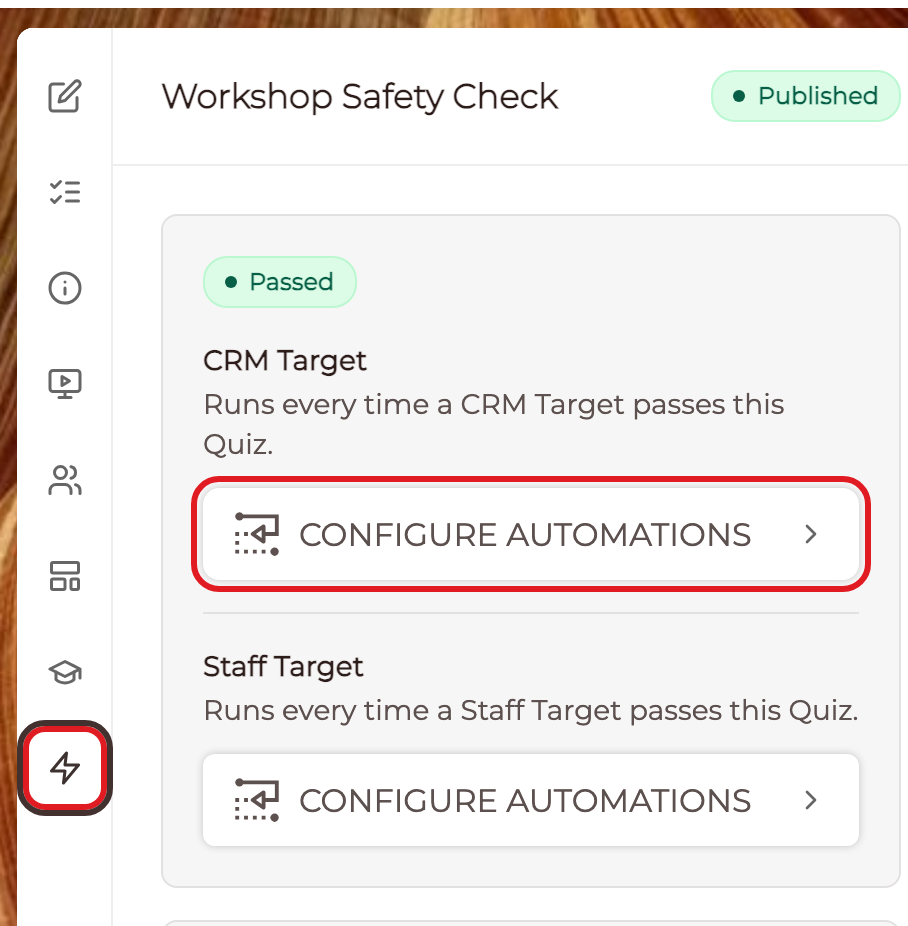
Only people who can edit quizzes see this tab. The account owner always can. Team members can when their role allows them to edit quizzes. Clients never see it.
CLICK HERE to learn about Quizzes.
The result cards
Each card on the Automations tab is one result a quiz attempt can reach. Which cards you see depends on how the quiz is scored.
A quiz with a passing score shows three cards:
- Passed: runs every time someone finishes an attempt that meets the passing score.
- Not Passed: runs every time someone finishes an attempt below the passing score.
- No Attempts Left: runs when someone uses the last allowed attempt on a course stop and still does not pass.
A quiz that uses Outcome Scoring shows one card for each outcome instead. The card for an outcome runs when an attempt places someone on that outcome.
A quiz with no passing score and no outcomes has nothing to automate yet, and the tab says so. Set a passing score or add outcomes to see the cards.
CLICK HERE to learn about Outcome Scoring.
CRM Target and Staff Target
Every card has two sections, because clients and your team often need different follow ups:
- CRM Target: runs for a client who took the quiz. For example, "Runs every time a CRM Target passes this Quiz."
- Staff Target: runs for a team member or freelancer who took the quiz. For example, "Runs every time a Staff Target passes this Quiz."
The section that runs is decided by the person's role at the moment the automation runs.
CLICK HERE to learn about Targets.
No Attempts Left
The No Attempts Left card adds a note: "Only on course stops with an attempt limit." It runs only for a quiz used as a stop in a course where the stop limits the number of attempts.
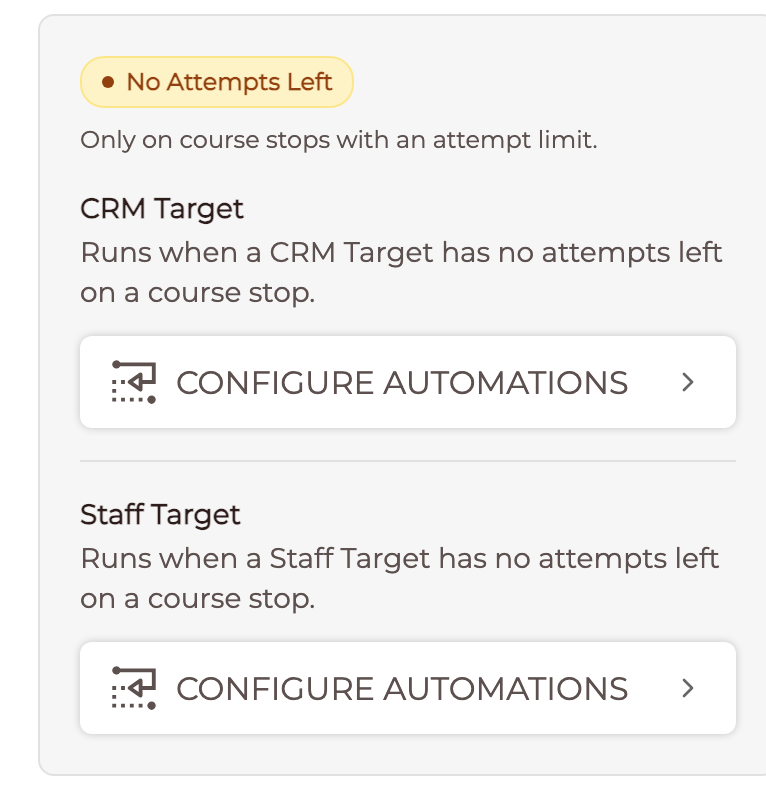
When a student fails the last allowed attempt, both cards run: Not Passed for that attempt, and No Attempts Left because no attempts remain. If a trainer grants more attempts and the student runs out again, No Attempts Left runs again.
CLICK HERE to learn about Quiz Stops in Courses.
Add automations to a result
- Open the quiz and choose the Automations tab.
- Find the card for the result, for example Not Passed.
- In the CRM Target or Staff Target section, click Configure Automations.
- The automations window opens for that one section, titled for example "Quiz Not Passed: CRM Target". Add the actions you want, the same way you add automations anywhere else.
- Close the window. The section now lists your actions under "Currently Configured Automations:", and the tab's number updates.
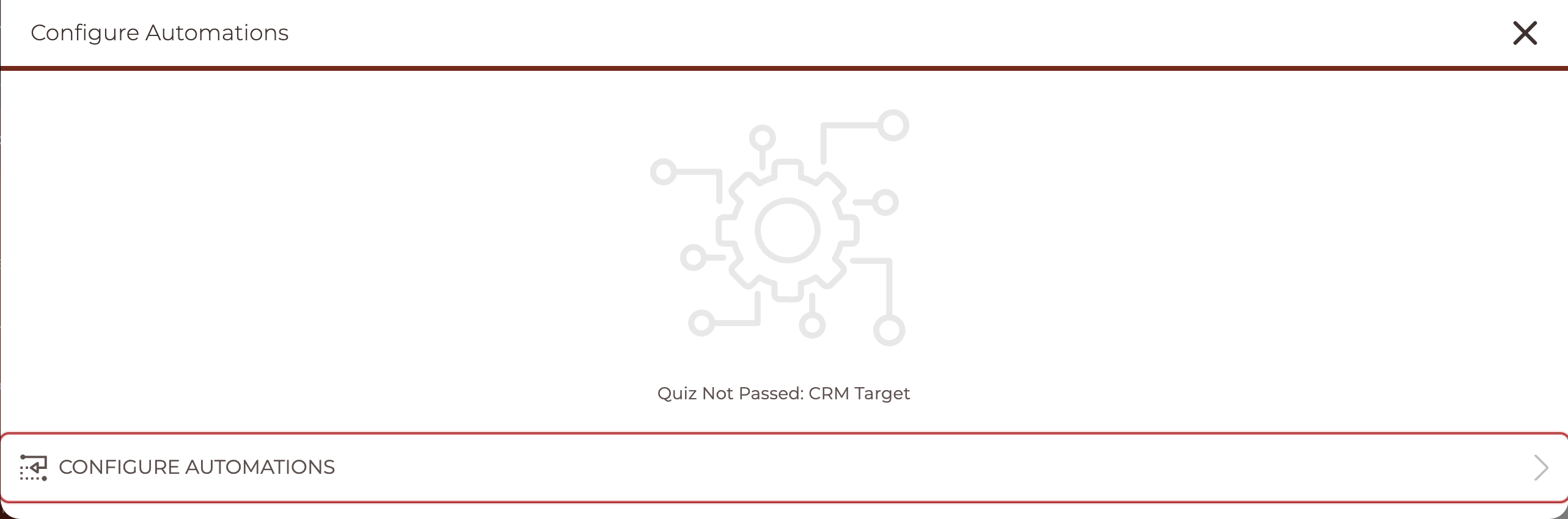
Quiz results offer the same actions you already use on courses, modules and lessons, such as sending an email, adding a tag or creating a task.
TIP: If an action still needs setting up, its section marks it "Configuration Needed" and, where it can, says what is missing. If an action's last run did not go through, the section shows the date and the reason under its name. The quiz result is always recorded either way.
CLICK HERE to learn about No-Code Automations.
Where quiz automations run
The automations live on the quiz, so they apply everywhere that quiz is used:
- A quiz assigned on its own to a client or a team member
- A Quiz Stop in a course
- A Quiz Block on a lesson
- A Quiz Block on a portal page
- A Quiz step in a Flow, including a Flow someone opens from a Flow link without signing in
- A Quiz Form, once the submission becomes a contact who has a portal login
Every finished attempt runs its own result once. A student who fails twice and passes on the third try gets the Not Passed automations twice and the Passed automations once. The automations run in the background right after the result is saved, so finishing a quiz never waits on them.
IMPORTANT: Quiz automations do not run for previews, for anonymous visitors, for a Quiz Block on a public page (even when the visitor is signed in), or for a Quiz Form lead who has no portal login. A Quiz Form lead without a login still gets the automations set on the Form itself.
When you change the quiz
- Remove the passing score: the cards disappear and nothing runs, but your automations are kept. They come back when you set a passing score again.
- Rename or reorder an outcome: each outcome keeps its automations.
- Delete an outcome: that outcome's automations are removed when you save the quiz.
- Copy the quiz: every automation is copied to the new quiz.
- Archive the quiz: the automations stay as they are.
- Delete the quiz: all its automations are removed.
You cannot set different automations for different places the quiz is used. To follow up differently in two courses, use two quizzes.