
MARKETING: Target Audience
Target Audience finds real local businesses that match the market you describe, researches each one, and adds the ones you pick to your CRM as Leads you can then market to. You describe who you are after in your own words, the way you would say it to a colleague, and the platform does the looking.
It is a Power-Up, and it also needs a working A.I. connection on your account. Once both are in place, Target Audience appears under Marketing in your main menu for your Super Admins and Admins. Other staff do not see it.
CLICK HERE to learn about Power-Ups
IMPORTANT: Target Audience searches the United States and Canada only. If you enter a place in another country, it tells you so and asks for a place in either country.
How do I describe who I want to reach?
Open Marketing > Target Audience and start a New Search. You get one box, Your Target Market, and the instruction to write it the way you would describe it to a colleague. Include the area you serve and, if it matters, how far you will travel.
Something like independent dental practices in Austin with a few staff is enough. You do not pick categories from a list, and you do not fill in a form.
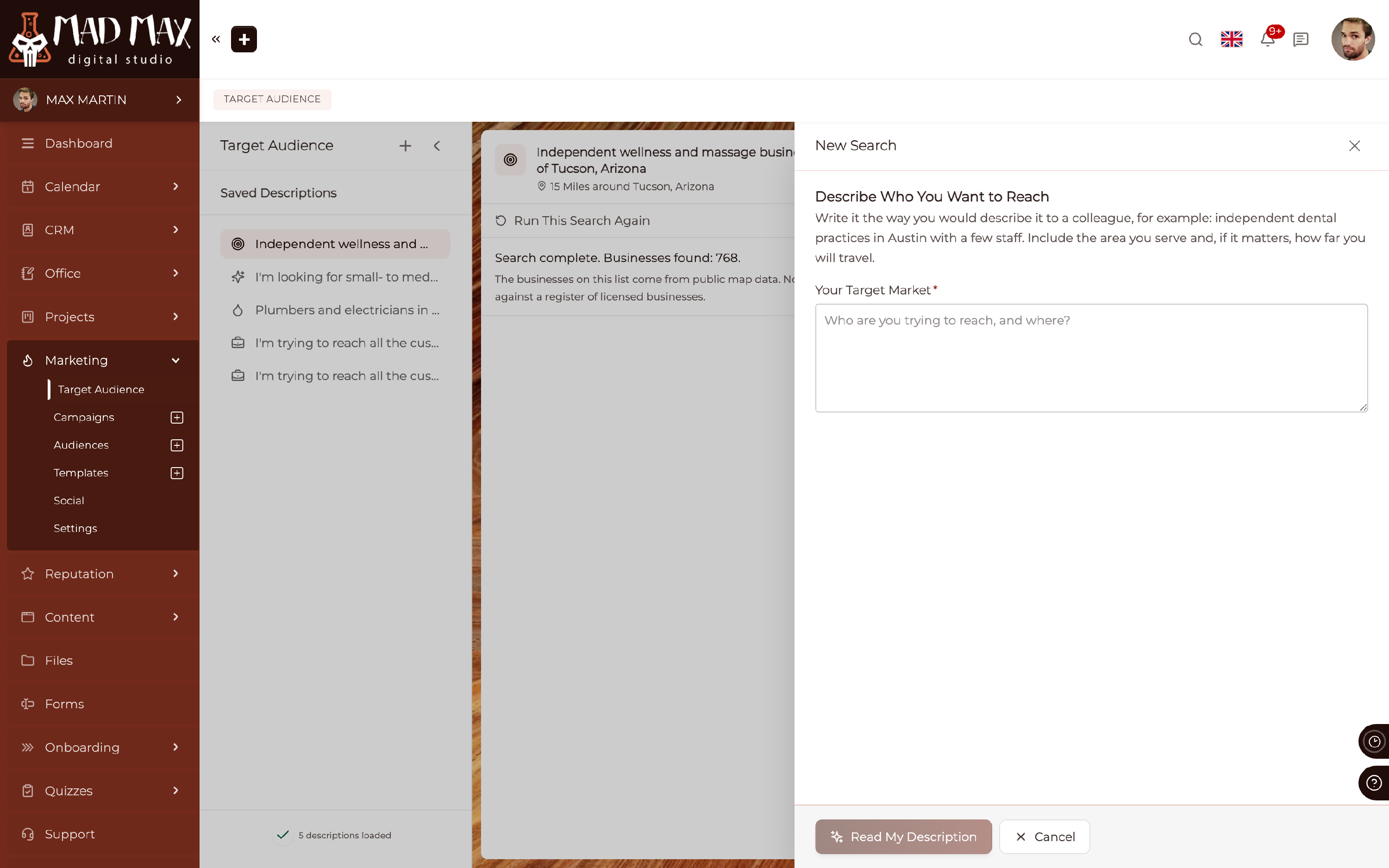
Press Read My Description. Reading it can take up to a minute.
How do I know it understood me?
It shows you, before anything is searched. The Understood From Your Description step repeats your own words back and breaks them into the parts it will act on:
- Kind of Business, in its words.
- Map Categories to Search, as tickboxes. Businesses are found by the category they are listed under on the map, so untick anything that does not fit.
- Size, which reads Any Size when your description did not mention one.
- Area, the city, town or region it settled on.
- Distance, which you can change, in miles or kilometers.
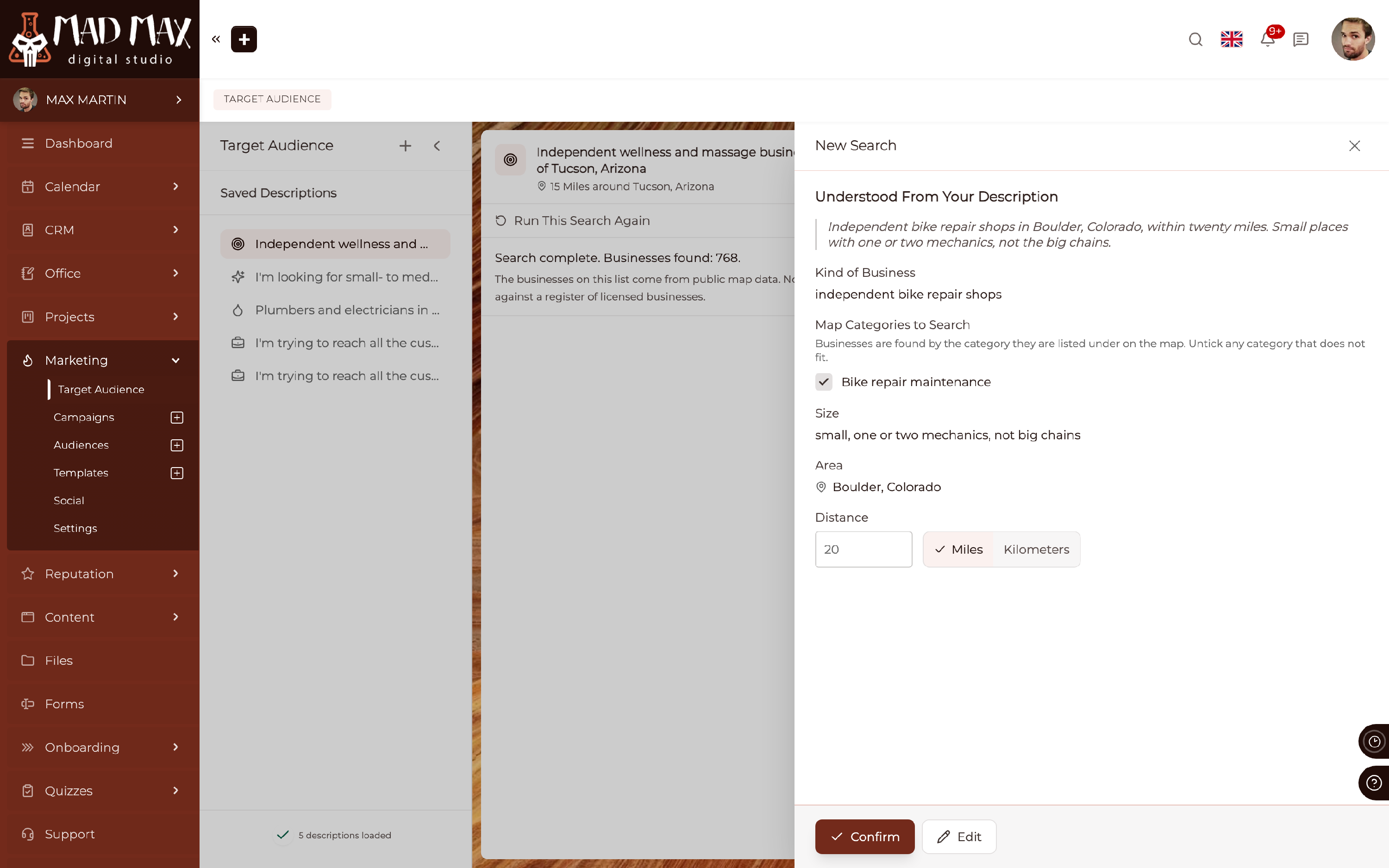
If something is off, press Edit and reword it. If your description did not say what kind of business to look for, or did not say where, it tells you exactly which part is missing rather than guessing. When more than one place shares the name you typed, it asks you which one you mean.
Press Confirm and the description is saved to your account, so you can run it again later without typing it out.
What does a search cost me?
Every business found is then researched with your own A.I. connection, so before you start you are shown what the search will use.
Businesses to Research is yours to set. Choose fewer to use less. The screen then states the estimate plainly: how many businesses will be researched, roughly how many A.I. requests and tokens that is, and a figure it will never go past.
The tokens themselves are paid for separately from the Power-Up, through whichever A.I. route your account uses: the paid A.I. Usage Service, or your own A.I. provider if you have connected one. The estimate is given in requests and tokens rather than in money, because what a token costs depends on that route.
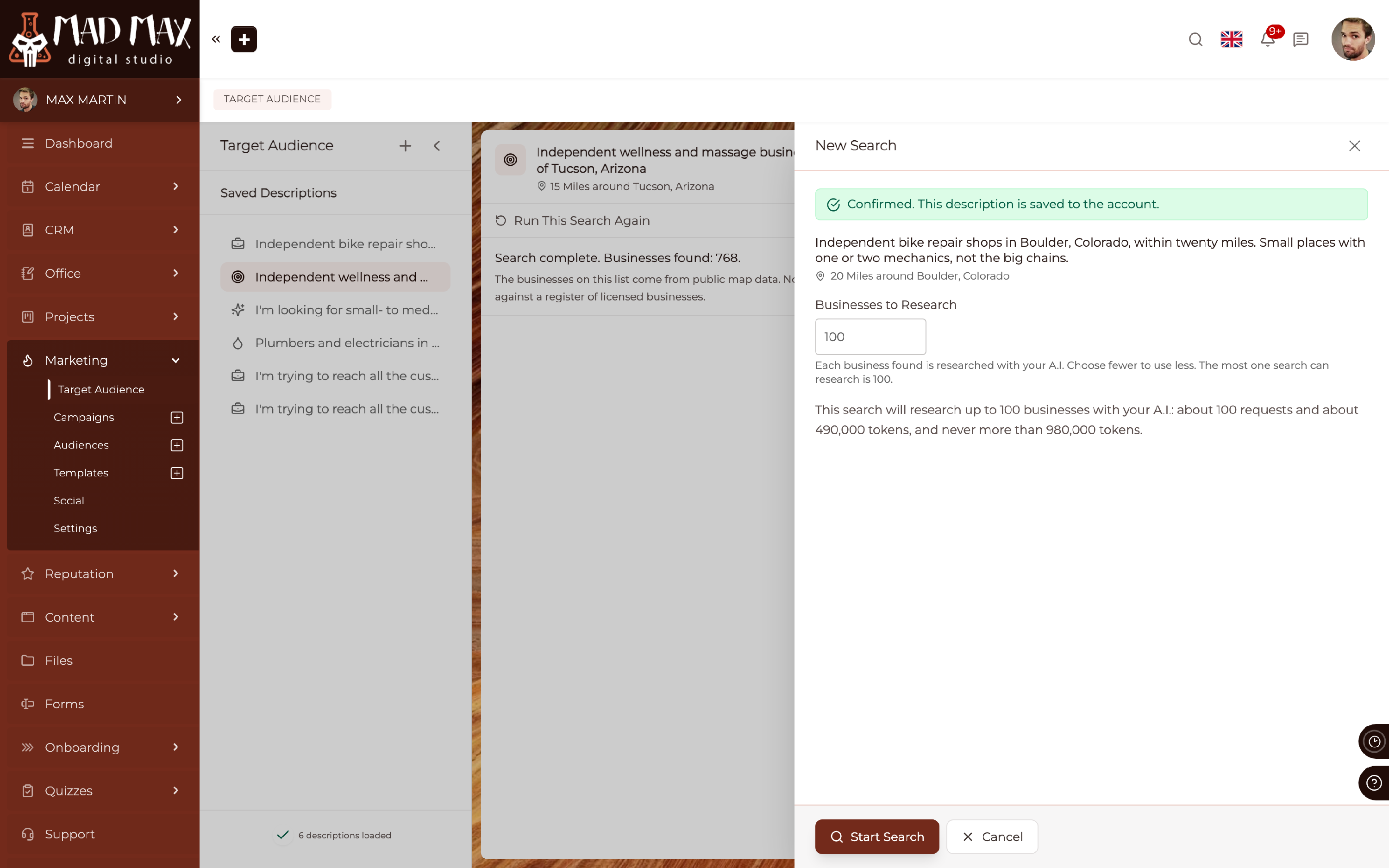
TIP: Nothing is spent until you press Start Search. Reading your description and checking the area cost you almost nothing by comparison; the research is where the work happens.
What happens while it is searching?
The screen tells you which sources it is checking, how many have answered, and how many businesses it has found so far, then switches to counting the businesses it is researching. You can leave the page. The search carries on and the results are waiting for you when you come back.
One search runs at a time per account, and there is a limit on how many you can start in 24 hours. If you reach it, the screen says so and you try again later.
What do the results look like?
A list of the businesses found, with their category and where they are, and for each one a short research write-up: Why It Fits, What It Does and its size. Each row also tells you whether it is Already in Your CRM or Not in CRM yet, so you are not working blind.
A business further down the list than your research limit reached is marked Not researched. It is still there, it was simply not written up.
To turn a business down, press Reject on its row. Changed your mind? Undo brings it straight back. Businesses you turned down on an earlier search are left out of a later one, and the screen says how many that was.
Each row also shows how it relates to your CRM: Not in CRM yet, Possible CRM match, not confirmed, CRM Contact Match, Email Match, or both of the last two.
IMPORTANT: The businesses on the list come from public map data. None of them was checked against a register of licensed businesses. If a licence or a credential matters to you, check it yourself before you approach them.
What if it found too few?
When the result is thin, the screen offers two ways to look wider, and nothing is searched until you start one:
- Reach Further runs the same description over a bigger radius.
- Widen the Trade runs it over related kinds of business.
How do I get them into my CRM?
Tick the businesses you want. To take every business that matches your current filters, not only the ones on this page, press Select All Matching Businesses. Then choose one of two ways in:
- Add to Marketing Audience, the main button, adds them to your CRM and puts the ones with a current email into an Audience in the same step.
- Add to CRM, in the bar's menu, adds them to your CRM only. It is not available while every page is selected.
Either way, each business is saved as a Company at the Lead stage, with the research kept in its Background Info, so whoever picks it up later can read why it was chosen.
There is a cap on how many one search can add, and the counter tells you how many you have selected and how many of that allowance are left.
A few things get adjusted on the way in, and each one is explained on the screen before you commit:
- A business whose email is already in use, shared with another business on the list, or not a valid address, is added without the email and can be reached by phone instead.
- A business whose street address looks like it may be a home has only its town and region stored.
- A name that clashes with a Company you already have is added under a distinguishing name.
CLICK HERE to learn about Companies in your CRM
How do I market to them?
Only a business with a current email can join a marketing Audience. The rest are added to your CRM and wait there until you give them one.
When you choose Add to Marketing Audience, you pick the Audience they join, or choose Add New Audience to name a new one without leaving the page. A business with no email yet is added to your CRM only; its research write-up offers Add a Temporary Email, which opens the Company so you can give it one. Once it has an email, add it to the Audience from the Audience itself.
To see which businesses can join, filter the list by Current CRM Email: Has Current Email, No Current Email or Current Email Unknown. It looks at the email the CRM Company has right now.
When the adding finishes, View Add Result shows what happened to each business: Joined the Audience, Already in the Audience, or No Email Yet, Added to Your CRM Only. Open Audience takes you to the Audience, and Show Them lists the businesses that went to your CRM only, so you can give them an email.
If a researched business looks like a Company you already have, you are not allowed to guess. The screen shows you the Proposed CRM Match beside the researched business so you can compare them, and nothing joins the Audience until you press Confirm Same Business. You can also choose a different Company or leave it unresolved for now.
IMPORTANT: New eligible members start the Audience's active Drip. Check which Drip is running before you add a batch, or your new Leads will begin receiving it straight away.
CLICK HERE to learn about Audiences
CLICK HERE to learn about Drip Sequences
Can I run the same search again later?
Yes. Every description you confirm is kept under Saved Descriptions, with the area and radius beside it and the date it last ran. Open one and press Run This Search Again. Your most recent descriptions are listed; you never have to type one twice.
Can I delete a description I never searched?
Yes. If you saved a description and then changed your mind before pressing Start Search, open it under Saved Descriptions. A description that was never run says This description has not been searched yet. with a Delete button beside it.
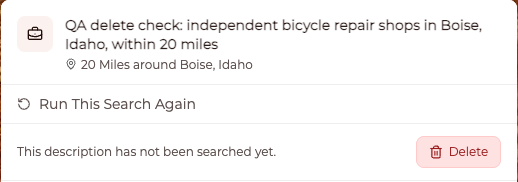
Press Delete. The Delete This Description? window shows the description and warns that it will be removed from your list and that this cannot be undone. Press Delete Description to remove it, or Cancel to keep it. The next saved description then opens, or the New Search step if you have none left.
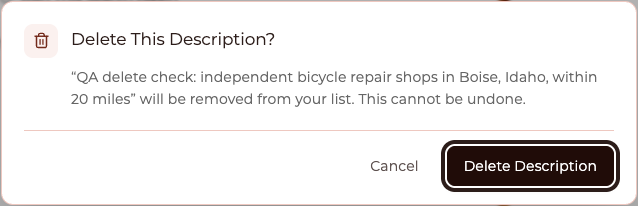
IMPORTANT: Only a description that has never been searched can be deleted, and only by a Super Admin or an Admin. Once a search has run, the description is kept along with its results. If a search starts while you are deleting, you see This description has now been searched, so it can no longer be deleted.
Where does the data come from?
Business details come from the Overture Maps Foundation, shared under CDLA-Permissive-2.0. Place names come from GeoNames. The attribution travels with the data: it is shown on the results and it is written into the Background Info of every Lead that is added, so a Company record in your CRM always says where its details came from.
Good to know
- Target Audience never adds anything to your CRM on its own. Searching and researching change nothing; only Add to Marketing Audience or Add to CRM does. From there on, a business you added is an ordinary Lead and your normal marketing rules apply to it.
- If your A.I. connection is unavailable, the screen says so and points an account administrator at the A.I. settings. Nothing is lost.
- If the Power-Up is paused for maintenance, your purchase, your saved descriptions and the Leads already in your CRM are unaffected.
- Give a saved description its own picture so the list is easy to scan.