
OFFICE: Portal Bank for Clients
What is Portal Bank?
Portal Bank lets you sell hours, session credits or money up front, and gives each Client a place in their own Portal to see exactly what they have left. The work you do then draws it down by itself: time your team bills takes hours off, a covered booking takes a session credit, and your Client can choose to pay an Invoice from their credit.
Each Client can hold up to three separate balances, each with its own history:
- Hours: prepaid time, counted to the hundredth of an hour.
- Appointments: session credits, counted in whole sessions.
- Credit: money held on account, in your account's currency.
Nothing ever converts from one balance into another. Every change is a new line in the history, so a balance always adds up to its history. Entries are never edited or deleted. A mistake is put right with Reverse, which adds the opposite entry beside the original and leaves both on the record.
Portal Bank is the Portal Bank Balance Power-Up. It is not the same thing as your own account's PortalBank wallet, which is how you pay for your own services.
CLICK HERE to learn about Power-Ups
CLICK HERE to learn about your own account's PortalBank wallet
Where do I find Portal Bank?
- Office > Balances lists every Client in your account who holds a balance.
- The Balances tab on a Contact or Company record, right after Payments, shows that one Client's balances and their whole history.
- Office > Settings > Portal Bank holds Hour Classes, Appointment Classes and Settings.
- Your Clients see a Portal Bank tab in My Account, after their other My Account tabs, from the moment they receive their first entry.
Staff who are allowed to see a Client's Payments can see that Client's Balances. The Office > Balances list has a permission of its own, so you can leave a role its Payments and still keep the account-wide list from it. Any staff member can read the Portal Bank settings; only the account owner and admins can change the classes and the settings.
How do I sell hours, sessions or credit?
There is nothing to buy inside Portal Bank itself. You sell hours, sessions or credit as an ordinary Item, Add-on or Package, at whatever price you like, through any Invoice, checkout page or offer you already use. What fills the balance is an automation that runs when the Invoice is paid.
- Open the Item, Add-on or Package you want to sell, for example a "20 Hour Block".
- In the automations that run when its Invoice is paid, add Adjust Contact Balance.
- Add a row for each balance it should fill. Choose the balance (Credit, Hours for any staff or for one Hour Class, or an Appointment Class), choose Add, Subtract or Set to, and enter the amount.
- Optionally write a Note the Client Sees and an Internal Note that only your team sees.
- Save. The row then tells you in plain words what paying for it will add, and the Item wears a Portal Bank badge in your lists.
When the Invoice is paid, each row is credited once, multiplied by the quantity bought, to the Client the Invoice belongs to. If your team recorded the payment rather than the Client paying it, the Invoice's first assigned Client receives it. The same action works for a Lead or a Prospect, not only a Client.
CLICK HERE to learn about Items, Add-ons and Packages
CLICK HERE to learn about Automations
TIP: Adjust Contact Balance is not only for Invoices. Put it on a Schedule to set a monthly retainer back to 10 hours on the first of every month, or on a Form so that finishing it tops someone up.
IMPORTANT: Deleting or voiding the Invoice afterwards does not take the balance back. Selling is one event and the balance is another, so if a sale falls through, subtract the amount by hand.
What happens when my team bills time?
Prepaid hours are taken automatically to begin with. When your team bills time for a Client who holds hours, the hours come off in the same step.
- Each covered line is priced at 0.00 and marked Covered by Portal Bank Balance, with an Hours Covered by Portal Bank Balance row above the Subtotal.
- An Invoice made up only of covered time is settled the moment it is issued, and no receipt email goes out.
- If the time billed is more than what is left, it is still covered in full and the balance goes below zero. Your team is never stopped from billing, and the staff who log time never see a balance at all.
- Deleting or voiding a covered Invoice, or removing a covered line from one, gives the hours straight back.
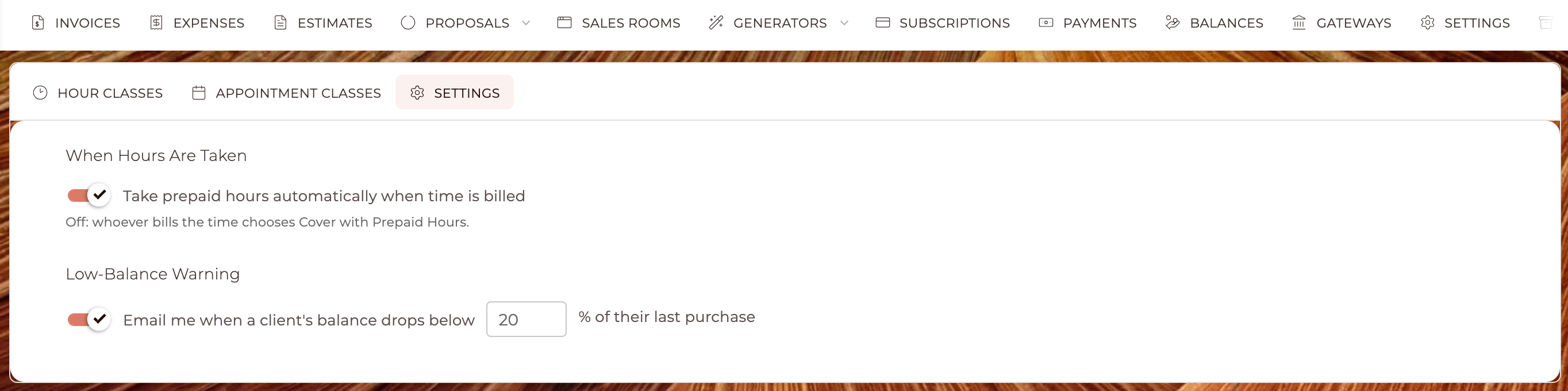
Would you rather decide case by case? In Office > Settings > Portal Bank > Settings, switch off Take prepaid hours automatically when time is billed. Whoever bills the time then sees Cover with Prepaid Hours as a choice in the Invoice sheet whenever the Client holds hours that could be used.
CLICK HERE to learn about Allocating Timers
What are Hour Classes and Appointment Classes?
Classes are optional. Use them when you price the work differently depending on who does it, or on what kind of session it is.
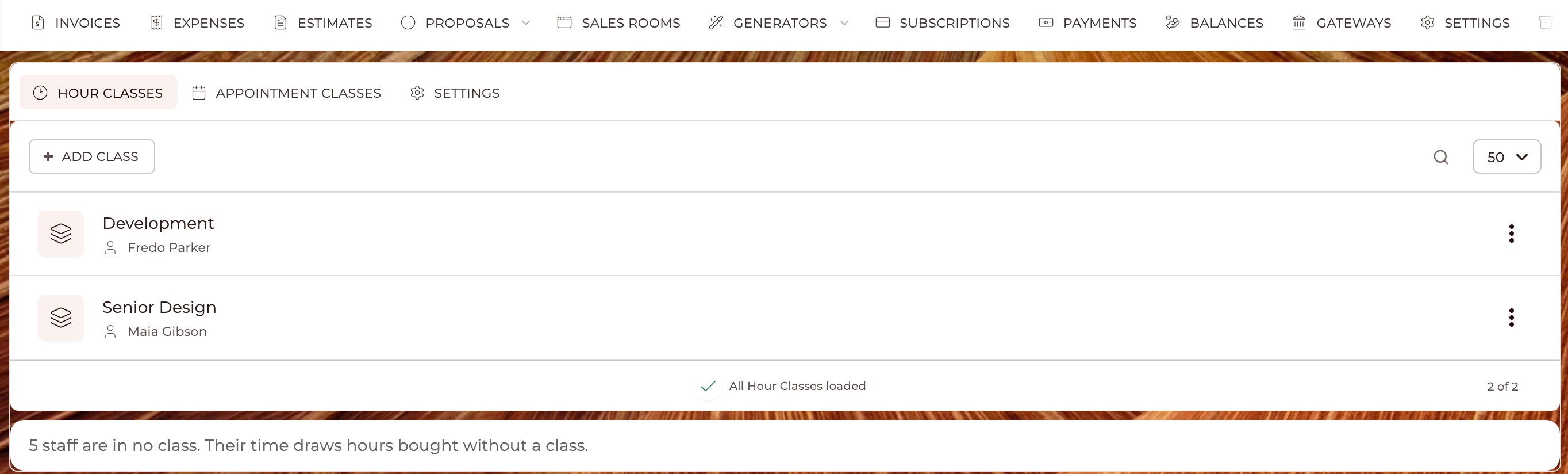
- Hour Classes group your staff, for example Senior Design and Development. Hours bought for a class are only ever used by that class's time, while hours bought for any staff cover anyone. Billed time draws the person's own class hours first and falls back to the hours bought for any staff. Each staff member belongs to at most one class, and moving someone into a different class never changes time that was already billed.
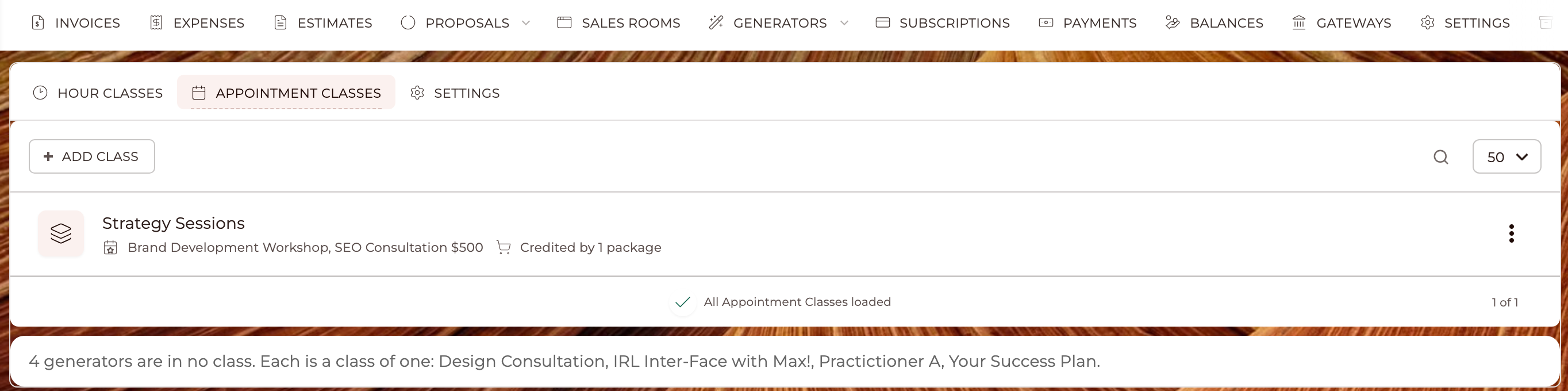
- Appointment Classes group your booking generators. A credit for a class books any generator inside it. A generator that is in no class is a class of its own.
The Hour Classes screen tells you how many staff are in no class at all, so you can see at a glance whose time will draw the unclassed hours.
The Appointment Classes tab works the same way, and tells you which booking generators are in no class.
A class cannot be deleted while a Client holds a balance in it or an Item credits it. The message that stops you offers View Clients, so you can go and look at who holds it.
CLICK HERE to learn about Appointment Generators
How does a Client pay an Invoice with their credit?
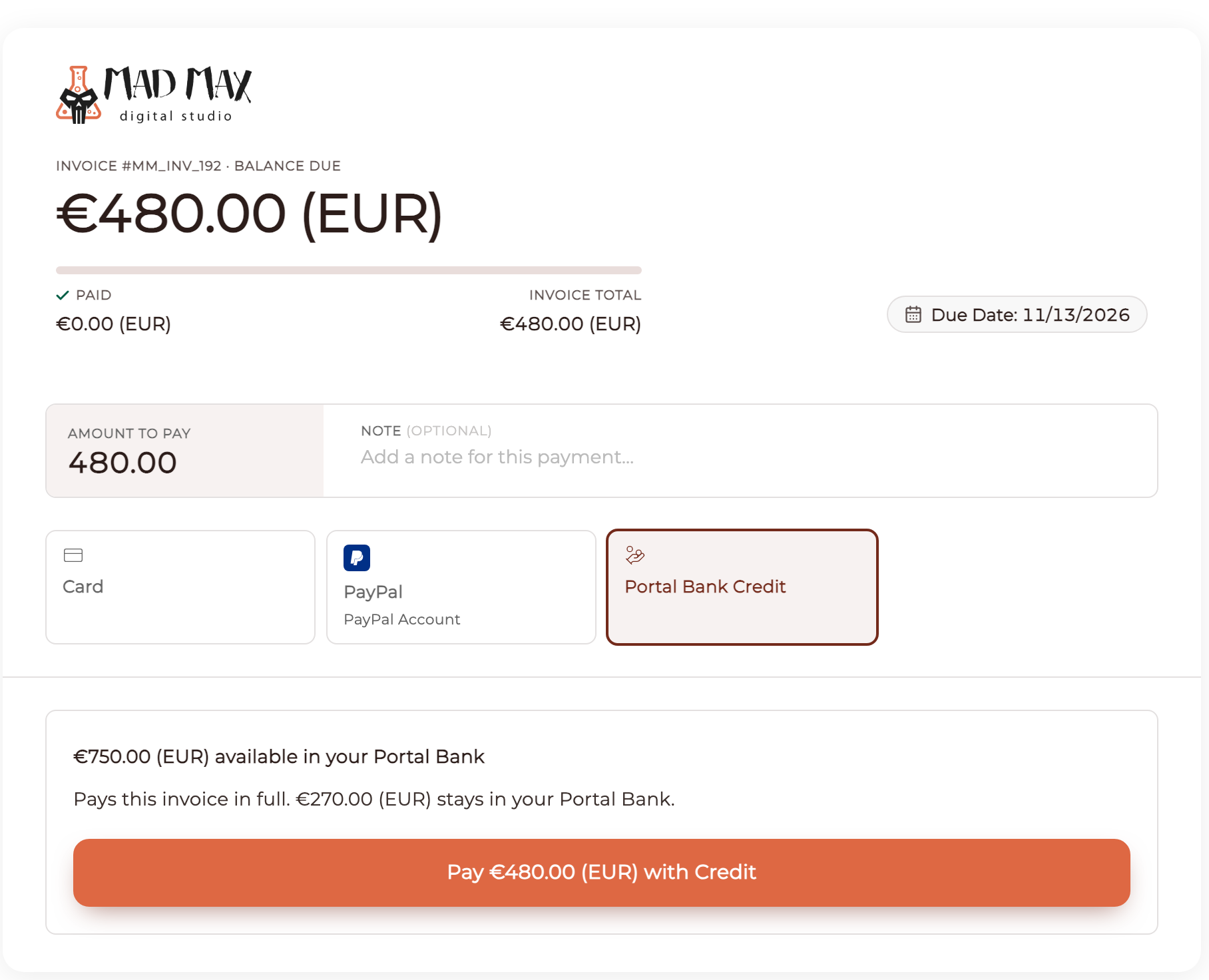
When a Client holds credit and opens an Invoice assigned to them, the checkout offers Portal Bank Credit alongside your Payment Gateways. The tile shows how much is available and what it will do:
- If the credit covers the whole Invoice, it pays it in full and tells them what will be left over.
- If the Invoice allows partial payments, the credit pays what it can and your Client pays the rest with a method they choose next. The tile warns them that if that second payment is declined, the part their credit paid stays applied to the Invoice.
- If the Invoice has to be paid in full and the credit is not enough, the tile says so and asks them to choose another way to pay.
Voiding or deleting an Invoice that was paid with credit returns the credit. A few Invoices are never offered the credit tile: one in a currency other than your account's own, one carrying recurring Items, because a Subscription renews against a stored payment method and credit is not one, and an Invoice being paid in installments. The tile is also only shown to a Client who is signed in, so a payment link opened by someone who is not logged in shows your Gateways alone.
CLICK HERE to learn about Payment Gateways
How does a Client book a covered appointment?
When a Client holds session credits for a paid booking generator, that generator is offered to them with no payment step at all. In place of the usual price, the slot says what it would have cost and that it is not charged, and tells them how many of that class they will have left after this one.
One booking takes one credit. Cancelling before the session was due to start gives the credit back; cancelling afterwards does not. Rescheduling keeps the same credit and moves it to the new time, as long as the new session draws on the same credits. If it does not, your Client is told the booking can only move to a session their balance covers.
How do I change a balance by hand?
Staff who are allowed to record payments can open a Client's Balances and add an entry. Choose the balance, choose Add, Subtract or Set to, and enter the amount. Add and Subtract change the balance by what you type; Set To replaces it with that number. A live New balance line shows you the result before you save.
You can write a note your Client sees and an internal note only your team sees. Your Clients see hand entries as "Added by" your company name; your team sees which staff member made them.
To undo an entry, open its row menu and choose Reverse. Each entry can be reversed once, and a reversal cannot itself be reversed. Both lines stay in the history for good.
How do I know when a balance is running low?
When a balance falls to a share of its last top-up, the account owner gets one email naming the Client and what is left. The share is 20 percent to begin with and can be anything from 1 to 99. You will not be emailed again about that balance until it is topped back up above the level. Your Client is never told.
A top-up is what that Client last bought, what your team last added by hand, or what a Schedule or other automation running Adjust Contact Balance last added. A Set to counts as a top-up only when it raises the balance above zero, so setting a balance to 0 never moves the warning level. A top-up that was later reversed no longer counts.
Change the percentage, or switch the warning off, with Email me when a client's balance drops below in Office > Settings > Portal Bank > Settings. The wording of the email is yours to edit: look for Portal Bank Low Balance (to Account Owner) under Invoices on your Email Templates page.
In Office > Balances, a Client at the warning level wears a Low Balance badge, and a Client below zero wears a Below Zero badge, so you can see who needs topping up without reading a single number.
CLICK HERE to learn about Email Templates
What do my Clients see?
A Portal Bank tab appears in My Account as soon as your Client receives their first entry, and not before. It shows each balance they hold and the history behind it, in plain words: what was bought, what was used, and what is left.
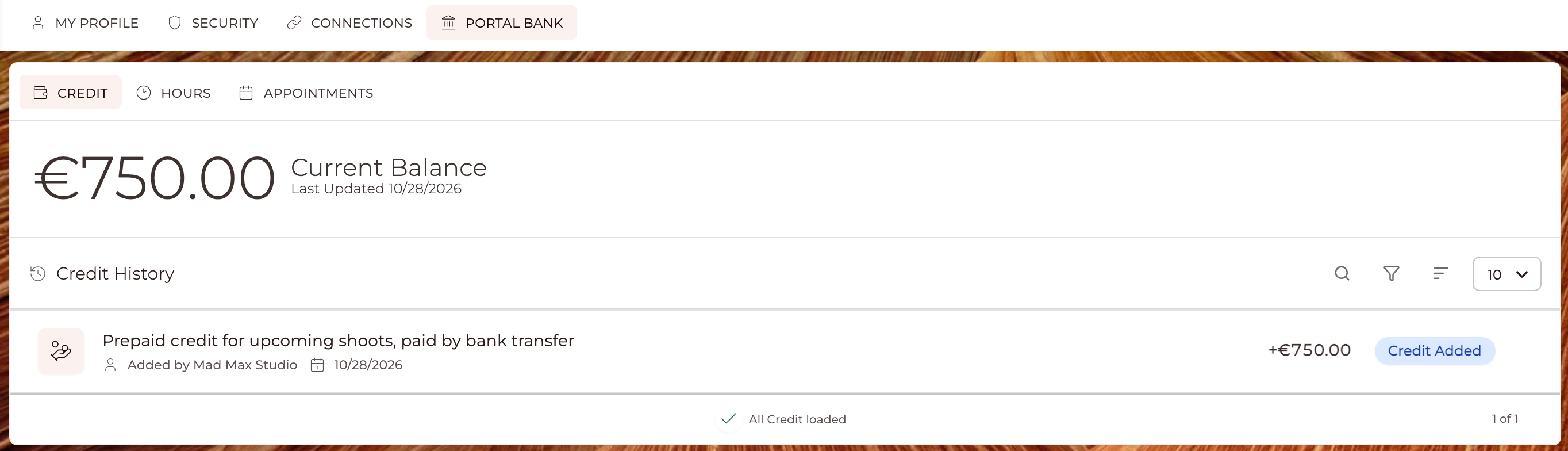
Your Clients cannot buy anything inside Portal Bank, cannot change a balance, and never see your internal notes or your low balance warnings. A balance belongs to whoever the Invoices go to, so a person who also acts for a Company sees the Portal Bank of whichever of the two they are signed in as, never both at once.
What happens if I cancel the Power-Up?
Before anything is cancelled, a warning tells you how many Clients hold a balance and which of your Items credit one.
Cancelling never takes back what your Clients already bought. Their balances carry on covering time, paying Invoices and booking sessions until they are used up, and Invoices you issued before you cancelled still credit when they are paid. What changes is that new Invoices stop crediting, your classes and settings become read-only, and your team can only subtract or reverse entries, never add. Buying the Power-Up again puts everything back as it was.
Good to know
- Credit payments reach QuickBooks as payments under the method Portal Bank Credit.
- Every night each balance is checked against its own history. One that no longer adds up is flagged Needs Review for your team, and nothing is changed automatically.
- Hours are held to the hundredth of an hour, credit to the cent, and sessions in whole numbers.
CLICK HERE to learn about the QuickBooks Online Integration